What Is PC Bottlenecking? A Beginner’s Guide
PC bottlenecking is a topic that confuses a lot of new computer users, and that confusion is completely understandable. Have you ever noticed your game running slowly, even though you were told your computer was “powerful enough”? If so, you may have already run into a bottleneck without knowing it.
Many beginners see low speed or stuttering and instantly blame one single part, usually the graphics card. But the real story is often more complicated than that. Your computer is not just one part working alone. It is a team of parts working together, and sometimes, one team member cannot keep up with the rest.
In this guide, we will explain PC bottlenecking in the simplest way possible. You will learn what it means, why it happens, how to spot it, and what steps you can take before spending money on new hardware.
What Does PC Bottlenecking Actually Mean?
Picture a real glass bottle. The bottom is wide, but the neck near the top is narrow. When you try to pour liquid out quickly, the narrow neck slows everything down, no matter how much liquid is waiting at the bottom.
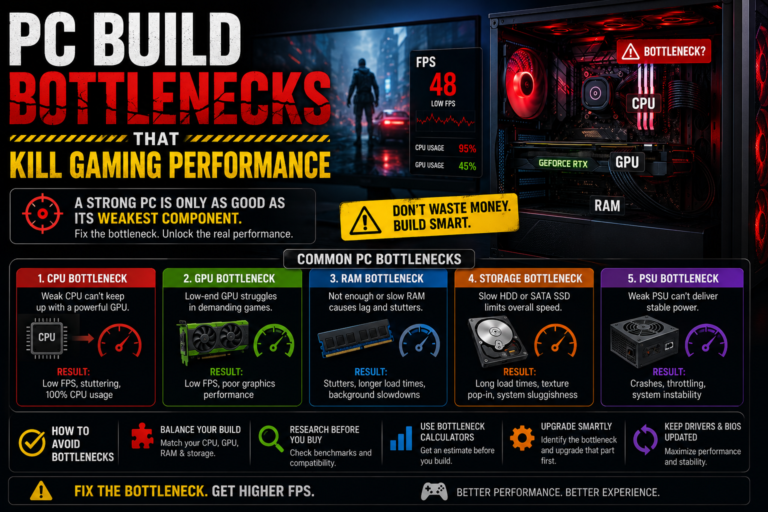
Your computer works in a similar way. It has several important parts, like the processor, the graphics card, the memory, and the storage drive. If one of these parts is much slower than the others, it acts like that narrow bottle neck. It limits how fast your whole system can perform, even if every other part is fast and expensive.
This is where the term “bottlenecking” comes from. One slower part becomes the limit for the entire system, holding back everything else, no matter how strong those other parts are.
Does a Bottleneck Mean Your Computer Is Broken?
No, and this is one of the biggest misunderstandings beginners have. A bottleneck does not mean your computer is broken or defective in any way.
Every single computer in the world has some kind of bottleneck. This is simply because no two parts are ever perfectly matched in speed for every single task. What changes from computer to computer is how big or noticeable that bottleneck actually is.
A bottleneck only becomes a real problem when it causes issues you can actually notice, like choppy gameplay, slow loading, or a system that feels sluggish and unresponsive during everyday use.
The Main Parts That Can Cause a Bottleneck
Let’s walk through the different parts of your computer that can become the limiting factor, one at a time.
The Processor
The processor, often shortened to CPU, is like the brain of your computer. It handles logic, calculations, and instructions for almost everything happening on your screen.
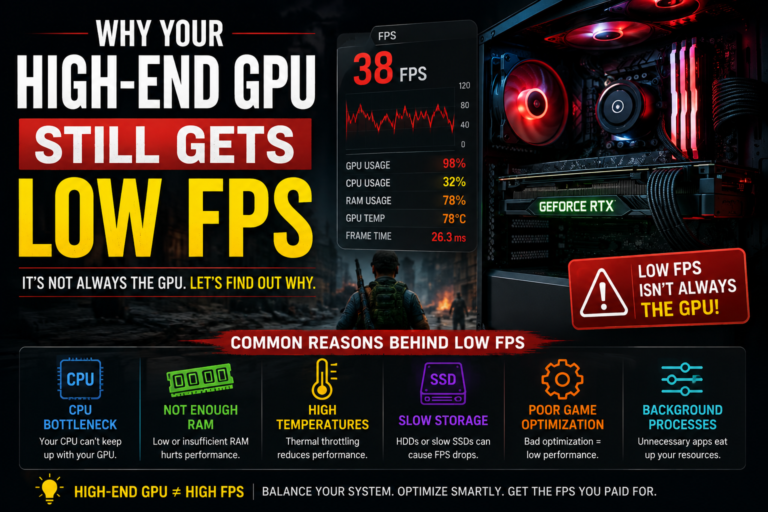
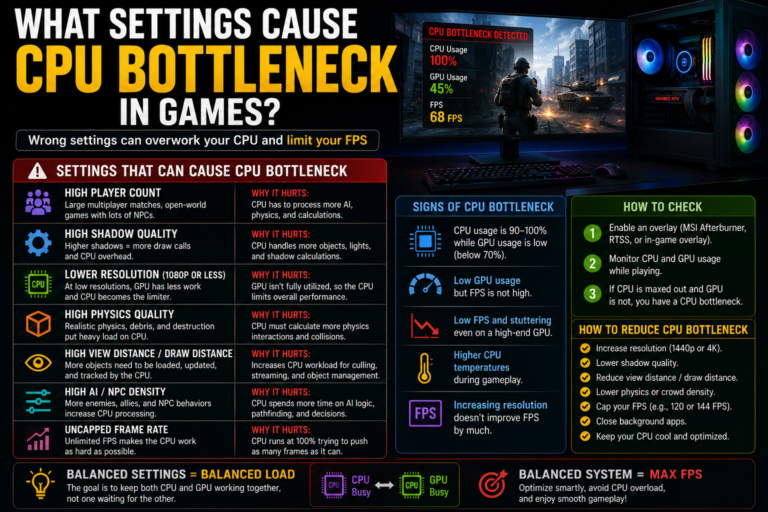
When the processor cannot keep up, especially during busy moments in a game, like a crowded scene or a fast-paced battle, your frame rate can drop, even if your graphics card is not working very hard at all.
The Graphics Card
The graphics card, often shortened to GPU, is in charge of turning information into the images and visuals you actually see. When the graphics card is working at its full capacity, it becomes the limiting factor instead.
This type of bottleneck is very common when playing games at higher screen resolutions, since higher resolutions require the graphics card to do much more visual work.
Memory
Memory, often called RAM, temporarily stores information for programs that are currently running. If your computer does not have enough memory, or if programs are using more memory than is available, your system can slow down, stutter, or even close programs unexpectedly.
Storage Drives
Your storage drive holds all your files, games, and programs. If this drive is slow, you may notice long loading screens, images that take a moment to fully appear, or brief freezes when moving between different areas in a game.
Older, spinning hard drives are usually much slower than newer solid-state drives, which is why upgrading storage type alone can sometimes make a noticeable difference.
Heat and Power
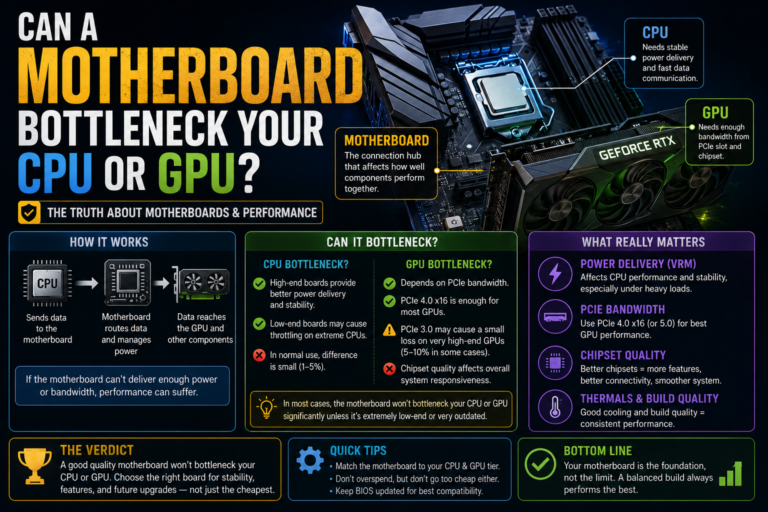
Sometimes, a part of your computer is actually fast and capable, but it is being forced to slow itself down. This usually happens because of too much heat, or not enough stable power being delivered to the part.
When a processor or graphics card gets too hot, it automatically reduces its own speed to protect itself from damage. This can create a bottleneck that has nothing to do with the actual power of the hardware itself.
Your Monitor
It is easy to forget that your monitor can also be a limiting factor. If your monitor can only display a certain number of frames per second, your computer may be capable of producing far more frames than your screen can actually show you.
In this case, upgrading your computer’s internal parts will not help, since the true limit is coming from the screen itself.
Why Bottlenecks Are Not Always the Same
One important thing beginners often do not realize is that a bottleneck is not fixed in place. It can change depending on what you are doing with your computer at any given moment.
Playing a fast, competitive game at a lower resolution often puts more pressure on your processor. Playing a visually detailed game at a very high resolution often puts more pressure on your graphics card instead. Streaming while gaming at the same time can add extra pressure onto both your processor and your memory.
This means the same computer can have a completely different bottleneck depending on the game, the settings, and the tasks being run at that moment.
How to Actually Check for a Bottleneck
The good news is that you do not need to guess. There are simple, reliable steps you can follow to check exactly what is happening inside your computer.
Step One: Open a Monitoring Tool
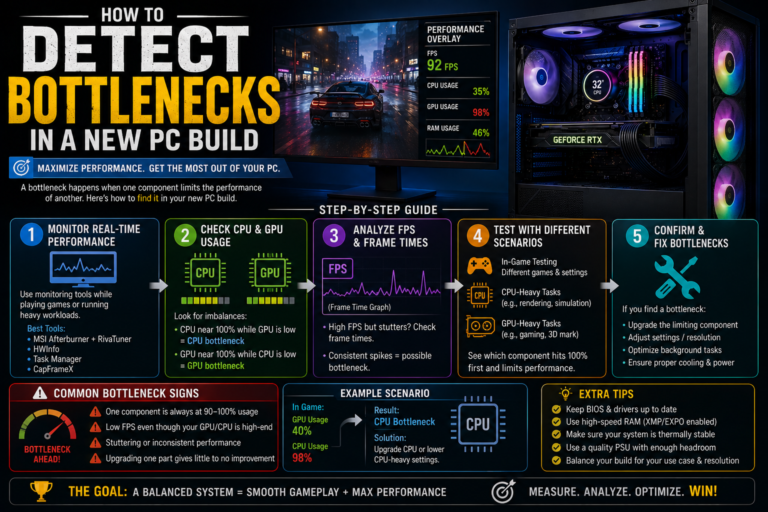
Many free tools allow you to see how hard each part of your computer is working in real time. These tools typically show your processor usage, your graphics card usage, your memory usage, and your current frame rate, all at the same time.
Step Two: Run a Real Task
Open a game or program that you normally use, and let it run for several minutes. It is important to watch the overall pattern of usage, not just one single moment, since usage numbers can jump around quickly.
Step Three: Read the Results
Once you have watched your usage for a while, you can start to understand what is happening.
If your processor usage stays very high while your graphics card usage stays much lower, your processor is likely the limiting part. If your graphics card usage stays near its maximum while your processor usage is lower, your graphics card is likely the limiting part instead.
If your memory usage is almost completely full, or if your storage drive shows heavy activity during moments of stuttering, those parts may be contributing to the slowdown as well.
Simple Fixes to Try Before Upgrading
Before spending money on new hardware, there are several free or low-cost steps worth trying first.
If your processor seems to be the limiting part, try closing background programs, disabling extra overlays, and checking your temperatures to make sure overheating is not part of the problem.
If your graphics card seems to be the limiting part, try lowering your resolution slightly, reducing certain visual effects, or updating your graphics drivers to the newest version available.
If memory seems to be the issue, try closing extra browser tabs and unused programs running in the background, since these can quietly use up memory without you realizing it.
If your storage drive seems to be causing slow loading, moving your most-used programs and games to a faster drive, if you have one available, can make a real difference.
If heat seems to be part of the problem, simply cleaning dust out of your computer and improving airflow around it can sometimes solve the issue completely, without spending any money at all.
Are Bottleneck Calculators Helpful?
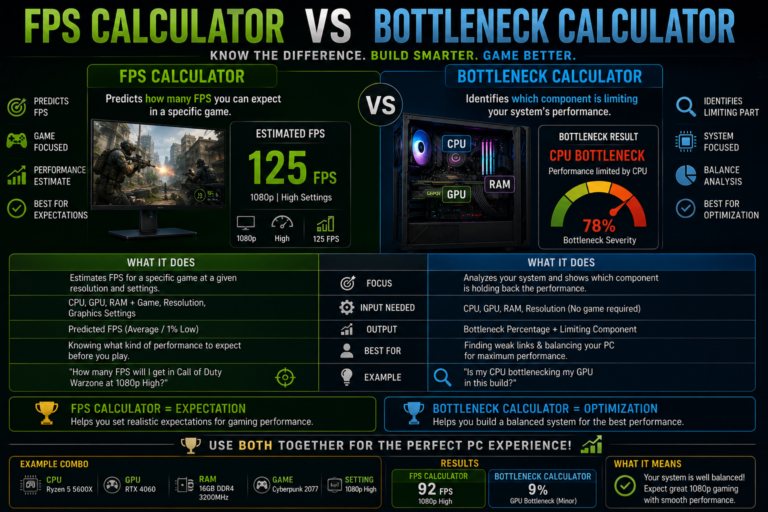
Online bottleneck calculators are tools that try to estimate whether two hardware parts are well matched. These tools can be a helpful starting point, especially for beginners who are still learning.
However, it is important to understand that these calculators only give estimates. They do not know your exact games, your specific settings, your system’s temperatures, or what programs are running in the background on your particular computer.
For this reason, it is always best to use a calculator as a rough guide, and then confirm the real answer using actual usage monitoring on your own system.
Common Myths About PC Bottlenecking
There are a few common misunderstandings that trip up many beginners.
Some people believe that having any bottleneck at all is a bad thing. In reality, every computer has one, and that alone is not a problem.
Some people believe that seeing 100% processor usage always means a bottleneck. In reality, some programs are only designed to use a few processor cores at a time, so high usage on those specific cores does not always tell the whole story.
Some people believe that only the processor and graphics card matter. In reality, memory, storage, and cooling all play an important role in your overall performance too.
Putting It All Together
Understanding PC bottlenecking really comes down to one simple idea: your computer performs as well as its most limited part allows, for whatever task you are currently doing. This does not mean your computer is broken. It simply means that one part is working harder, or reaching its limit, faster than the others.
Once you understand this idea, you can stop guessing and start actually checking. You can look at real usage numbers, test different settings, and make smarter, more confident decisions about what to fix and what to upgrade.
Final Thoughts
PC bottlenecking is not something to be afraid of. It is simply a normal part of how every computer works, since no two parts are ever perfectly balanced for every single task. The real goal is not to eliminate every bottleneck completely, but to understand where your bottleneck is happening and whether it is actually affecting the way you use your computer.
By learning to check your usage, test your settings, and try simple fixes first, you can save money, avoid unnecessary upgrades, and truly understand what is happening inside your own system. That knowledge is the real first step toward a smoother, more reliable computer experience.