PC Bottleneck: How to Know If Your Computer Is Slowing Itself Down
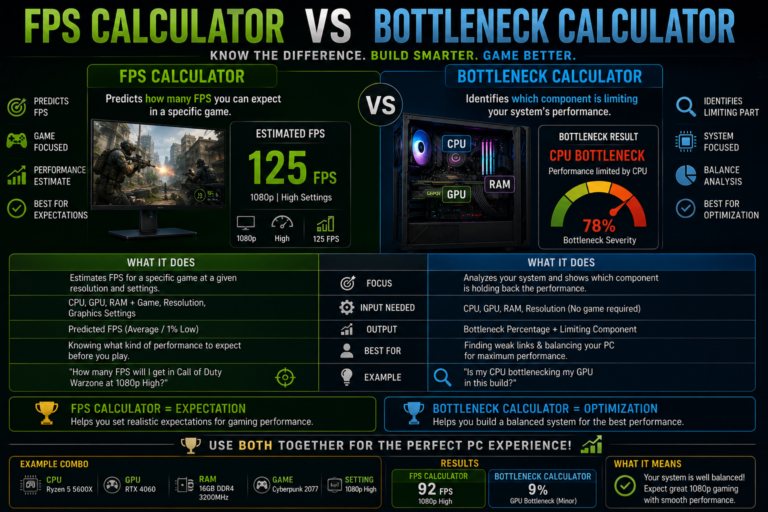
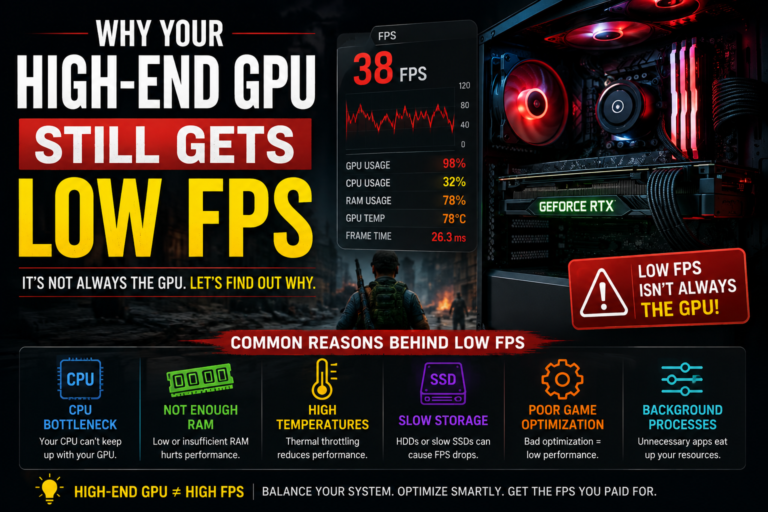
A PC bottleneck happens when one part of your computer holds back the rest of the system. Have you ever bought a fast new graphics card, hoping for better game performance, only to find your frame rate barely changed? That confusing problem is often caused by a bottleneck.
Many people guess which part is causing the slowdown. They blame the graphics card, or they blame the processor, without any real proof. This kind of guessing can lead to spending money on the wrong upgrade, which does not actually fix the problem.
In this guide, we will explain what a PC bottleneck is, how to find the real cause using simple tests, and how to fix it. We will keep everything easy to understand, step by step.
What Is a PC Bottleneck?
Think about a real bottle. The wide bottom can hold a lot of liquid, but the narrow neck only lets a small amount pour out at a time. A computer works in a similar way.
Your computer has many parts working together, like the processor, the graphics card, the memory, and the storage drive. If one of these parts is much slower than the others, it becomes like that narrow bottle neck. It holds back the speed of the whole system, even if every other part is fast and powerful.
A bottleneck is not something broken. It simply means your computer’s parts are not working together in a balanced way for the task you are asking it to do.
The Two Main Parts Involved in Most Bottlenecks
Two parts of your computer usually work closely together during games and heavy programs: the processor and the graphics card.
The processor, often called the CPU, prepares information and gives instructions. The graphics card, often called the GPU, takes those instructions and turns them into the images you see on your screen.
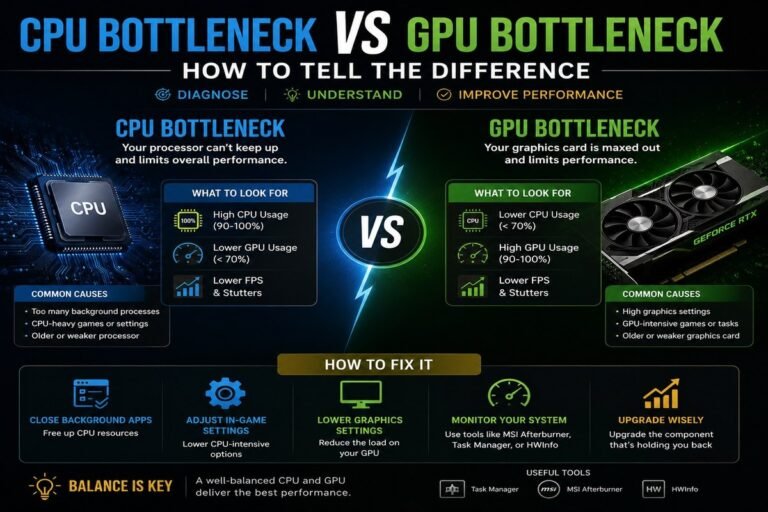
If the CPU cannot prepare information fast enough, the GPU has nothing to do. It sits and waits. This waiting is what causes low frame rates and stuttering, even if you have a very powerful graphics card.
Common Signs You May Have a Bottleneck
There are a few clear signs that can point to a bottleneck in your system.
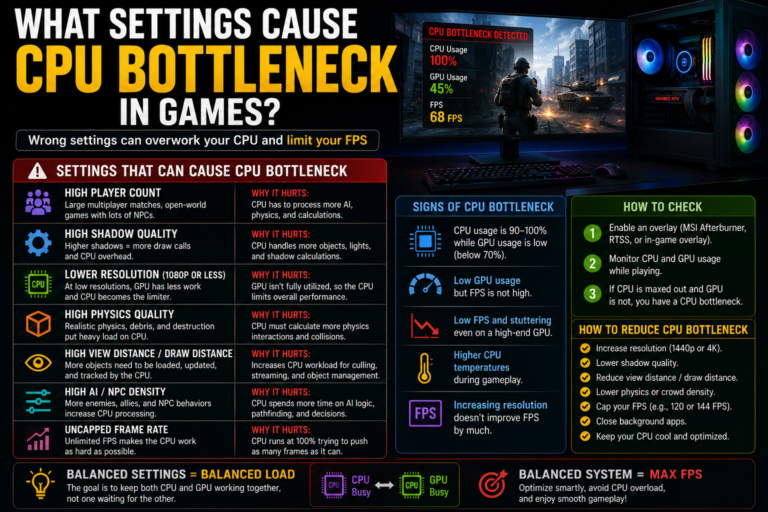
- Your frame rate stays low, even with a strong graphics card
- Lowering your game’s graphics settings does not improve your speed
- Your graphics card usage stays low during gameplay
- Your processor usage stays very high during gameplay
One of these signs alone does not always mean a bottleneck. But if you notice several of these signs happening together, and happening often, it is a strong clue that something is holding your system back.
Other Parts That Can Cause a Slowdown
While the processor and graphics card are the most common causes, other parts of your computer can also create bottlenecks.
Storage drives. Older, slower storage drives can cause long loading times and sudden freezes, especially in large games. Newer, faster storage drives reduce these problems.
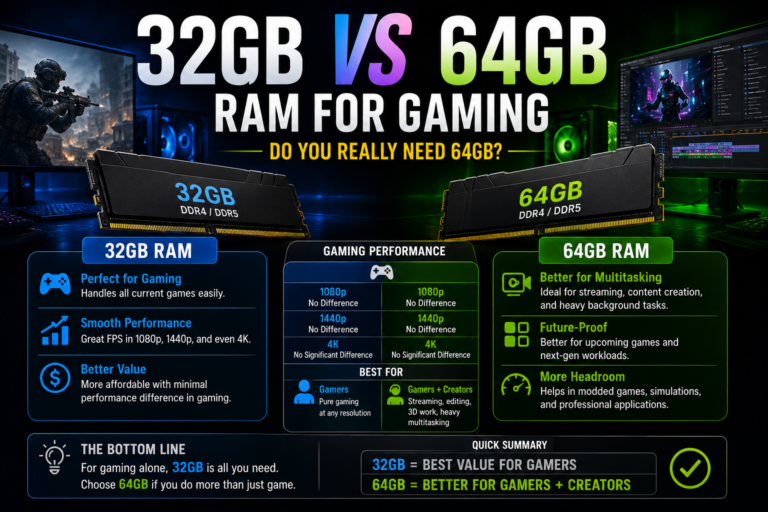
Memory. Your computer’s memory helps move information quickly between parts. If you do not have enough memory, or if it runs slower than it should, your whole system can feel sluggish.
Cooling. If your processor gets too hot, it may automatically slow itself down to protect itself. This is called thermal throttling, and it can create a bottleneck that has nothing to do with the actual power of your processor.
How to Check for a Bottleneck the Right Way
Instead of guessing, you can use a few simple, reliable steps to actually check what is happening inside your computer.
Step 1: Watch Your Usage While Gaming
Most computers let you see how hard each part is working in real time. Open a monitoring tool, start a game you often play, and watch the usage numbers for a while.
If your processor usage stays very high, close to its limit, while your graphics card usage stays much lower, this is a strong sign that your processor is the part holding your system back.
Step 2: Try the Resolution Test
This is one of the most reliable ways to confirm a bottleneck without guessing.
First, play your game at a lower screen resolution and note your frame rate. Then, play the same game at a higher screen resolution and check your frame rate again.
- If your frame rate stays almost the same at both resolutions, your processor is likely the bottleneck.
- If your frame rate drops a lot at the higher resolution, your graphics card is working at its limit instead.
This test works because a higher resolution puts more of the workload onto the graphics card, which helps reveal where the real limit is happening.
Step 3: Close Background Programs First
Before blaming your hardware, always test with a clean system. Close extra browser tabs, recording software, and any other programs running in the background. Sometimes, a slowdown that looks like a hardware bottleneck is actually caused by too many programs running at once.
What a Balanced System Looks Like
In a well-balanced computer, your processor and graphics card work together smoothly. The processor sends information quickly, and the graphics card stays busy turning that information into images almost the entire time.
In a bottlenecked system, this smooth teamwork breaks down. The processor cannot keep up, so information builds up and arrives late. The graphics card, ready and waiting, sits idle more often than it should, which lowers your overall performance.
Comparing Common Hardware Pairings
Understanding how different parts pair together can help you predict where a bottleneck might happen.
- An older processor paired with a brand-new graphics card often creates a bottleneck, since the processor cannot keep up with the graphics card’s speed.
- A processor and graphics card from a similar performance level usually create a balanced system.
- A very powerful processor paired with a weaker graphics card usually means the graphics card becomes the limiting part instead.
The goal is not to buy the most expensive part possible. The goal is to choose parts that work well together.
Why More Processor Cores Can Matter
Many modern games and programs are built to use multiple processor cores at the same time. A processor with fewer cores may struggle with newer games, especially ones with large open worlds or many things happening on screen at once.
A processor with more cores can often handle these demanding tasks more smoothly, which helps keep your frame rate steady and consistent, even during busy moments in a game.
How to Fix a Bottleneck Without Spending Money Right Away
Before buying new hardware, there are several free or low-cost steps you can try first.
Close unnecessary programs. Background apps use up processing power that your game could be using instead.
Turn on memory speed settings. Many computers have a simple setting that allows your memory to run at its full intended speed, which is often turned off by default.
Improve your cooling. Cleaning dust from your computer or improving airflow can help prevent your processor from slowing itself down due to heat.
Update your software. Keeping your graphics drivers and system software up to date can fix performance issues that have nothing to do with your actual hardware.
Adjust in-game settings. Some settings rely more heavily on the processor than others. Adjusting these specific settings, rather than all your graphics settings at once, can sometimes ease the load.
When It Is Time to Upgrade
Sometimes, optimization is not enough, and an upgrade truly is the right answer. Here is how to know when that time has come.
If your processor usage stays maxed out even after closing background programs and adjusting settings, this points to a real hardware limit. If the resolution test clearly shows your frame rate does not change at different resolutions, this also strongly points to a processor bottleneck. And if newer, more demanding games consistently struggle, no matter what you adjust, it may be time to consider a new processor.
The key is to use real testing to confirm the problem first, so you know exactly which part to upgrade, instead of guessing and possibly spending money on the wrong part.
Common Mistakes People Make With Bottlenecks
Even careful computer users can make a few common mistakes when dealing with this issue.
Guessing instead of testing. Many people upgrade a part based on a guess, without ever confirming where the real problem is. This can lead to spending money without actually fixing the slowdown.
Ignoring background software. Software problems are often mistaken for hardware problems. Always rule out background programs before assuming your hardware is at fault.
Testing while the system is idle. Checking your usage numbers while nothing demanding is running will not give you an accurate picture. Always test during real, heavy use, like an actual gaming session.
Upgrading the wrong part. Without proper testing, it is easy to upgrade a graphics card when the real problem was the processor all along, or the other way around.
Is a Bottleneck Always a Bad Thing?
It is important to understand that a bottleneck is a completely normal part of how computers work. Every single computer has some part that becomes the limiting factor, depending on the task, the program, or the game being used.
The real goal is not to remove every bottleneck completely. Instead, the goal is to understand where your bottleneck is happening, and whether it is significant enough to actually affect what you are trying to do. A small, minor bottleneck may not be worth worrying about at all.
Final Thoughts
A PC bottleneck is not a sign that something is broken. It simply means one part of your system is holding back the rest, often the balance between your processor and your graphics card. Instead of guessing which part to blame, real testing methods like usage monitoring and resolution scaling can show you exactly where the true limit is happening.
Before spending money on a new part, try simple, free fixes first, like closing background programs, improving cooling, and updating your software. If those steps are not enough, and your testing clearly points to one part, you can then upgrade with real confidence, knowing you are fixing the true cause of your slowdown, not just guessing.