Can a Motherboard Bottleneck Your CPU or GPU?
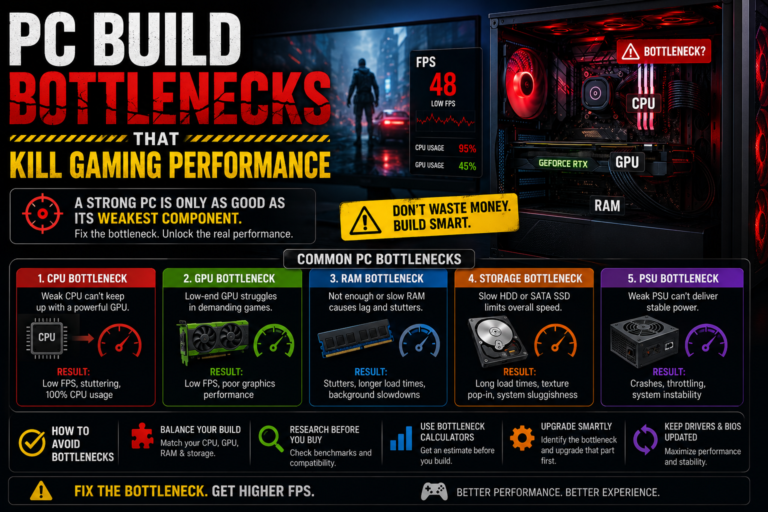
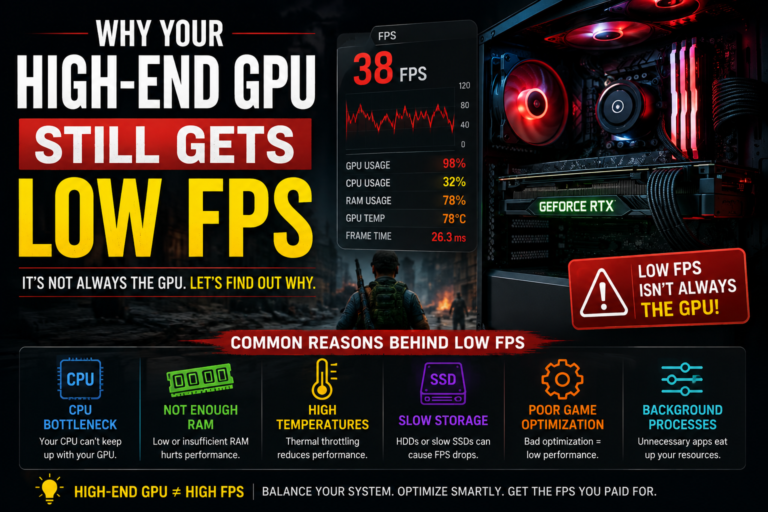
Can a motherboard bottleneck your CPU or GPU? Most people focus on their processor and their graphics card when thinking about gaming performance, and it makes sense why. These two parts get most of the attention, most of the advertising, and most of the budget. But sometimes, even after upgrading these exact parts, gamers still notice low frame rates, stuttering, or oddly unstable clock speeds.
This confusing situation often leads people to overlook a quieter, less talked-about part of their system entirely: the motherboard. In this guide, we will explain exactly how a motherboard can genuinely limit your processor or your graphics card, how to spot the warning signs, and how to prevent this from happening in your own build. We will keep everything simple and easy to follow.
The Short Answer
Yes, a motherboard genuinely can bottleneck your processor or your graphics card, but only in fairly specific situations. This typically happens when the motherboard limits power delivery, struggles with heat management, restricts data pathways, limits memory performance, or contains outdated internal settings.
In most modern, reasonably well-built systems, the motherboard is not the main source of performance problems. However, on weaker, older, or poorly cooled boards, it absolutely can quietly reduce your real-world performance, even while every other part of your build looks perfectly capable on paper.
How a Motherboard Can Hold Back Your Processor
A motherboard can genuinely limit your processor when it cannot deliver clean, stable power to it consistently.
This issue is usually caused by weaker internal power delivery components, poor cooling around those same components, overly strict built-in power limits, or simply pairing a very budget-friendly motherboard with a powerful, high-end processor that demands more than that board can comfortably supply.
When this kind of problem happens, your processor cannot maintain its higher boost speeds. To protect itself, it automatically reduces its own clock speed instead, which directly reduces your real-world gaming performance.
Warning Signs of This Type of Bottleneck
There are a few clear patterns that can point toward this specific issue. Your processor’s clock speed might noticeably drop during gaming or intensive testing. Your performance might start out strong, only to gradually decline the longer you play. You might notice frame rate dips specifically in games that place heavy demand on your processor. And perhaps most confusingly, you might notice your clock speeds dropping even though your temperature readings still look completely normal.
How to Prevent This Issue
Choose a motherboard that is genuinely well-matched to the performance tier of your processor, rather than picking the cheapest available option. Look specifically for boards known for strong internal power delivery components and proper cooling solutions for those components. Keep your motherboard’s internal firmware updated regularly. Monitor your processor’s overall power usage and clock speeds during real gaming sessions. And make sure there is adequate airflow passing directly over your motherboard itself, not just your processor.
How a Motherboard Can Hold Back Your Graphics Card
A motherboard can also bottleneck your graphics card, although this happens considerably less often than the processor-related issue described above.
This can occur when the connection slot your graphics card is installed in runs at a reduced speed, when that connection’s available bandwidth is being shared with other installed devices, when certain built-in settings restrict the connection itself, or when a particular motherboard simply uses a more limited wiring layout for its slots.
It is worth knowing that most modern graphics cards actually perform very well even on somewhat older connection standards. However, in certain extreme or unusual cases, this specific issue can genuinely reduce your real-world performance.
Warning Signs of This Type of Bottleneck
Watch for your graphics card usage never climbing very high during demanding gameplay, your connection speed showing as reduced rather than at its full available speed when checked through a monitoring tool, and your frame rate feeling noticeably lower than you would reasonably expect for your specific hardware.
How to Prevent This Issue
Always install your graphics card in the primary, top connection slot on your motherboard, since this slot is almost always given the fastest possible connection. Check your connection generation and speed within your system’s basic settings. Keep your motherboard’s chipset drivers fully updated. Avoid motherboards known for having a confusing or restrictive slot wiring layout. And use a monitoring tool to directly verify that your graphics card’s connection speed is running at its full, intended level.
How a Motherboard Can Affect Your Memory Performance
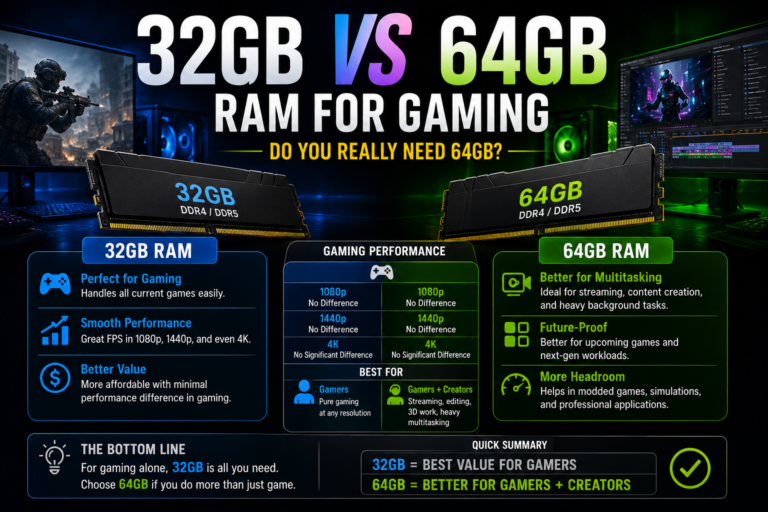
Your motherboard also plays a surprisingly large role in how well your system memory actually performs. It directly controls your available memory channels, your maximum stable memory speed, the overall quality of the electrical signal reaching your memory, and whether certain memory speed-boosting features are properly supported.
Weaker, more budget-friendly motherboards often struggle specifically with very high-speed memory kits, even when that same memory kit works perfectly fine in a different, higher-quality board.
Warning Signs of This Type of Bottleneck
Look out for your memory being stuck running at a slower, default speed rather than its intended rated speed. Watch for system crashes specifically appearing after enabling your memory’s speed-boosting setting. Pay attention to noticeably weak performance during your game’s roughest, most demanding moments. And keep an eye out for random, unexplained stuttering that does not seem tied to any other obvious cause.
How to Prevent This Issue
Use a properly matched pair of memory sticks to enable dual-channel mode correctly. Enable your system’s memory speed-boosting setting within your basic system settings. Keep your motherboard’s firmware updated regularly. Check your specific motherboard’s officially tested and approved memory compatibility list before purchasing new memory. And avoid mixing different, mismatched memory kits together within the same system.
Why a Motherboard Bottleneck Often Goes Unnoticed
Unlike a dramatic hardware failure, a motherboard-related bottleneck rarely announces itself clearly. Instead, it tends to show up as subtly lower boost clock speeds, inconsistent frame rates that are hard to explain, generally poor frame timing consistency, fewer available upgrade paths down the road, and a shorter overall useful lifespan for your entire gaming platform.
Over time, these quiet, easy-to-miss issues can genuinely waste both real performance and real money, especially if they go undiagnosed for a long period.
Why Most Motherboards Actually Do Not Cause Bottlenecks
It is important to keep this issue in proper perspective. The vast majority of modern, reasonably well-built motherboards do not meaningfully limit your gaming performance at all.
When a motherboard features genuinely strong internal power delivery components, solid cooling, stable and well-supported firmware, and correctly wired connection slots, it simply acts as a reliable, supportive foundation for the rest of your system. In the majority of real-world gaming builds, the true performance limit still comes from your processor, your graphics card, your memory setup, your cooling, or background software, rather than from your motherboard itself.
A Closer Look at Power Delivery and Heat
The components responsible for delivering stable power directly to your processor play an especially important role in this entire topic. When these specific components become too hot, the electrical voltage they supply can become unstable, your processor’s boost performance gets reduced as a protective measure, and your overall performance can gradually decline the longer you continue playing.
This particular issue is actually one of the single most common ways a motherboard can genuinely bottleneck a processor in real-world use.
Signs This Specific Issue Is Happening to You
Watch for your frame rate noticeably dropping after roughly ten to fifteen minutes of continuous gameplay, your processor’s clock speed falling even while your temperature readings still appear perfectly normal, and specific warning readings from these power delivery components exceeding their safe operating limits.
How to Address This Specific Issue
Improve the overall airflow moving through your computer case. Choose motherboards that include proper heatsinks over these important power delivery components. Consider adding extra cooling positioned to blow directly downward over this specific area of your motherboard. And avoid pairing a processor with a very high core count against a motherboard that was clearly designed for much more modest, budget-friendly hardware.
Understanding Shared Connection Bandwidth
Not every connection slot on a motherboard is wired identically or given equal priority. Some motherboards will actually reduce the available bandwidth to your graphics card whenever certain fast storage drives are also installed and in use. Some boards share their overall available bandwidth across several different connected components at once. And some secondary slots are simply wired to run at a noticeably reduced speed compared to the primary slot.
This particular issue can potentially affect your graphics card, any capture devices you may use, and your fastest storage drives. It is always worth reviewing a specific motherboard’s official connection layout diagram carefully before finalizing your build.
Hidden Settings That Can Quietly Limit Performance
Your motherboard’s basic internal settings can sometimes silently limit your real-world performance without you ever realizing it. Common culprits include a helpful memory-related feature being left switched off by default, an incorrect connection mode being selected, outdated internal processor microcode, or unusually aggressive built-in power limits.
It is always worth directly checking your current firmware version, your processor’s configured power limits, whether a specific memory-boosting feature is properly supported and enabled, your connection’s generation setting, and whether your memory’s speed profile has actually been successfully applied.
How to Properly Diagnose a Motherboard-Related Issue
You can follow a clear, practical process to check whether your own motherboard might be quietly holding back your performance.
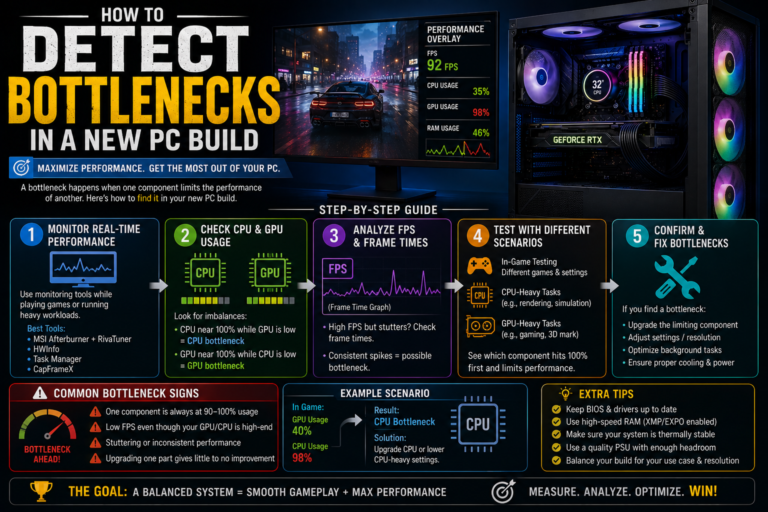
Start by placing heavy demand on your processor alone for around ten minutes, while closely monitoring its clock speeds, its power usage, and the temperature of its power delivery components. Next, place heavy demand on your graphics card while checking its connection speed through a monitoring tool. Watch closely for any unexpected drops in clock speed or sudden power reductions during either test. Finally, test your memory’s speed and overall stability separately as well.
If you notice your clock speeds falling while your temperature readings remain perfectly normal throughout, your motherboard is quite often the true underlying cause of the problem.
How to Choose a Motherboard That Will Not Hold You Back
If you are planning a new build or a fresh upgrade, a bit of careful research beforehand can help you avoid this entire issue completely.
Make sure to match your chosen motherboard’s overall quality tier to your processor’s performance level. Carefully review the board’s official connection layout diagram before buying. Confirm your intended memory kit is properly supported by that specific board. Look specifically for boards that include quality cooling over their power delivery components. Choose a board known for offering long-term firmware support over time. And avoid pairing an extremely budget-focused motherboard with a genuinely high-end, powerful processor.
Following these simple guidelines helps prevent the vast majority of motherboard-related bottlenecks before they ever have a chance to become a real problem.
Final Thoughts
So, can a motherboard bottleneck your CPU or GPU? Yes, it genuinely can, though this typically only happens in fairly specific situations rather than being a widespread, common problem. Weak power delivery, overheating power components, restricted connection bandwidth, and outdated internal settings can all quietly prevent your processor or your graphics card from reaching their true full performance potential.
Understanding this simple truth changes how you approach both building and troubleshooting your gaming computer. Instead of guessing or immediately assuming your processor or graphics card is somehow to blame, you can now test, measure, and confirm the real, true cause for yourself. With a genuinely well-built motherboard and a correctly configured system, your expensive hardware finally gets the real opportunity to perform exactly as it was truly designed to.