How to Fix a CPU Bottleneck Without Upgrading Your Hardware
Learning how to fix CPU bottleneck without upgrading your computer can save you a lot of money, and it is easier than most people think. Have you ever noticed your graphics card sitting there, ready to work, while your game still runs slowly? That strange mismatch usually points to your processor, not your graphics card, being the real problem.
Many people jump straight to buying a brand-new processor the moment they notice slow or stuttery gameplay. But in a lot of cases, the real cause is not weak hardware at all. It is something much simpler, like background programs, incorrect settings, or a small memory setup mistake.
In this guide, we will walk through clear, easy steps you can try right now, completely free, before ever reaching for your wallet. We will keep everything simple and easy to follow.
What Is a CPU Bottleneck, Really?
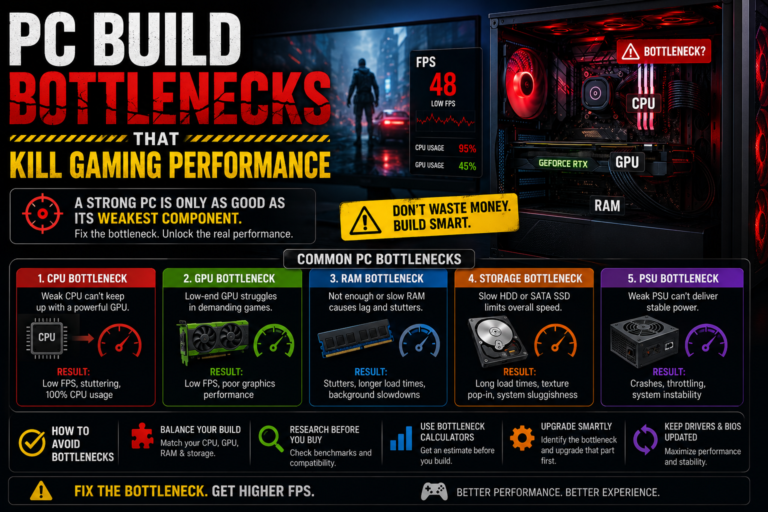
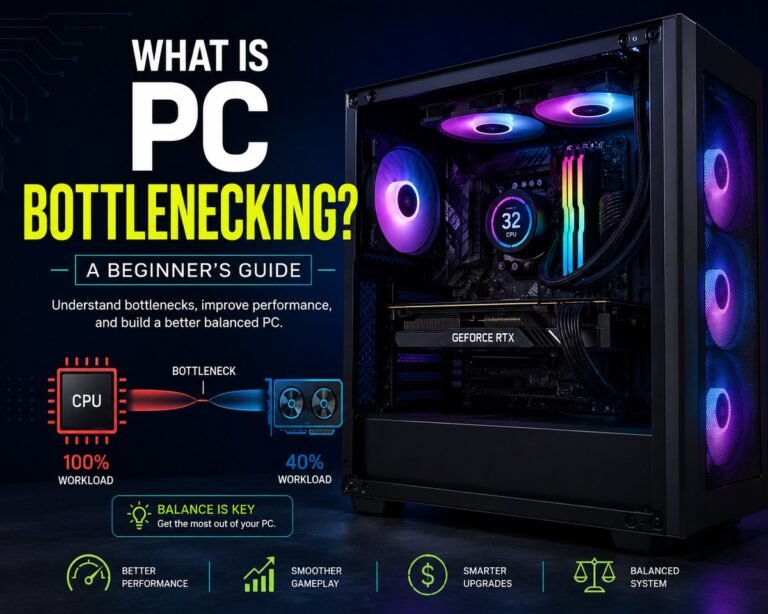
A CPU bottleneck happens when your processor cannot prepare information fast enough to keep your graphics card busy. Because of this, your graphics card ends up waiting around, even though it is fully capable of doing more work.
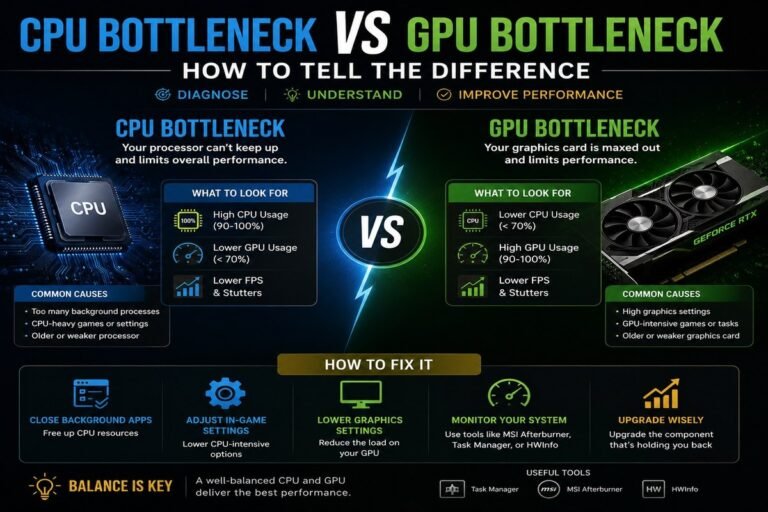
This is different from simply seeing a high number on a usage chart. A true CPU bottleneck usually means one or more parts of your processor are working at their limit, while your graphics card usage stays noticeably lower than it should be during the same moment.
Understanding this difference matters, because it helps you avoid fixing the wrong problem.
High CPU Usage Is Not Always a Bottleneck
This is one of the biggest points of confusion for many computer users. Seeing your processor usage at a high number does not automatically mean you have a true bottleneck.
You are likely dealing with a real bottleneck if your graphics card usage stays noticeably low during gameplay, if one or two specific parts of your processor reach their limit, or if lowering your graphics settings does not actually improve your frame rate at all.
On the other hand, if your processor usage stays high even while just sitting on your desktop, or if one single background program seems to be using most of the processing power, the real issue is often software-related, not a true hardware bottleneck at all.
How to Quickly Confirm a CPU Bottleneck
Before making any changes, it helps to confirm what is actually happening. This only takes a couple of minutes using a simple monitoring tool.
Open a monitoring program that can show you both your processor usage and your graphics card usage at the same time. Start a game or task you usually run, and let it play for a few minutes while you watch the numbers.
If your graphics card usage stays low while specific parts of your processor stay maxed out, and your gameplay feels choppy during these moments, this strongly points to a CPU bottleneck.
Why CPU Bottlenecks Happen in the First Place
There are several common reasons a processor might struggle to keep up, and many of them have nothing to do with the actual strength of the processor itself.
Some games are simply built in a way that puts heavy demand on the processor. Too many background programs can quietly steal away processing power without you realizing it. Incorrect power settings on your computer can prevent your processor from reaching its full speed. Memory that is not set up correctly can also hold back your processor’s performance. And if your processor gets too hot, it may automatically slow itself down to stay safe.
The good news is that most of these causes can be fixed without spending a single dollar.
Step One: Clear Out Background Programs
One of the easiest first steps is simply reducing how much extra work your processor is doing in the background.
Close any browser windows, game launchers, or other programs you are not actively using. Turn off unnecessary programs that automatically start when your computer turns on. Disable screen recording tools or overlays if you are not currently using them. It is also worth running a scan for unwanted or harmful software, since these can quietly use up processing power without your knowledge.
This single step alone often brings back a noticeable amount of performance.
Step Two: Adjust Your Power Settings
The way your computer is set up to manage power can have a surprisingly big effect on processor performance.
Set your computer’s power mode to a setting focused on best performance, rather than balanced or power-saving. If you are using a laptop, turn off overly aggressive battery-saving features while plugged in and gaming. Keep your chipset and graphics drivers updated, since outdated drivers can sometimes hold back performance. Pausing unnecessary background services can also free up a small but meaningful amount of processing power.
These changes allow your processor to reach its full intended speed more consistently.
Step Three: Adjust the Right In-Game Settings
Not all game settings affect your computer in the same way. Some settings mainly put pressure on your processor, while others mainly affect your graphics card.
Settings that tend to affect your processor more include your view or draw distance, the number of characters or crowds on screen, physics and destruction effects, and the overall level of world detail or simulation.
Settings that tend to affect your graphics card more include your screen resolution, texture quality, and various visual effects like anti-aliasing or post-processing filters.
If your processor is the true bottleneck, lowering the settings from the first group often helps more than lowering settings from the second group.
Step Four: Try Capping Your Frame Rate
It might seem strange, but limiting your frame rate can actually make your gameplay feel smoother, not worse.
Every additional frame your computer tries to produce adds extra scheduling work for your processor. By setting a steady, reasonable frame rate cap, you can reduce sudden spikes in processor demand, which often leads to more stable, consistent gameplay overall.
A steady, capped frame rate frequently feels much smoother than a frame rate that constantly jumps up and down.
Step Five: Shift Some of the Workload to Your Graphics Card
If your testing shows a clear processor bottleneck, you can try shifting a bit more of the workload onto your graphics card instead.
Slightly increasing your resolution or resolution scale asks your graphics card to do more of the visual work, which reduces how much your processor needs to prepare for each frame. This approach usually improves the overall smoothness and consistency of your gameplay, even if it does not dramatically raise your top frame rate number.
Step Six: Double-Check Your Memory Setup
This is a step many people overlook completely, yet it can make a real difference in processor performance.
Check whether a memory speed setting, often found in your system’s basic settings menu, has been turned on, since it is sometimes left off by default. Confirm that your memory is actually running at its intended speed, rather than a slower default speed. Make sure your memory sticks are installed in the correct slots to allow for proper dual-channel performance.
An incorrectly configured memory setup can quietly hold back your processor more than most people expect.
Step Seven: Keep an Eye on Heat
Even a powerful processor can slow itself down if it becomes too hot. This is a built-in safety feature, not a flaw.
Keep an eye on your processor’s temperature and clock speed while gaming. If you notice your clock speed dropping as temperatures rise, it is worth cleaning any dust out of your computer, improving airflow around it, adjusting your fan settings, or replacing old thermal paste if your system is older.
Keeping temperatures steady allows your processor to maintain its full performance for longer periods of time.
Step Eight: Always Test Your Changes
After making any adjustment, it is important to actually test whether it worked, rather than simply assuming it did.
Use the same game, the same location or level, and the same settings each time you test. Compare your average frame rate, your lowest frame rate moments, and your graphics card usage before and after each change. If you notice your graphics card usage rising, along with smoother, more consistent frame timing, this confirms that your changes are actually helping reduce the bottleneck.
Mistakes to Avoid Along the Way
A few common mistakes can waste your time or lead you toward the wrong fix.
Avoid lowering every single setting at once without understanding what each one actually does. Avoid looking only at your total processor usage number, since specific parts of your processor matter more than the overall average. Avoid skipping a check of your memory setup, since this step is often ignored but frequently makes a real difference. And avoid confusing a busy background program with a true hardware bottleneck, since these require very different fixes.
Taking a careful, step-by-step approach will save you time and help you avoid unnecessary frustration.
When You Have Truly Reached the Limit
Some games are simply built in a way that demands a huge amount from your processor, no matter what you do. Large simulation games, certain strategy titles, and games with less efficient underlying design can push even a strong processor to its limit.
If you have carefully gone through every step in this guide and you are still experiencing the same issues, your system may genuinely be as optimized as it can be. At that point, a hardware upgrade becomes a reasonable next step, rather than the very first solution you try.
Final Thoughts
Learning how to fix CPU bottleneck without upgrading your hardware starts with understanding that a slow processor is not always the true cause of your problem. In many systems, the real issue comes from background programs, incorrect power settings, memory misconfiguration, or heat-related slowdowns.
By working through simple, free steps like clearing background programs, adjusting your settings, and checking your memory setup, you may unlock performance your computer already had all along. Only after trying these steps, and confirming the results through real testing, does it truly make sense to consider spending money on new hardware.