What Settings Cause CPU Bottleneck in Games?
Understanding exactly what settings cause CPU bottleneck in games. Your favorite games can save you from wasting money on the wrong upgrade. Gaming performance issues get blamed on graphics cards constantly, but many players are surprised to discover their frame rate is low even while their graphics card usage stays surprisingly quiet. In most of these cases, the real culprit is not the graphics card at all. It is a specific set of settings quietly overloading the processor instead.
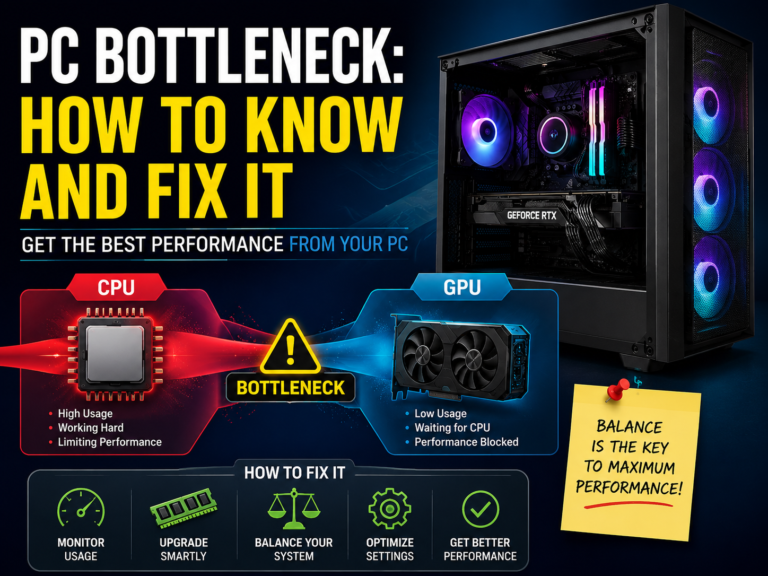
A processor bottleneck happens when your processor cannot keep up with everything your game engine is asking it to calculate. Your graphics card ends up waiting around for instructions, which leads to uneven frame timing, stuttering, and generally inconsistent gameplay. Understanding exactly which settings place the heaviest demand on your processor helps you fix these issues directly, often without spending a single dollar on new hardware.
What Is a CPU Bottleneck, in Simple Terms?
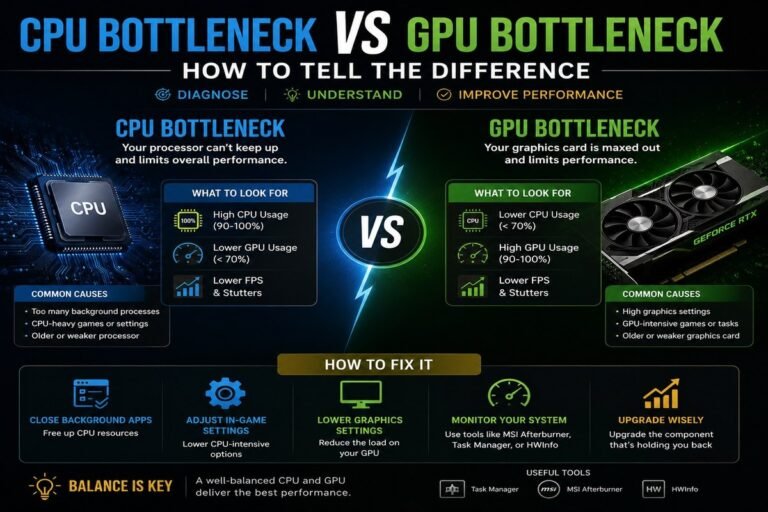
A processor bottleneck happens when your processor becomes the true limiting factor in your overall gaming performance. Instead of your graphics card rendering frames as quickly as it possibly could, your entire system slows down because your processor simply cannot process the game’s underlying logic fast enough.
Your processor is responsible for handling artificial intelligence calculations and character behavior, physics simulations and object interactions, instructions related to how your scene gets drawn, and general thread scheduling for background tasks. Meanwhile, your graphics card is mainly responsible for the actual visual rendering you see on screen. When your processor usage climbs close to its maximum, your gameplay can become genuinely unstable, even if your graphics settings themselves look fairly moderate and reasonable.
The Settings That Most Commonly Stress Your Processor
Not every graphics option affects your system in the same way. Some settings mainly increase how much your game needs to simulate and calculate, rather than how visually detailed your scene appears.
Character and Crowd Density
Increasing the number of characters or crowds on screen directly increases the amount of artificial intelligence calculation your processor needs to handle for every single frame. Lowering this setting slightly is often one of the most effective first steps you can take.
Draw Distance or View Distance
A longer view distance means your processor needs to actively track and process a much larger number of objects at once. Setting this to a more moderate level can meaningfully ease the pressure on your processor.
Physics Simulation
Real-time physics calculations, like destructible objects or realistic cloth and object movement, place direct, ongoing demand on your processor. Lowering this setting to medium or low often helps considerably.
Shadow Quality
In certain game engines, shadow rendering actually involves a surprising amount of extra geometry processing, which places additional load on your processor rather than purely on your graphics card. Setting this to a medium level is often a reasonable compromise.
Overall Simulation Detail
Increasing the general level of world simulation, such as detailed weather systems or environmental interactions, adds further logic your processor must constantly track. Reducing this setting can help stabilize your performance.
An Unlimited or Very High Target Frame Rate
Aiming for an extremely high, uncapped frame rate forces your processor to prepare a much larger number of frames every single second. Setting a reasonable frame rate cap is one of the simplest and most effective adjustments available.
Large, open-world role-playing games and expansive strategy titles tend to push processors especially hard, since they are constantly calculating character movement, pathfinding, and countless small world interactions happening at once.
Why Lowering the Wrong Setting Rarely Helps
A very common mistake is reaching straight for your texture quality or your screen resolution the moment you notice performance problems. Unfortunately, these particular settings mainly affect your graphics card, not your processor.
Settings that are mostly tied to your processor include your total object count and overall world simulation, character behavior and crowd density, how terrain data streams into your game, and physics-related effects. Settings that are mostly tied to your graphics card instead include your texture resolution, your anti-aliasing setting, reflection quality, and various post-processing visual effects.
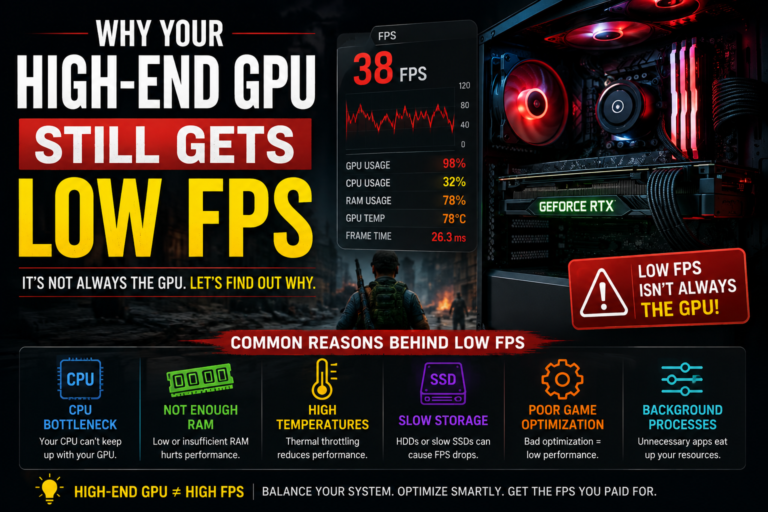
If you notice your graphics card usage staying surprisingly low while your frame rate remains disappointingly poor, that combination is a strong, reliable sign that your processor is the true bottleneck, not your graphics card.
A Simple, Structured Way to Fix This
Rather than randomly guessing which setting to change, it helps to follow a clear, logical process.
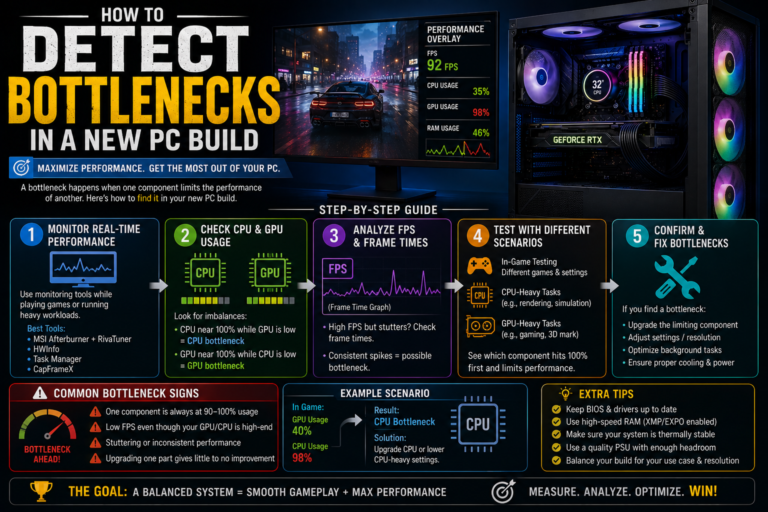
Step One: Check Your Actual System Usage
Open a monitoring tool that can show you both your processor usage and your graphics card usage at the same time. Watch specifically for your processor usage sitting near its maximum, your graphics card usage staying noticeably lower, and uneven, spiking frame timing.
Step Two: Lower the Settings That Actually Stress Your Processor
Start by reducing your character or crowd density, your overall simulation detail, and your view distance. Try to avoid immediately lowering your texture quality first, since this rarely does much to actually fix a genuine processor-related slowdown.
Step Three: Set a Reasonable Frame Rate Cap
Leaving your frame rate completely unlimited increases how much work your processor must do, simply because it constantly needs to prepare even more frames than necessary. Try setting a steady, reasonable cap, such as matching your monitor’s actual refresh rate, or enabling a similar frame-limiting feature if your game or graphics settings offer one.
Step Four: Close Any Unnecessary Background Programs
Web browsers, chat overlays, or screen recording software can quietly interfere with how your system schedules processor tasks, which can add unnecessary extra delay on top of your existing bottleneck.
Step Five: Shift Some Workload Back Toward Your Graphics Card
Interestingly, slightly increasing certain visual settings, like your texture quality or filtering, can actually help shift more of the overall workload toward your graphics card instead, which can help bring your entire system back into better overall balance.
Should You Optimize First, or Consider an Upgrade?
Not every processor bottleneck automatically requires buying new hardware. If your processor usage is consistently maxed out at its limit, it is generally worth trying to optimize your settings first before spending any money. If your graphics card usage stays consistently low, adjusting your processor-heavy settings is usually the smarter first move. If you are running an older processor with a fairly limited number of cores, a genuine upgrade may eventually become the more sensible long-term option. And if your stuttering only seems to happen in busy, crowded areas of your game, simply reducing your character or crowd density setting alone can often resolve the issue completely.
Gamers who specifically aim for very high refresh rates in fast, competitive games tend to run into processor limits considerably sooner than those who are perfectly happy playing at a more standard, cinematic frame rate.
How This Plays Out Across Different Game Types
Large, Open-World Role-Playing Games
Big, busy virtual cities dramatically increase both rendering instructions and artificial intelligence calculations happening at once. Simply lowering your crowd density setting can genuinely help stabilize your overall frame pacing.
Fast, Competitive Shooting Games
Aiming for a very high target frame rate places heavy demand specifically on your processor’s fastest available core. Slightly lowering your view distance while also enabling a frame rate cap can help considerably in these types of games.
Large-Scale Strategy Games
Massive, large-scale in-game battles place heavy demand on both your processor’s total available threads and its overall simulation detail. Reducing your total unit count or your general simulation complexity often helps maintain much smoother, more stable performance.
Tools That Help You Properly Diagnose the Issue
Genuine monitoring software gives you real, clear insight into exactly how your system is behaving. Tools capable of showing real-time performance overlays, detailed frame timing graphs, and quick, at-a-glance usage checks are all genuinely useful here.
Pay particular attention to uneven, spiky frame timing graphs, since these often point directly toward thread scheduling issues or general processor overload, even when your overall average frame rate number still looks reasonably acceptable.
Other Hidden Causes Worth Checking
Not every processor-related problem actually comes from your in-game settings alone. A few other hidden factors are also worth ruling out.
Overheating
If your processor becomes too hot, it will automatically reduce its own clock speed to protect itself, which directly reduces your available performance.
Memory Speed and Responsiveness
Faster, better-configured system memory can genuinely help improve your frame consistency specifically in games that are already limited by your processor.
Your Windows Power Settings
A standard, balanced power plan can sometimes quietly limit your processor’s available clock speed. Switching over to a performance-focused power mode can often help unlock a bit of extra, already-available performance.
Common Mistakes Players Tend to Make
A few recurring mistakes tend to trip people up again and again. These include lowering your resolution first instead of adjusting the settings that actually stress your processor, running a completely unlimited frame rate on a fairly modest, mid-range processor, ignoring background programs running quietly in the background, and mistakenly interpreting low graphics card usage as a sign that your graphics card itself is somehow the true problem.
Genuinely understanding the real difference between processor-based workload and graphics card-based workload helps you avoid a lot of unnecessary, unhelpful hardware upgrades.
A Simple Checklist for More Balanced Performance
For generally smoother, more stable gameplay, try setting your shadow quality to a medium level, capping your frame rate slightly below your monitor’s true refresh rate, keeping your graphics drivers fully updated, regularly checking your frame pacing using a monitoring tool, and thoughtfully balancing your processor-heavy and graphics card-heavy settings together, rather than simply lowering every single setting all at once without much real thought.
Small, targeted adjustments like these often produce a much bigger real-world improvement than drastic, across-the-board changes to your overall graphics quality.
Simple Alternatives to Buying New Hardware
If you are not quite ready to invest in a brand-new processor just yet, there are still several genuinely useful steps worth trying first. These include cleaning up your unnecessary Windows startup programs, keeping your system firmware and graphics drivers fully updated, improving your overall airflow to help prevent overheating-related throttling, and thoughtfully adjusting your simulation detail specifically within your most demanding games.
These kinds of simple, practical changes can genuinely extend the useful lifespan of your current hardware while still helping you maintain smoother, more stable performance in the meantime.
Final Thoughts
Understanding exactly what settings cause CPU bottleneck problems in your games often matters more than simply focusing on raw graphics quality alone. High character counts, long draw distances, detailed physics simulation, and an uncapped, unlimited frame rate target can all quietly overload your processor and create the frustrating frame pacing issues you have likely already noticed.
Start by properly monitoring your actual system usage, then lower the specific settings that genuinely stress your processor, and set a sensible, reasonable frame rate cap. Focus on thoughtfully balancing the workload between your processor and your graphics card, rather than simply lowering every single setting all at once. A genuine hardware upgrade should really only become your next serious consideration if careful optimization has already been tried, and your processor is still consistently hitting its true, real limit despite your best efforts.