What Settings Cause CPU Bottleneck in Games?
Gaming performance issues are often blamed on graphics cards, but many players experience low FPS even when their GPU isn’t fully used. In most cases, the real issue comes from CPU bottleneck settings that overload the processor.
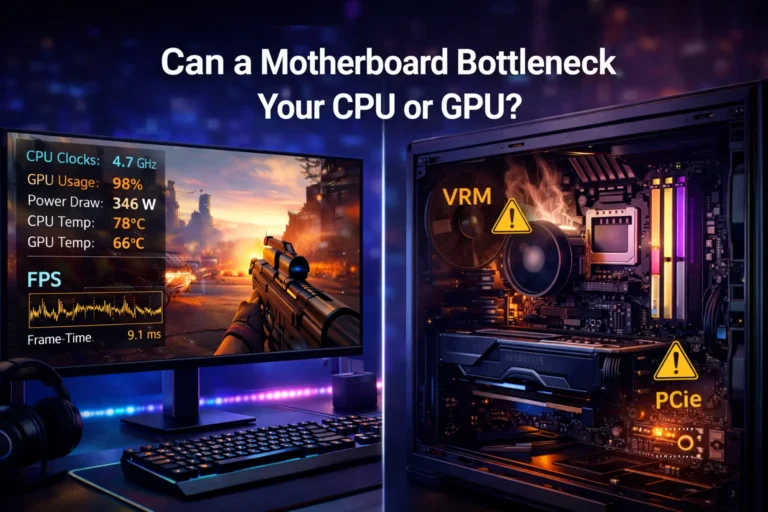
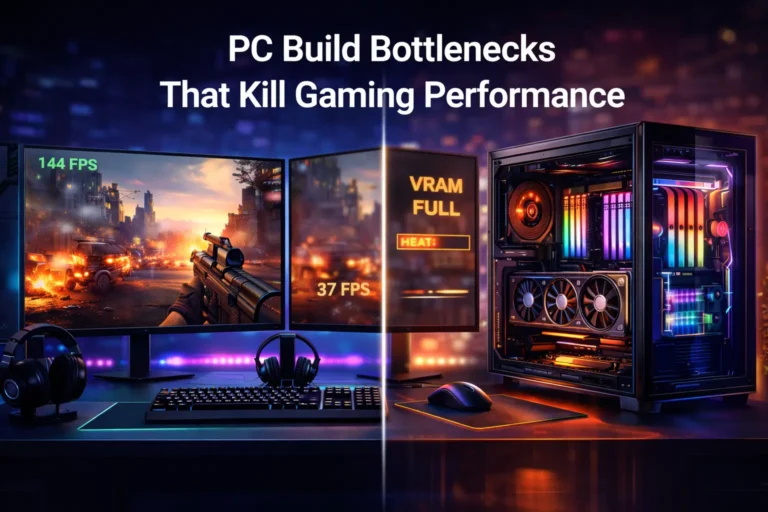
A CPU bottleneck happens when your processor can’t keep up with the game engine’s workload. The GPU waits for instructions, causing frame time spikes, stutter, and inconsistent frame pacing. Understanding which settings stress the CPU helps you fix performance without blindly upgrading hardware.
What Is a CPU Bottleneck in Gaming?
A CPU bottleneck occurs when the processor becomes the limiting factor in performance. Instead of your graphics card rendering frames as fast as possible, the system slows down because the CPU can’t process game logic quickly enough.
Your processor handles:
- AI calculations and NPC behavior
- Physics simulation and object interactions
- Draw calls and render pipeline instructions
- Thread scheduling and background tasks
Meanwhile, GPUs from brands like NVIDIA, AMD, and Intel handle visual rendering. When the CPU reaches 90–100% usage, gameplay becomes unstable even if graphics settings look moderate.
Settings That Commonly Cause CPU Bottlenecks
Not all graphics options impact performance equally. Some settings primarily increase simulation workload rather than visual complexity.
CPU-Heavy Game Settings
| Setting | Why It Stresses CPU | Recommended Adjustment |
|---|---|---|
| NPC Density / Population | More AI calculations per frame | Lower slightly |
| Draw Distance / View Distance | More objects processed | Medium level |
| Physics Simulation | Real-time calculations | Medium or Low |
| Shadow Quality (Certain Engines) | Extra geometry instructions | Medium |
| Simulation Detail | Increased world logic | Reduce |
| High FPS Target | More frame preparation per second | Cap FPS |
Open-world RPGs and large strategy games often push CPUs harder because they constantly calculate movement, pathfinding, and world interactions.
CPU vs GPU Settings: What Actually Matters?
A common mistake is lowering textures or resolution when facing CPU issues. Those settings mainly affect the GPU.
Mostly CPU-Based Options
- Object count and world simulation
- NPC behavior and crowd density
- Terrain streaming
- Physics effects
Mostly GPU-Based Options
- Texture resolution
- Anti-aliasing
- Reflections
- Post-processing effects
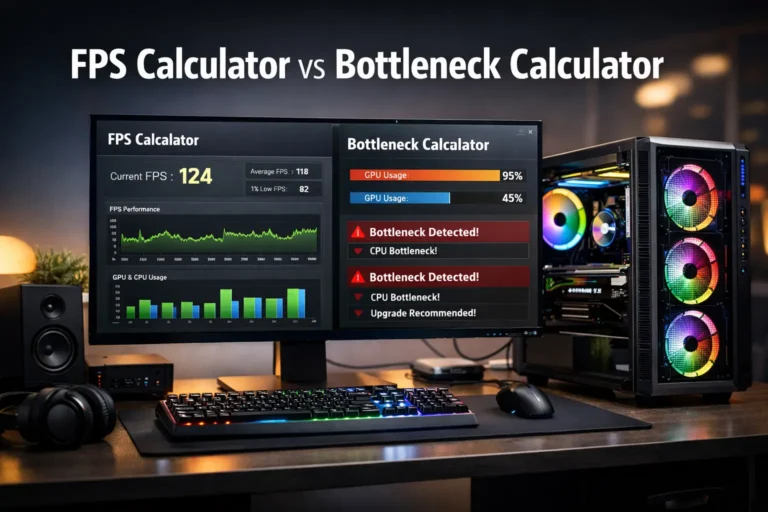
If your GPU utilization stays low while FPS drops, that’s a strong sign of a CPU bottleneck.
Step-by-Step Workflow to Fix CPU Bottleneck Settings
Instead of guessing, follow a structured troubleshooting process.
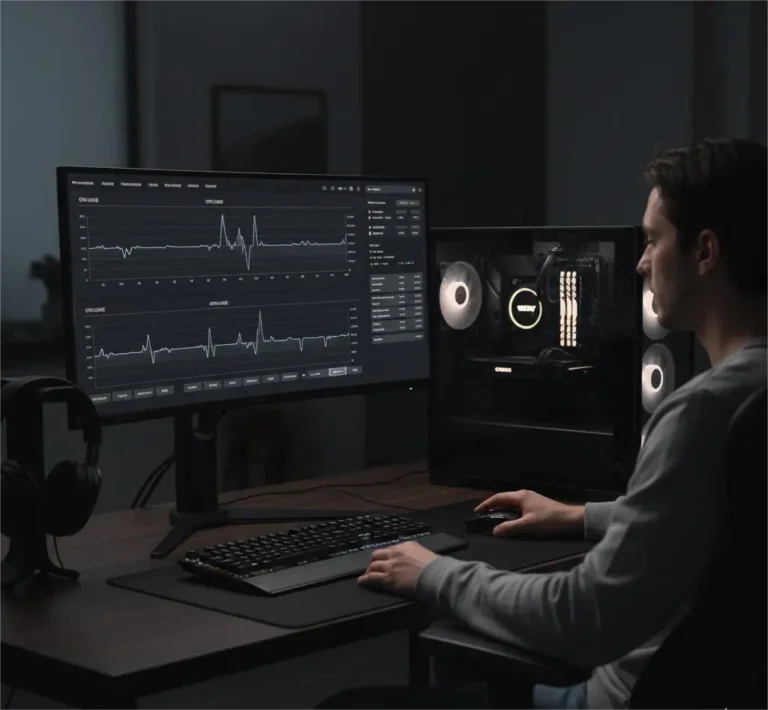
Step 1: Check System Usage
Use tools like MSI Afterburner, RivaTuner, or Windows Task Manager monitoring.
Look for:
- CPU usage near 100%
- GPU usage under 70–80%
- Frame time spikes
Step 2: Lower CPU-Intensive Settings
Start with:
- NPC density
- Simulation detail
- View distance
Avoid lowering textures first—it rarely fixes processor load.
Step 3: Cap Your Frame Rate
Unlimited FPS increases CPU workload because the processor must prepare more frames.
Try:
- 60 FPS cap
- Monitor refresh rate limit
- V-Sync if needed
Step 4: Close Background Processes
Browsers, overlays, or streaming software can interfere with thread scheduling and increase latency.
Step 5: Shift Workload Toward GPU
Increasing certain visual settings like textures or filtering can move load away from the CPU, balancing performance.
Decision Framework: Optimize or Upgrade?
Not every bottleneck requires new hardware. Use this quick decision guide.
| Scenario | Best Action |
|---|---|
| CPU always maxed at 100% | Optimize settings first |
| GPU usage low | Adjust CPU-heavy options |
| Older 4-core processor | Consider upgrade |
| Stutter only in crowded areas | Reduce NPC density |
Gamers targeting high refresh rates in competitive FPS titles often hit CPU limits faster than those playing at cinematic 60 FPS.
Real-World Examples Across Game Types
Open-World RPGs
Large cities increase draw calls and AI workload. Lowering crowd density stabilizes frame pacing.
Competitive Shooters
High FPS targets place heavy demand on single-core performance. Lower view distance slightly and enable an FPS cap.
Strategy Games
Large-scale battles push thread count and simulation detail. Reducing unit counts or simulation complexity helps maintain stability.
Tools to Diagnose CPU Bottlenecks
Monitoring software provides clear insight into performance behavior.
- MSI Afterburner for real-time overlays
- RivaTuner Statistics Server for frame time graphs
- Windows Task Manager for quick usage checks
Watch for uneven frame time graphs—this often signals thread scheduling issues or CPU overload.
Other Hidden Causes of CPU Bottlenecks
Not all problems come from in-game settings.
Thermal Throttling
If your processor overheats, clock speed drops, reducing performance.
RAM Speed and Latency
Faster memory can improve frame consistency in CPU-bound games.
Windows Power Settings
Balanced power plans sometimes limit clock speed. Switching to high performance can help.
Common Mistakes Players Make
- Lowering resolution first instead of adjusting CPU-heavy settings
- Running unlimited FPS on mid-range processors
- Ignoring background apps
- Misinterpreting GPU usage as a graphics card issue
Understanding the difference between CPU and GPU workloads prevents unnecessary upgrades.
Budget Upgrade Considerations in the USA
Sometimes optimization isn’t enough, especially with older processors. Gamers in the USA often explore upgrade options through retailers like Micro Center or service providers such as Best Buy Geek Squad or local PC repair shops.
Before upgrading, check compatibility:
- Motherboard socket support
- RAM speed limits
- Cooling requirements
CPU replacement costs vary by region and labor rates, so comparing DIY installation versus local service providers can save money.
Best Practices for Balanced Performance
Use this checklist for smoother gameplay:
- Set shadows to Medium
- Cap FPS slightly below monitor refresh rate
- Keep drivers updated
- Monitor frame pacing regularly
- Balance CPU-heavy and GPU-heavy settings instead of lowering everything
Small adjustments often produce bigger improvements than drastic graphics changes.
Alternatives to Hardware Upgrades
If you’re not ready to buy a new processor:
- Optimize Windows startup apps
- Update BIOS and drivers
- Improve airflow to prevent thermal throttling
- Adjust simulation detail in demanding titles
These changes can extend hardware lifespan while maintaining stable performance.
Conclusion
CPU bottlenecks often come from specific settings rather than raw graphics quality. High NPC counts, large draw distances, physics simulation, and unlimited FPS targets can overload the processor and create frame pacing issues.
Start by monitoring usage, lowering CPU-heavy options, and capping your frame rate. Balance workload between CPU and GPU instead of reducing everything blindly. Only consider upgrades if optimization fails and your processor consistently hits its limits.
FAQs
What graphics settings affect CPU the most?
NPC density, draw distance, physics simulation, and high frame rate targets typically increase processor load more than visual settings like textures.
Does lowering resolution fix a CPU bottleneck?
Usually no. Resolution mainly impacts the GPU. Adjust simulation or world detail settings instead.
Why is my GPU usage low while gaming?
The CPU may be limiting performance, preventing the graphics card from receiving frames quickly enough.
Should I cap FPS to reduce CPU load?
Yes. Limiting frame rate reduces the number of frames the processor must prepare, improving stability.
How do I know if my CPU is bottlenecking?
High CPU usage with low GPU utilization and unstable frame times is a strong indicator.
Can shadows cause CPU bottlenecks?
In some engines, shadow calculations involve geometry processing that increases CPU workload.
Is ray tracing CPU heavy?
Ray tracing primarily stresses the GPU, but certain implementations can add CPU overhead due to scheduling.