What Is PC Bottlenecking? Explained for Beginners
PC bottlenecking is one of the most confusing topics for beginners. Many users experience low FPS, lag, or stuttering and immediately assume their graphics card is weak. In reality, the problem is often not the GPU alone. It is usually about how well all PC parts work together.
A PC is a system. Every part depends on another. When one component is slower, it limits the rest. This guide explains PC bottlenecking in simple words. You will learn what it is, why it happens, how to identify it, and what you can do before spending money on upgrades.
What does “PC bottlenecking” mean?
A bottleneck is the narrow part of a bottle where liquid slows down.
In a computer, a bottleneck happens when one part cannot keep up with the others. That slower part controls the final performance.
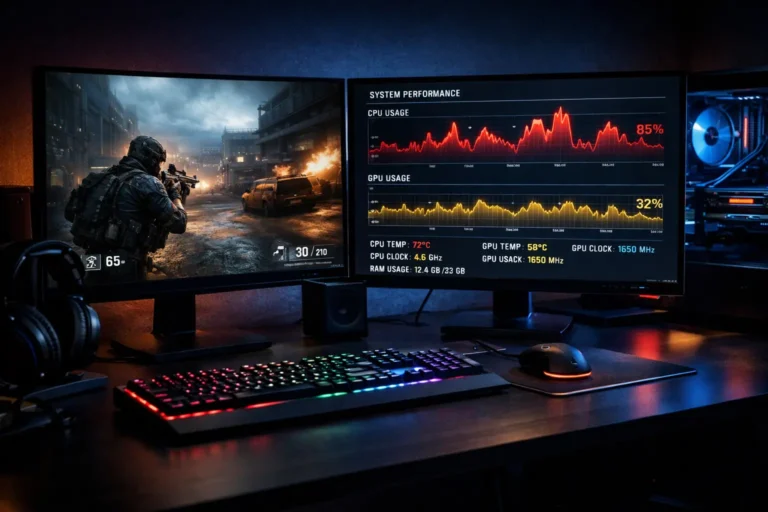
For example, a powerful GPU paired with a weak CPU will not run at full speed. The graphics card must wait. This reduces FPS and causes stutter.
PC bottlenecking does not mean your PC is broken.
It means your system is unbalanced.
Is PC bottlenecking always bad?
No. Bottlenecking is normal.
Every computer has a bottleneck. It changes depending on what you are doing. Gaming, editing, browsing, and streaming all stress different components.
Bottlenecking becomes a problem only when it causes:
- Low or unstable FPS
- Stuttering
- Slow loading
- Poor system response
A healthy PC still has a bottleneck.
A bad PC has a severe bottleneck.
The main types of PC bottlenecks
Different hardware parts can become the limiting factor.
CPU bottleneck
The CPU controls logic, physics, AI, and background tasks.
A CPU bottleneck happens when the processor cannot keep up.
Common signs:
- GPU usage stays low
- FPS drops in busy scenes
- Stutter during combat or crowds
- Poor performance in esports titles
This is common in 1080p high-FPS gaming and simulation-heavy games.
GPU bottleneck
The GPU handles graphics and visual effects.
A GPU bottleneck happens when the graphics card is fully loaded.
Common signs:
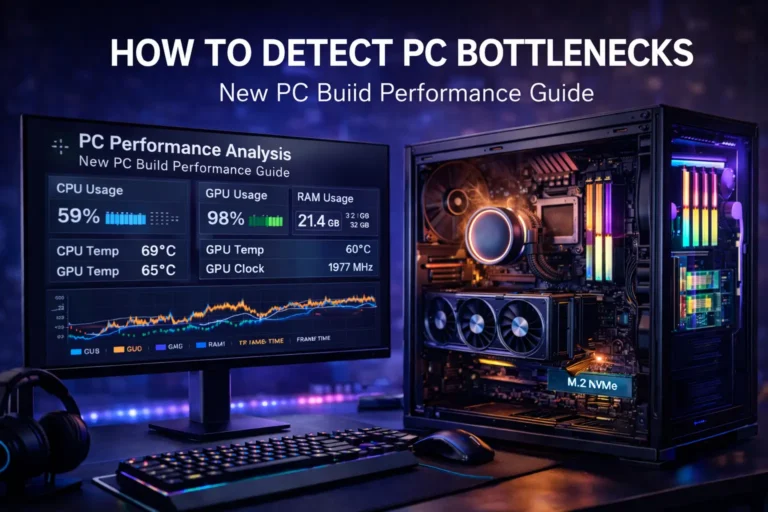
- GPU usage near 95–100%
- CPU usage lower
- FPS increases when lowering the resolution or graphics
This is common at 1440p and 4K gaming.
RAM bottleneck
RAM stores data for running programs.
A RAM bottleneck happens when the memory is full or too slow.
Common signs:
- Stuttering
- Apps closing
- Browser tabs refreshing
- Long loading screens
Modern systems work best with 16 GB or more for gaming and multitasking.
Storage bottleneck (HDD/SSD)
Storage affects how fast data is loaded.
A storage bottleneck happens when the drive is slow.
Common signs:
- Very slow boot
- Long game loads
- Texture pop-in
- Freezing when entering new areas
Old hard drives cause this often. SSDs reduce this problem greatly.
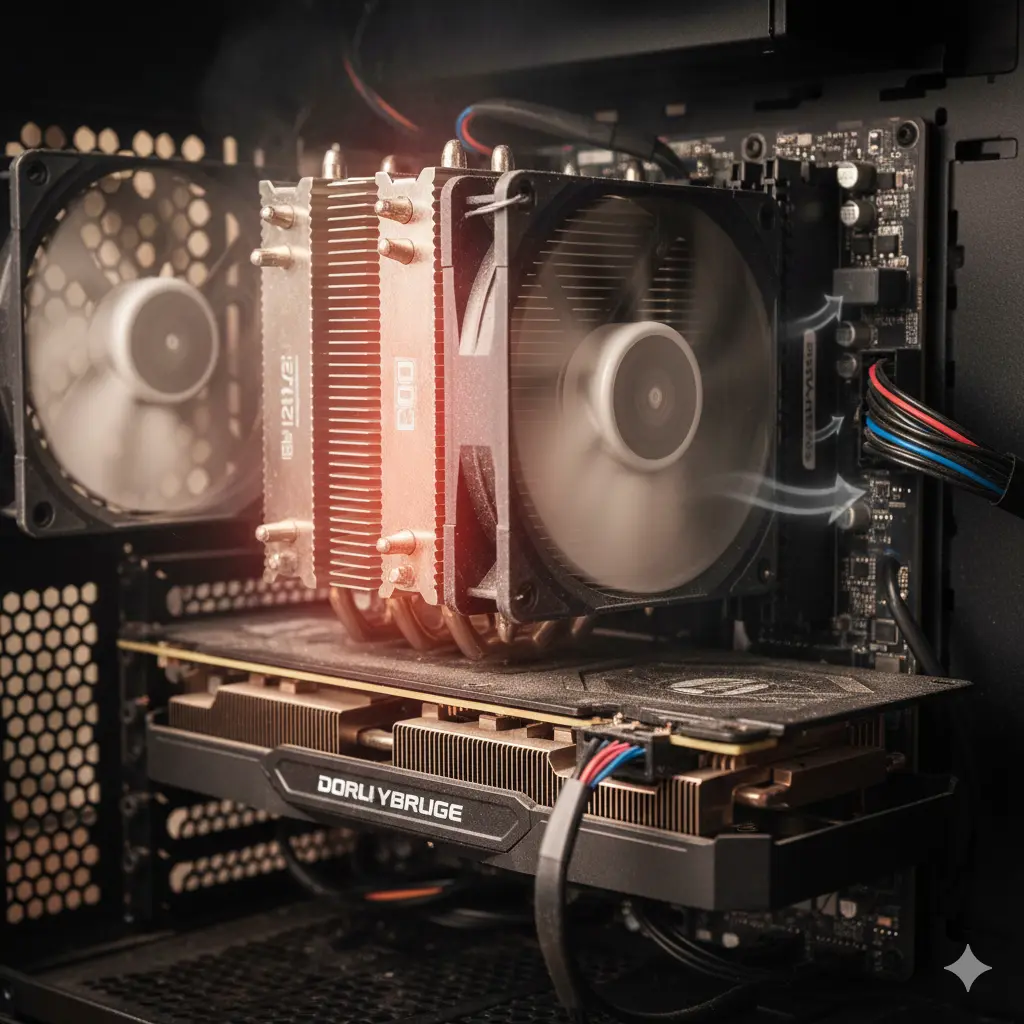
Thermal and power bottlenecks (often ignored)
Sometimes hardware is fast but forced to slow down.
This happens when:
- Temperatures are too high
- Power delivery is weak
This is called thermal throttling or power limiting.
Signs include:
- Sudden FPS drops
- Clock speeds falling
- Loud fans and heat
Poor cooling can act like a bottleneck even on high-end PCs.
Display bottleneck
The monitor can also be a limit.
Examples:
- A 60Hz monitor cannot show more than 60 FPS
- Low resolution hides GPU power
- Old cables restrict refresh rates
Your PC may be fast, but your screen cannot show it.
How to tell if your PC is bottlenecked
You do not need to guess.
You can test it in minutes.
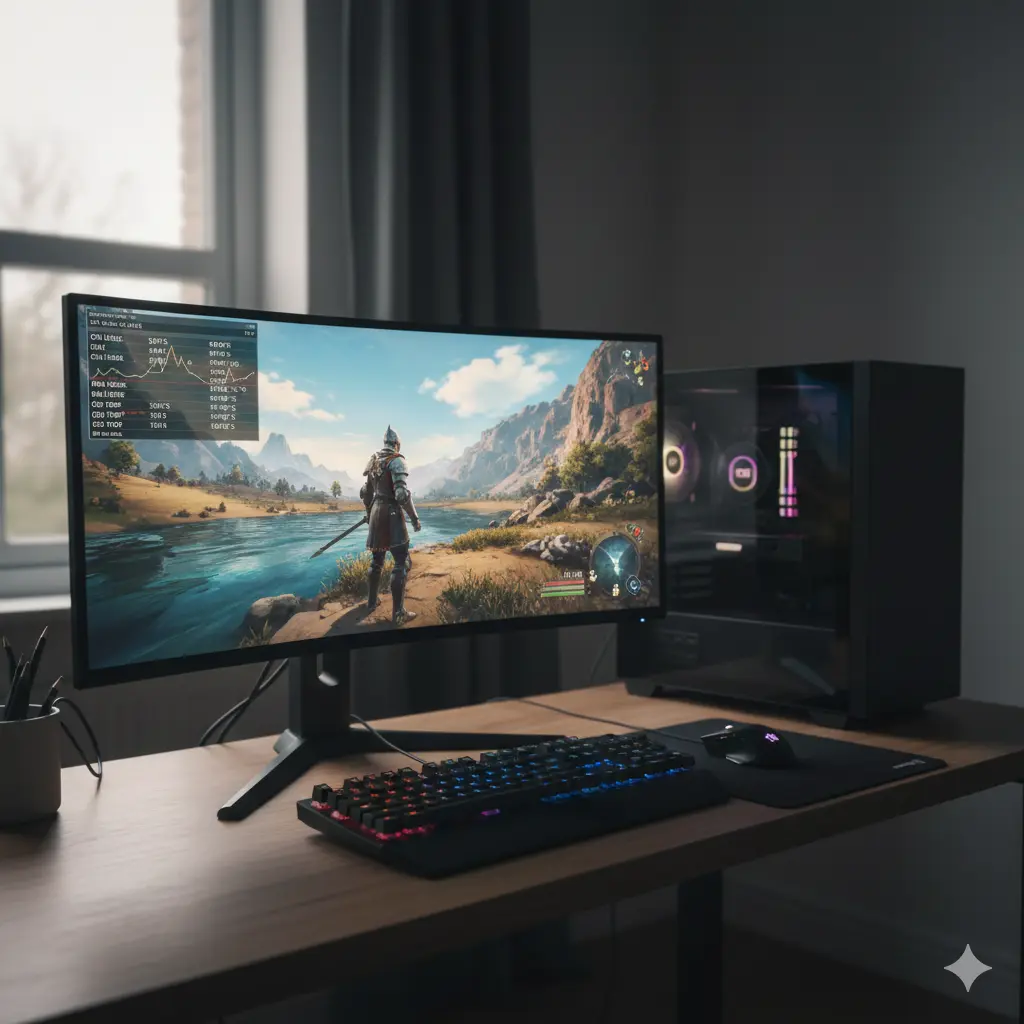
Step 1: Use a monitoring tool
Good beginner tools:
- MSI Afterburner
- HWInfo
- Windows Task Manager
- Xbox Game Bar
Turn on:
- CPU usage
- GPU usage
- RAM usage
- FPS
Step 2: Run a game or heavy task
Play for 5–10 minutes.
Watch patterns, not seconds.
Step 3: Understand the results
- GPU near 95–100% → likely GPU bottleneck
- CPU cores near 90–100% → likely CPU bottleneck
- RAM almost full → memory bottleneck
- Disk active during stutter → storage bottleneck
- High heat + low clocks → thermal bottleneck
Always observe usage during FPS drops.
Quick diagnosis table
| Symptom | Likely bottleneck | What to check |
|---|---|---|
| Low FPS, GPU under 60% | CPU | CPU usage, background apps |
| GPU 99%, FPS low | GPU | Resolution, settings, drivers |
| Stutter, RAM full | RAM | Installed memory, open programs |
| Freezing when loading | Storage | HDD vs SSD, free space |
| Sudden drops, hot system | Thermal | CPU/GPU temps, cooling |
Why bottlenecks change (resolution and workload)
Bottlenecks are not fixed.
They change based on:
- Resolution
- Game engine
- Settings
- Background tasks
Examples:
- 1080p competitive gaming → more CPU load
- 4K ultra gaming → more GPU load
- Streaming + gaming → CPU and RAM load
- Open-world games → CPU and storage load
This is why one PC can bottleneck differently in each game.
How to reduce bottlenecking (before upgrading)
Always try optimization first.
If CPU is the bottleneck:
- Lower crowd density
- Reduce view distance
- Close background apps
- Disable overlays
- Check temperatures
If GPU is the bottleneck:
- Lower resolution
- Enable DLSS or FSR
- Reduce shadows and effects
- Update drivers
If RAM is the bottleneck:
- Close browsers and launchers
- Reduce startup apps
- Upgrade to more memory if needed
If storage is the bottleneck:
- Move games to SSD
- Free disk space
- Avoid nearly full drives
If thermals are the bottleneck:
- Clean dust
- Improve airflow
- Replace thermal paste
- Check cooler quality
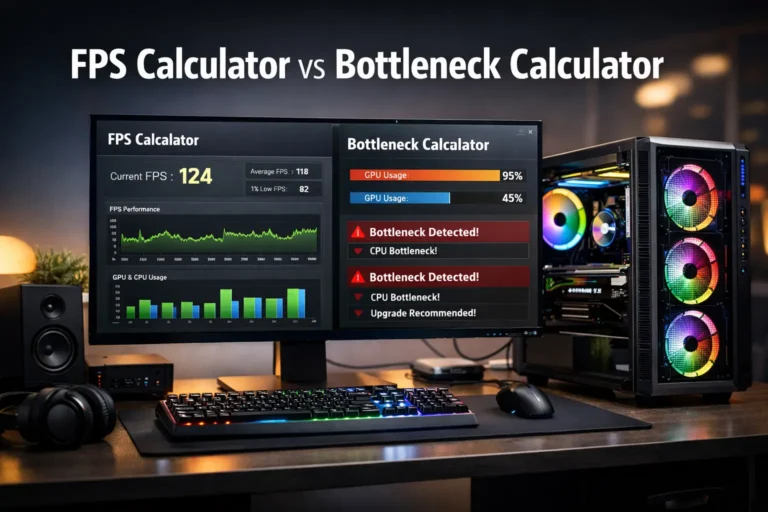
Bottleneck calculators: the honest truth
Bottleneck calculators can be helpful.
But they are only estimates.
They cannot know:
- Your games
- Your settings
- Your temperatures
- Your background programs
Use them to get an idea.
Confirm with real testing.
What to consider when upgrading parts
Before buying hardware, check the balance.
- CPUs matter for high FPS and multitasking
- GPUs matter for resolution and visual quality
- RAM affects smoothness and stability
- SSDs improve load times and open-world stutter
- Cooling protects performance
Upgrades work best when they match your use.
Common PC bottleneck myths
Myth 1: Any bottleneck is bad
No. All PCs have one.
Myth 2: 100% CPU always means a bottleneck
Not always. Some games use a few cores.
Myth 3: Bottleneck calculators are exact
They are estimates only.
Myth 4: Only CPU and GPU matter
RAM, storage, and cooling matter too.
Conclusion
PC bottlenecking is not about one “bad” part. It is about balance. A strong PC is made of components that work well together. Once one part falls behind, performance is limited, no matter how powerful the others are.
When you understand bottlenecks, you stop guessing. You start measuring. This lets you fix the real issue, optimize your settings, and upgrade smarter instead of wasting money.
A balanced PC runs smoother, loads faster, and feels better to use. And that is the real goal of understanding bottlenecking.
Frequently Asked Questions (FAQs)
What is PC bottlenecking in simple words?
It means one slow part is limiting the whole PC.
Can bottlenecking damage a PC?
No. It only affects performance.
Is CPU or GPU bottleneck worse?
Neither. It depends on what you use your PC for.
Can high-end PCs bottleneck?
Yes. Every system has limits.