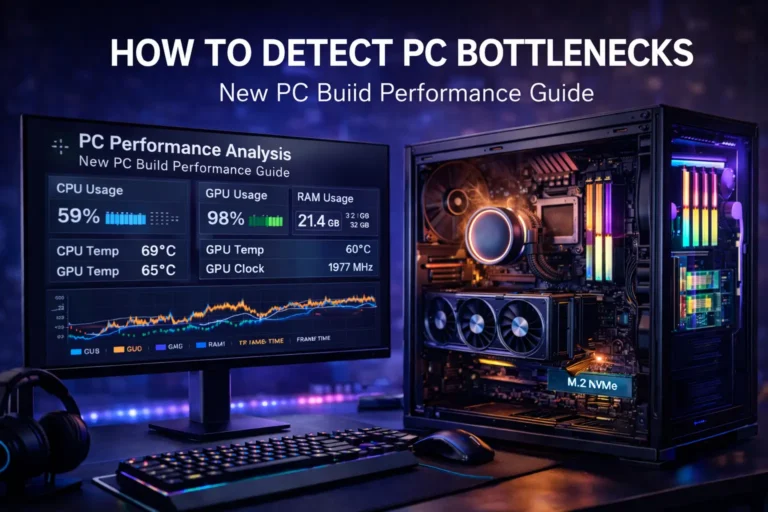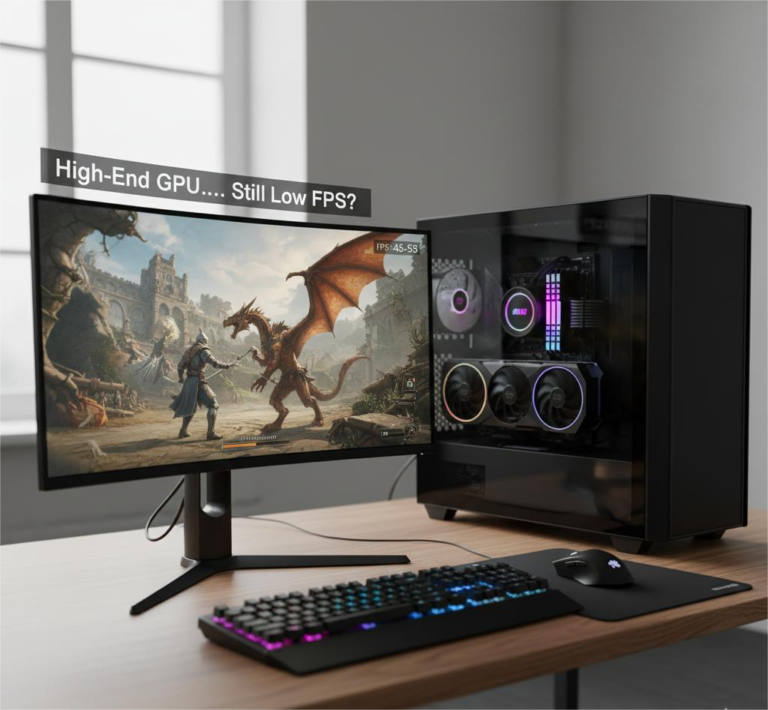
How to Know If Your PC Is Bottlenecked (Without Guessing)
A PC bottleneck happens when one component limits the performance of the entire system. Many users try to guess which part is causing the problem, often blaming the CPU or GPU without real proof. This guessing leads to unnecessary upgrades, poor optimization choices, and frustration when performance does not improve.
This article explains how to know if your PC is bottlenecked without guessing. It focuses on clear signs, reliable testing methods, and practical tools that use real usage data instead of assumptions. By following these steps, you can identify what is actually slowing your PC and make better decisions.
Understanding CPU Bottlenecking Explained
A bottleneck means one component works harder than the others.
The most common bottleneck is the CPU.
When the CPU cannot process data fast enough, the GPU must wait.
This reduces FPS and causes stutter.
A bottleneck is not a defect.
It is a balance issue.
How CPU Bottlenecking Happens in a PC
The CPU prepares instructions.
The GPU renders frames.
If the CPU is slow:
- The GPU stays underused
- Frames arrive late
- Performance drops
This usually happens when:
- An old CPU is paired with a modern GPU
- Games rely heavily on CPU calculations
- Background tasks overload the processor
CPU and GPU Relationship
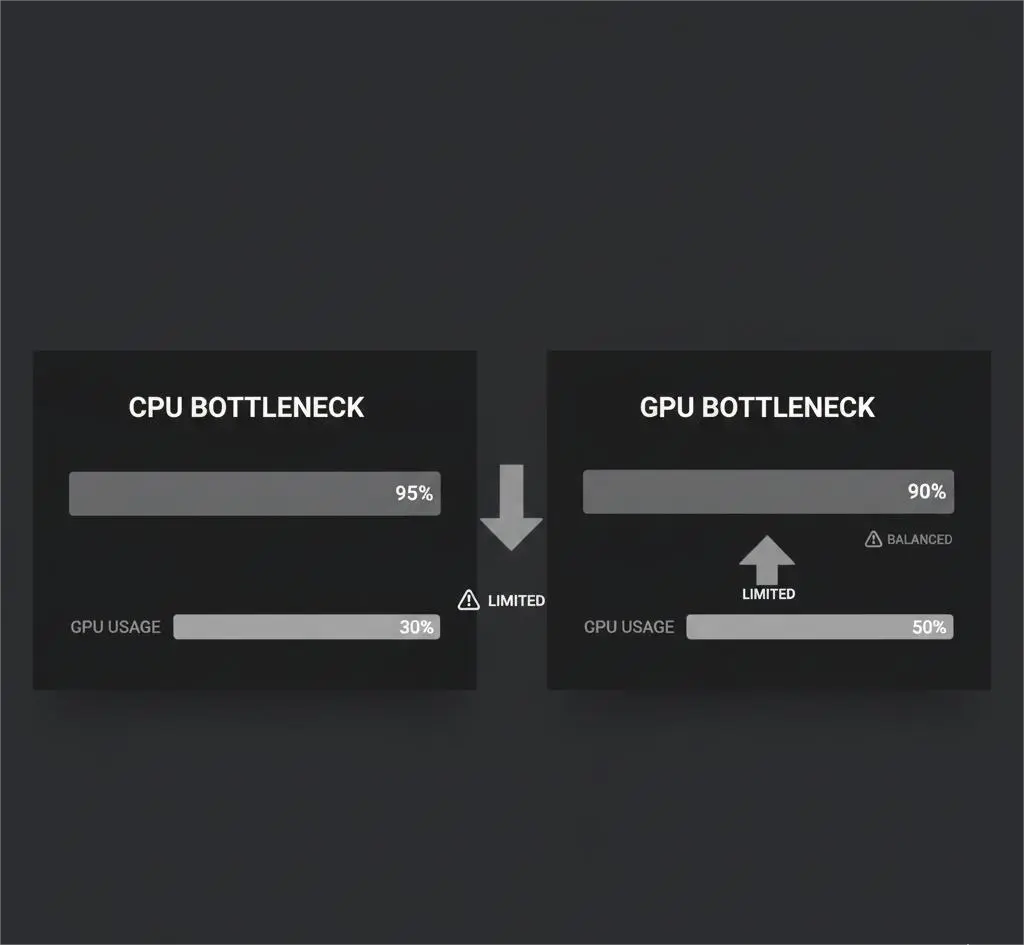
CPU and GPU usage must stay balanced.
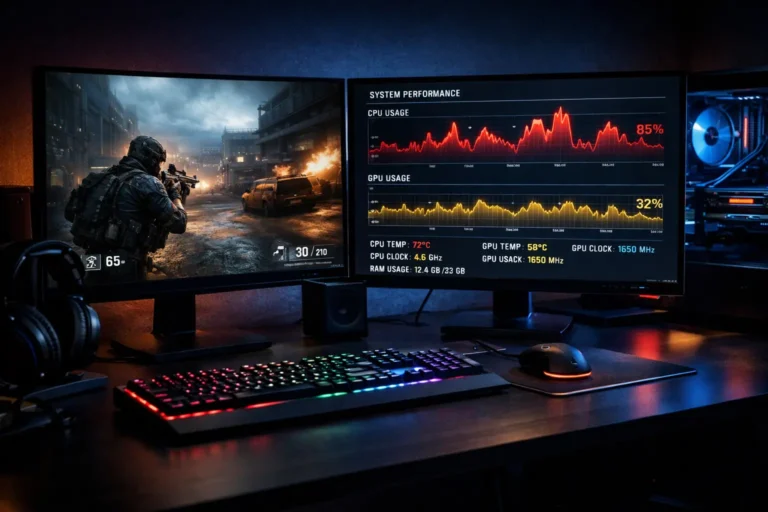
A common bottleneck pattern:
- CPU usage: 90–100%
- GPU usage: below 70–80%
High CPU usage alone is not bad.
It only matters when the GPU stays low at the same time.
Storage Speed
Storage can also limit performance.
Slow drives cause:
- Stuttering
- Long asset loading
- Frame drops in open-world games
HDDs are common bottlenecks.
SSDs reduce these issues significantly.
RAM Speed and Size
RAM affects how fast data moves.
Problems occur when:
- RAM capacity is too low
- RAM runs in single-channel
- RAM speed is very slow
Dual-channel RAM improves performance and stability.
Common Signs of CPU Bottlenecking
You may have a CPU bottleneck if:
- FPS stays low with a strong GPU
- Lowering graphics settings does not increase FPS
- GPU usage stays low during gameplay
- CPU usage stays consistently high
These signs must appear consistently, not randomly.
Best Tools to Detect PC Bottlenecks
Tools remove guessing.
Reliable tools include:
- Windows Task Manager
- MSI Afterburner (with on-screen display)
- HWInfo or HWMonitor
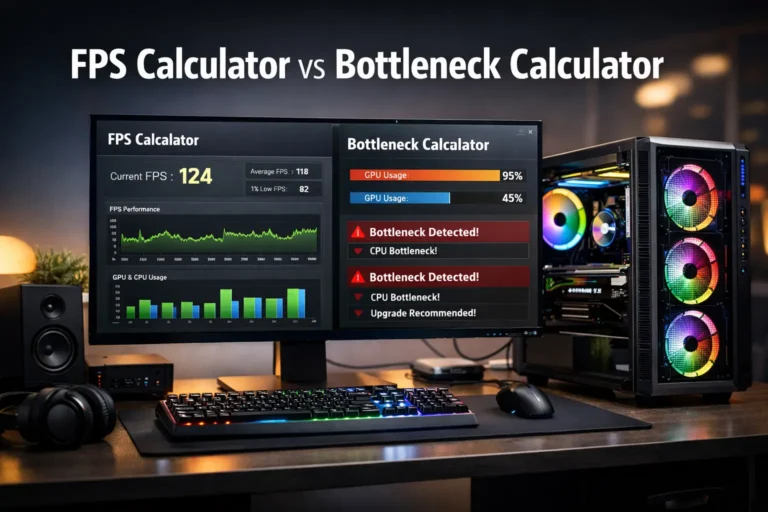
- Bottleneck calculators (for estimation only)
Always test during real gameplay.
Idle results are misleading.
How to Check if Your CPU Is Causing a Bottleneck
Follow this method:
- Launch a demanding game
- Enable CPU and GPU usage overlay
- Play for 10–15 minutes
- Observe usage patterns
If CPU usage stays very high and GPU usage stays low,
The CPU is the bottleneck.
This method is reliable.
Resolution Scaling Test (No-Guessing Method)
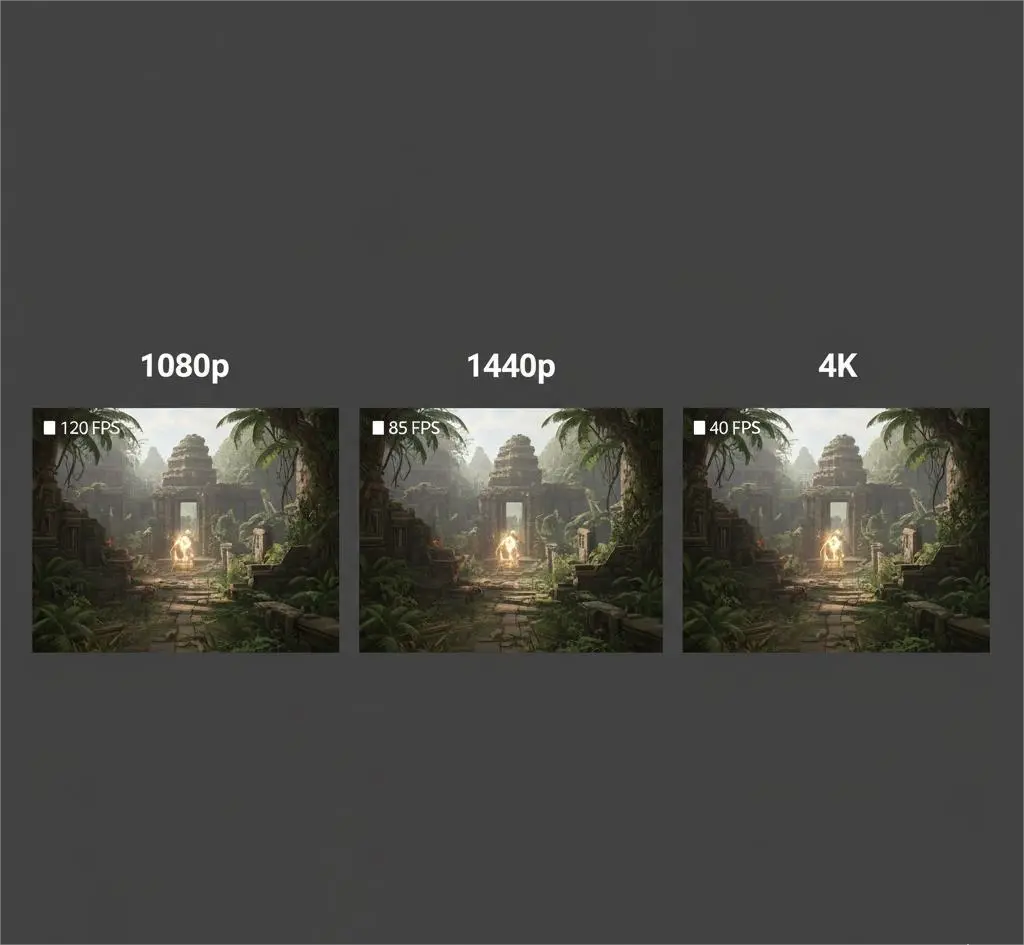
This is the most important confirmation step.
Do this:
- Run the game at 1080p
- Then test at 1440p or 4K
What the results mean:
- FPS stays the same → CPU bottleneck
- FPS drops significantly → GPU-limited
This test works because higher resolution shifts the load to the GPU.
Software and Background Process Bottlenecks
Hardware is not always the problem.
Common software causes:
- Browser tabs running in the background
- Game launchers
- Overlays and recording apps
- Antivirus scans
- Windows background services
Always test with a clean system state.
How to Tell if Your CPU Can Handle Your GPU
Balance matters more than brand.
General rules:
- Old CPU + new GPU = likely bottleneck
- Mid-range CPU + mid-range GPU = balanced
- High-end GPU needs a modern multi-core CPU
Compare performance tiers, not just model names.
Visual Explanation of CPU Bottlenecks
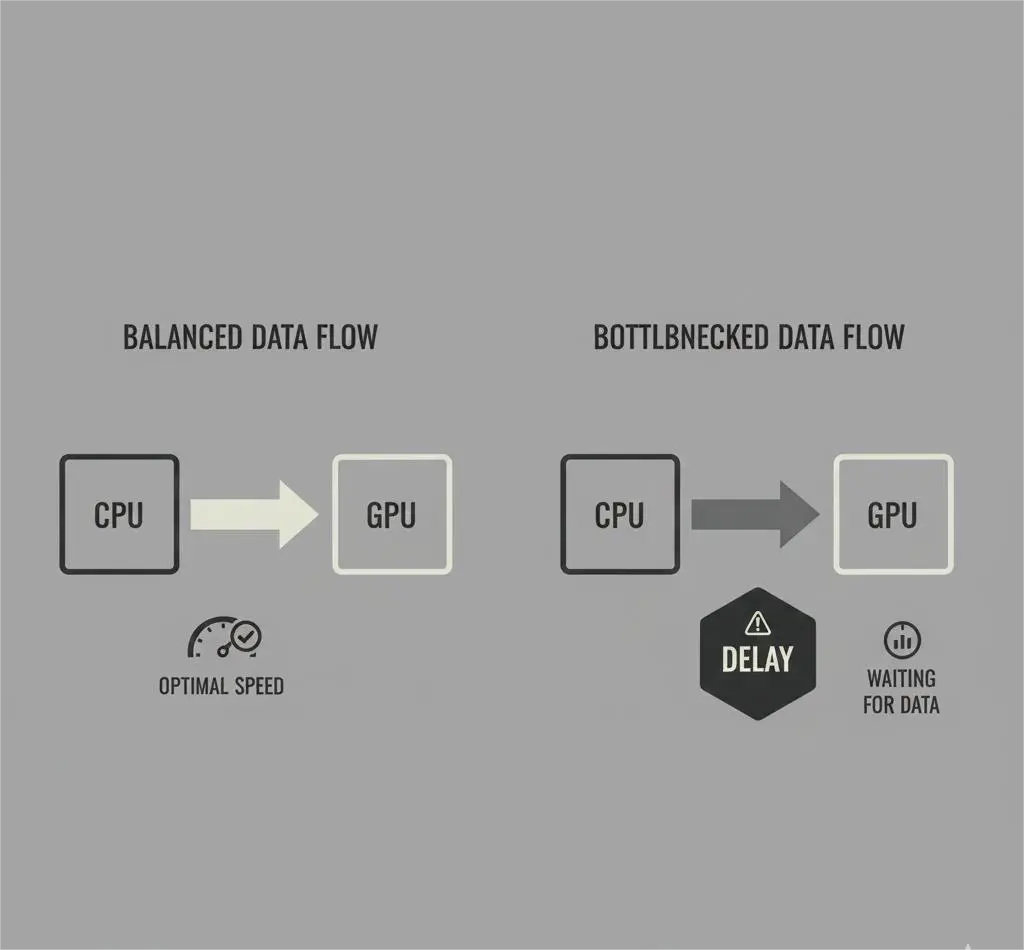
In a balanced system:
- CPU sends data smoothly
- GPU stays near full usage
In a bottlenecked system:
- CPU queue builds up
- GPU waits idle
- Frames arrive late
Understanding data flow helps diagnose issues faster.
Comparison Table of Common CPU Bottleneck Scenarios
| CPU Tier | GPU Tier | Expected Result |
|---|---|---|
| Low-end | High-end | Severe bottleneck |
| Mid-range | Mid-range | Balanced |
| High-end | Mid-range | GPU-limited |
| Old CPU | New GPU | Bottleneck likely |
Balance always gives better results.
What Causes a CPU Bottleneck?
Main causes include:
- Old CPU architecture
- Low core or thread count
- Poor cooling or thermal throttling
- Slow RAM
- Heavy background tasks
Fix the cause, not just the symptom.
Benchmark Insights: 6-Core vs 8-Core CPUs
Modern games use more cores.
A 6-core CPU may bottleneck:
- Streaming
- Open-world games
- Simulation titles
An 8-core CPU handles multitasking better.
This improves frame consistency.
How to Fix or Reduce CPU Bottlenecks
You do not always need an upgrade.
Try these first:
- Close background apps
- Enable XMP for RAM
- Improve CPU cooling
- Increase resolution or graphics load
- Update drivers and chipset
Upgrade only after confirming the bottleneck.
When Optimization Is Enough vs When to Upgrade
Optimization is enough if:
- CPU usage drops after cleaning background tasks
- FPS stabilizes after the settings adjustments
Upgrade makes sense if:
- CPU stays maxed even after optimization
- Resolution scaling confirms CPU limit
- Modern games consistently struggle
Data should guide the decision.
Real User Fixes & Community-Backed Solutions
Experienced users often:
- Upgrade RAM before CPU
- Improve airflow
- Lock FPS for stability
- Adjust CPU-heavy settings
Small changes can give big improvements.
Key Takeaways
- Bottlenecks are normal
- Guessing leads to wasted money
- Monitor real usage
- Use resolution scaling to confirm
- Optimize before upgrading
- Balance matters more than raw power
Conclusion
A PC bottleneck is not a defect or a mistake. Every system has a limiting component depending on the workload, game, or settings being used. The important part is understanding where the bottleneck occurs and how it affects performance, rather than trying to eliminate it completely.
Using real usage monitoring, resolution scaling tests, and clean system checks removes guesswork from the process. Optimizing your system should always come before upgrading hardware. When the data clearly confirms a bottleneck, you can upgrade with confidence and avoid wasting money.
Frequently Asked Questions (FAQs)
Is 100% CPU usage always bad?
No. It matters only if GPU usage stays low.
Can software cause bottlenecks?
Yes. Background apps often do.
Are bottleneck calculators accurate?
They give estimates, not final answers.
Is CPU bottlenecking harmful?
No. It only limits performance.