How to Fix CPU Bottleneck Without Upgrading Hardware
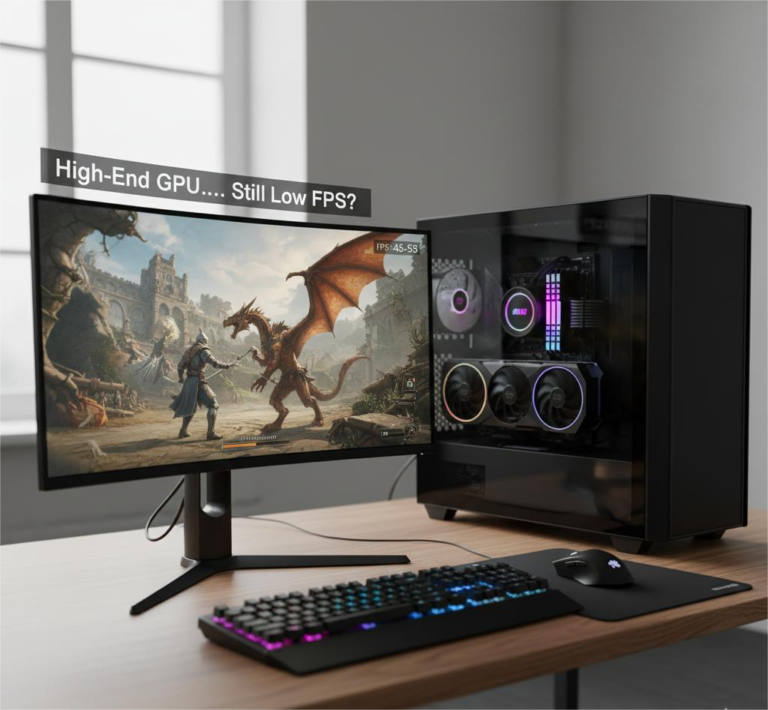
A CPU bottleneck happens when your processor cannot keep up with the rest of your system. This causes your graphics card to wait for instructions, your FPS to drop, and your gameplay or work experience to feel unstable. Many users assume this means they must buy a new CPU. In reality, a large number of CPU bottlenecks are caused by poor settings, background tasks, or system misconfiguration.
The good news is that many of these problems can be fixed without upgrading hardware. With the right checks and optimizations, you can often reduce CPU strain, improve frame stability, and unlock unused GPU performance. This guide walks you through the exact steps used by PC technicians and performance tuners to deal with CPU bottlenecks safely and effectively.
Quick Ways to Fix a CPU Bottleneck (No Hardware Upgrade)
Before diving deep, here are the fastest and most effective actions most users can take:
- Close background apps and disable overlays
- Set Windows power mode to Best performance
- Lower CPU-heavy game settings
- Cap FPS to stabilize frame times
- Enable XMP/EXPO and confirm dual-channel RAM
- Check CPU temperatures and throttling
- Re-test GPU usage and frame times
These steps alone solve CPU bottlenecks for many systems.
What Is a CPU Bottleneck?
A CPU bottleneck occurs when your processor cannot process tasks fast enough to feed your graphics card. Because of this, your GPU remains underused, even in demanding games or applications. The result is unstable FPS, stuttering, and poor 1% lows.
A true CPU bottleneck is not just “high CPU usage.” It is a condition where one or more CPU cores hit their limits while the GPU waits idle. Understanding this difference is essential before applying fixes.
CPU Bottleneck vs High CPU Usage
High CPU usage does not always mean you have a CPU bottleneck.
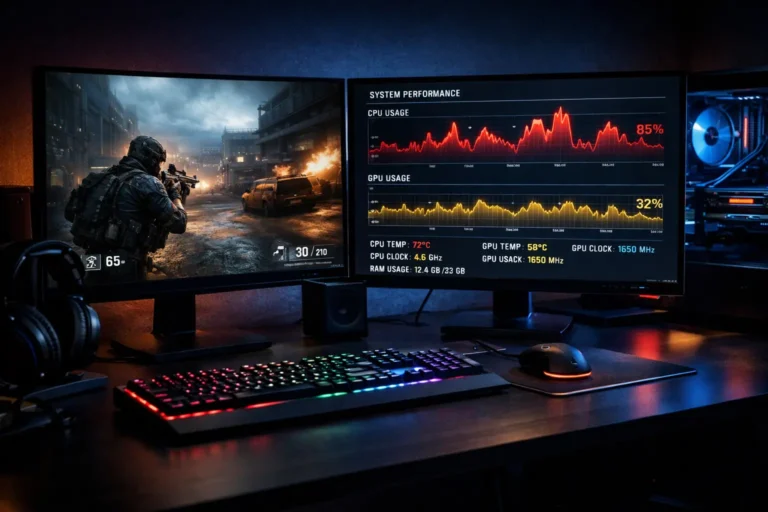
You are likely CPU-bottlenecked if:
- GPU usage stays below ~80% while gaming
- One or two CPU cores reach 90–100%
- Lowering graphics settings does not increase FPS
You are likely facing general high CPU usage if:
- CPU is high even on the desktop
- One background process dominates the Task Manager
- Performance drops outside of games
In the second case, the issue is often software-related, not a performance bottleneck.
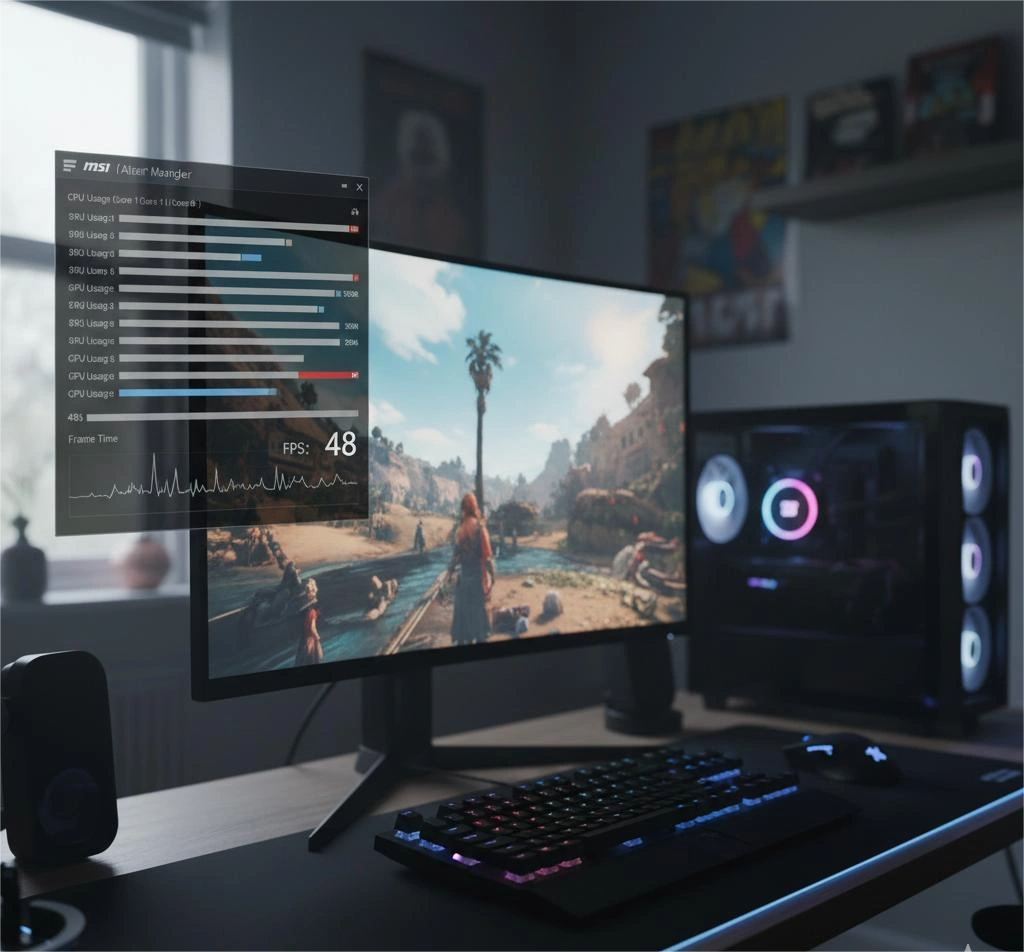
How to Confirm a CPU Bottleneck (2-Minute Test)
Use one of these trusted tools:
- Windows Task Manager
- MSI Afterburner with RivaTuner
- HWInfo
What to check:
- Per-core CPU usage
- GPU usage during gameplay
- Frame time consistency
If GPU usage stays low while specific CPU cores are maxed and frame times spike, you are CPU-limited.
Why CPU Bottlenecks Happen
CPU bottlenecks commonly happen because of:
- CPU-heavy game engines
- Poor multi-threading
- Too many background processes
- Incorrect system power settings
- RAM running in single-channel or low speed
- Thermal throttling
Many of these causes can be fixed without spending money.
Step 1: Reduce Background CPU Load
Start by removing unnecessary CPU work.
- Close browsers, launchers, and unused apps
- Disable startup programs in Task Manager
- Turn off screen recorders and unnecessary overlays
- Scan for malware and unwanted software
This alone often restores lost CPU performance.
Step 2: Optimize Windows for Performance
System configuration has a major effect on CPU behavior.
- Set Windows power mode to Best performance
- On laptops, disable aggressive power saving
- Update chipset and GPU drivers
- Pause unnecessary background services
These changes allow the CPU to boost correctly and avoid artificial limits.
Step 3: Optimize In-Game Settings That Stress the CPU
Some game settings mainly affect the CPU, not the GPU.
CPU-heavy settings (reduce these first):
- View or draw distance
- NPC and crowd density
- Physics and destruction
- World detail and simulation
- Shadow complexity
GPU-heavy settings (can be increased):
- Resolution and resolution scale
- Texture quality
- Anti-aliasing
- Post-processing effects
| Setting / Feature | Mostly Affects CPU | Mostly Affects GPU | Why It Matters |
|---|---|---|---|
| View / Draw Distance | ✅ Yes | ❌ No | More objects mean more CPU draw calls and world management. |
| NPC / Crowd Density | ✅ Yes | ❌ No | AI behavior and pathing are handled by the CPU. |
| Physics & Destruction | ✅ Yes | ❌ No | Real-time calculations increase CPU workload. |
| World / Simulation Detail | ✅ Yes | ❌ No | More simulation increases CPU processing per frame. |
| Shadow Quality & Count | ✅ Often | ✅ Sometimes | Shadows increase CPU draw calls and GPU rendering load. |
| Ray Tracing (engine dependent) | ⚠️ Partial | ✅ Yes | Adds CPU overhead plus heavy GPU load, depending on the engine. |
| Resolution / Resolution Scale | ❌ No | ✅ Yes | Higher resolution shifts work from CPU to GPU. |
| Texture Quality | ❌ No | ✅ Yes | Mainly affects GPU and VRAM, not CPU. |
| Anti-Aliasing | ❌ No | ✅ Yes | Image processing handled by GPU shaders. |
| Post-Processing Effects | ❌ No | ✅ Yes | GPU filters such as bloom, motion blur, depth of field. |
Step 4: Cap FPS to Stabilize CPU Load
Every extra frame per second increases CPU scheduling work.
Using an FPS cap:
- Reduces CPU spikes
- Improves 1% lows
- Creates smoother gameplay
Set a cap inside the game or through GPU drivers. A stable 60, 90, or 120 FPS often feels better than an unstable high FPS.
Step 5: Shift More Load to the GPU
If your system is CPU limited, increasing resolution or resolution scale can help.
This:
- Reduces how many of frames the CPU must prepare
- Increases GPU usage
- Often improves frame consistency
This method improves smoothness, not raw FPS.
Step 6: Check RAM Configuration (Major Hidden Fix)
Many systems suffer from incorrect memory setup.
Check in BIOS:
- Is XMP/EXPO enabled?
- Is RAM running at rated speed?
- Are sticks installed in proper dual-channel slots?
An incorrect memory configuration can severely limit CPU performance.
Step 7: Prevent CPU Thermal Throttling
Overheating CPUs slow themselves down automatically.
Monitor:
- CPU temperatures
- Clock speeds under load
If clocks drop due to heat:
- Clean dust from the system
- Improve airflow
- Adjust fan curves
- Replace old thermal paste if necessary
Stable temperatures allow the CPU to maintain full performance.
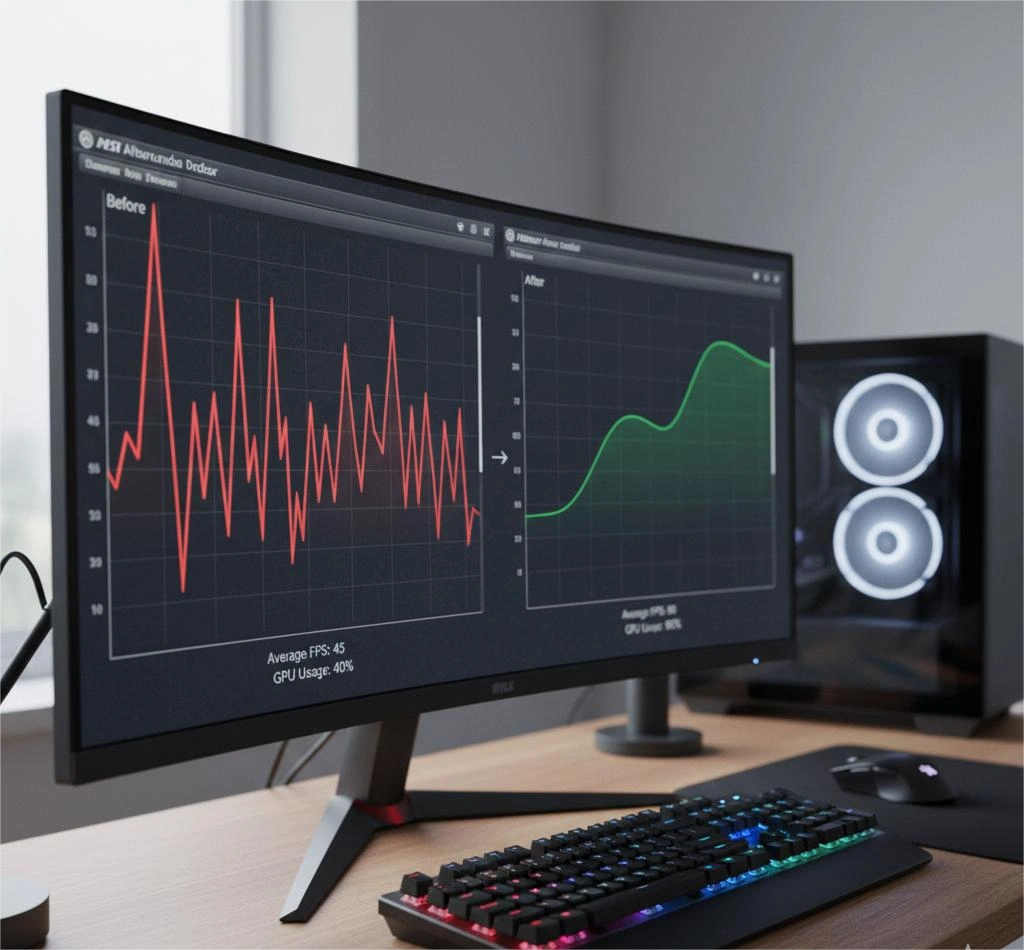
Step 8: Verify Improvements Correctly
Always test after each change.
Use the same:
- Game
- Location or benchmark
- Settings
Compare:
- Average FPS
- 1% lows
- GPU usage
- Frame time graphs
Rising GPU usage and smoother frame times confirm reduced bottlenecking.
Common Mistakes to Avoid
- Lowering all settings blindly
- Watching only total CPU usage
- Ignoring per-core behavior
- Skipping RAM checks
- Confusing background load with bottlenecks
Proper diagnosis saves time and prevents wrong fixes.
When Optimization Reaches Its Limit
Some games are extremely CPU-intensive by design. Large simulations, strategy games, and poorly threaded engines can overwhelm even strong CPUs.
If you have applied every step in this guide and still experience limits, your system is already optimized. At that point, hardware upgrades become the only way to significantly increase CPU headroom.
Conclusion
A CPU bottleneck does not always mean your processor is too weak. In many systems, the real causes are background tasks, incorrect system settings, memory misconfiguration, or thermal limits. These issues quietly reduce CPU performance and make even powerful systems behave poorly.
By following the steps in this guide, you can reduce unnecessary CPU load, stabilize frame times, and improve overall system responsiveness. For many users, these optimizations unlock performance they already paid for without buying new hardware.
Frequently Asked Questions (FAQs)
Can a CPU bottleneck really be fixed without upgrading?
Yes. Many CPU bottlenecks are caused by software, power settings, memory configuration, or thermal limits.
Why is my GPU usage low but CPU not at 100%?
Games often stress only a few cores. One core can bottleneck the system even if total CPU usage looks moderate.
Does increasing resolution reduce CPU bottleneck?
It can shift workload to the GPU and reduce CPU frame pressure, which improves smoothness.
Does RAM affect CPU bottlenecks?
Yes. Slow or single-channel RAM can significantly reduce CPU performance.