PC Bottleneck Calculator Explained: How Accurate Are They?
A PC bottleneck calculator looks simple. You enter your CPU and GPU, click a button, and get a percentage. Many users take that number as fact. They use it to decide upgrades, build PCs, and even judge performance problems. But real PC performance is not simple. Bottlenecks change by game, settings, resolution, and even temperature. A calculator cannot see what is actually happening inside your system. That is why many people get confused when the “percentage” does not match what they experience.
This guide explains what PC bottleneck calculators really do, how accurate they are, and where they fail. You will also learn how professionals verify bottlenecks using real data, and how to make better upgrade decisions without relying on one number. This article is written for gamers, PC builders, and anyone planning a PC upgrade. It focuses on accuracy, not marketing claims.
Who This Guide Is For
This guide is made for:
- People planning a new PC build
- Gamers are thinking about upgrading their CPU or GPU
- Laptop users are seeing unstable performance
- Anyone using a bottleneck calculator and wanting the truth
If you only want a quick number, a calculator is enough.
If you want to understand real performance, this guide is for you.
What Is a PC Bottleneck?
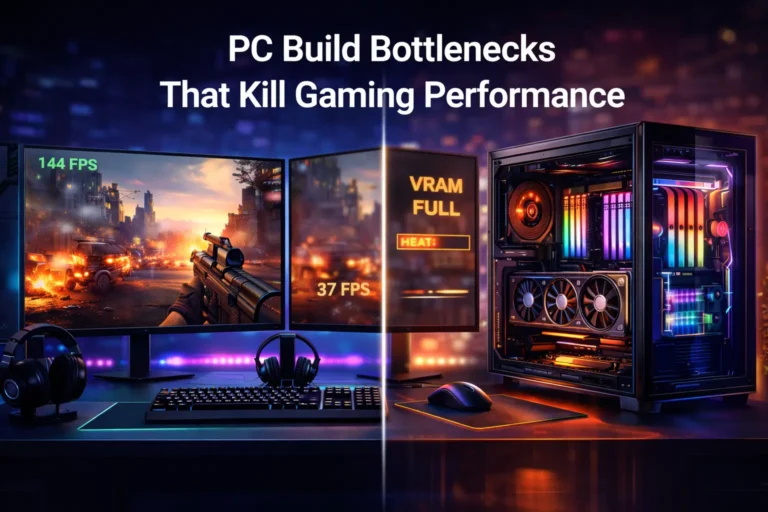
A PC bottleneck happens when one component limits the whole system.
In most systems, the bottleneck is between the CPU and GPU.
If the CPU cannot prepare frames fast enough, the GPU waits.
If the GPU cannot render frames fast enough, the CPU waits.
The slowest part controls the final performance.
Every PC has a bottleneck.
A bottleneck becomes a problem only when it is large enough to cause low FPS, stutters, or wasted hardware power.
What Is a PC Bottleneck Calculator?
A PC bottleneck calculator is an online estimation tool.
You usually enter:
- CPU
- GPU
- RAM
- Sometimes, resolution and use case
The calculator then predicts which part may limit performance.
Most tools show:
- A bottleneck percentage
- CPU-bound or GPU-bound results
- Basic upgrade suggestions
These tools are built for fast planning.
They are not real performance tests.
How Do PC Bottleneck Calculators Work?
Bottleneck calculators do not test your real PC.
They use:
- Hardware benchmark databases
- Performance scores
- Average gaming assumptions
- Internal formulas
The tool compares the estimated strength of your CPU and GPU.
It then predicts which part may reach its limit first.
What they cannot measure:
- Your actual games
- Your settings
- Background programs
- Cooling behavior
- Power limits
- Driver or patch changes
Because of this, they can only estimate balance, not real-world performance.
Are PC Bottleneck Calculators Accurate?
They are partially accurate.
They are good at:
- Detecting extreme mismatches
- Helping early build planning
- Comparing rough upgrade paths
They are not good at:
- Predicting real FPS
- Detecting scene-specific limits
- Troubleshooting stutters
- Measuring performance impact
Think of them like BMI calculators.
They show direction. They do not show reality.
What “Accuracy” Really Means for Bottleneck Tools
Accuracy does not mean the number is perfect.
True accuracy means:
- Does the tool point in the right direction?
- Does it prevent major mismatches?
- Does it match common benchmark patterns?
A calculator is reasonably accurate if it:
- Uses large benchmark datasets
- Considers resolution and workload
- Explains limitations clearly
- Updates results over time
A calculator becomes misleading when it:
- Shows one fixed percentage
- Ignores real-world variables
- Promises exact outcomes
Limitations of PC Bottleneck Calculators
Bottleneck calculators have built-in limits.
They cannot detect:
- Per-core CPU saturation
- Thermal throttling
- Power limits (especially in laptops)
- Game engine behavior
- RAM or storage latency problems
- Background process impact
They also cannot adapt to:
- New game updates
- Driver optimizations
- New hardware behaviors
This is why two PCs with the same parts can perform very differently.
Accuracy Scorecard: What Really Determines Calculator Reliability
| Accuracy Factor | Why It Matters |
|---|---|
| Benchmark data source | Determines the realism of estimates |
| Resolution awareness | Prevents false CPU bottlenecks |
| Workload variety | Avoids gaming-only bias |
| Update frequency | Keeps results relevant |
| Result explanation | Prevents wrong upgrade choices |
If a calculator does not address these points, its accuracy is limited.
Why the Bottleneck Percentage Is Often Misleading
A single percentage cannot describe a real system.
Bottlenecks change with:
- Game engine
- Scene complexity
- Resolution
- Graphics settings
- Target FPS
- CPU boosting behavior
- Cooling and power delivery
A PC can be CPU-limited in esports games.
The same PC can be GPU-limited in AAA games.
A single number cannot represent all these situations.
Always think in ranges, not fixed values.
The Biggest Factors That Change Bottleneck Results
1. Game Type
Some games stress the CPU.
Some stress the GPU.
Some stress both.
2. Resolution and Settings
Lower resolution shifts load to the CPU.
Higher resolution shifts load to the GPU.
3. Target FPS and Refresh Rate
High-FPS gaming increases CPU demand.
Lower-FPS gaming hides many CPU limits.
4. System Behavior
Thermals, background apps, and RAM limits can fake bottlenecks.
When Bottleneck Calculators Are Actually Useful
They are useful when:
- Planning a PC build
- Avoiding extreme mismatches
- Comparing upgrade directions
- Getting early guidance
They are not useful when:
- Diagnosing stutters
- Finding real limits
- Measuring performance impact
- Troubleshooting complex issues
Use them as filters, not verdicts.
How We Evaluate Bottlenecks in Real Systems (Experience-Based)
In real performance analysis, bottlenecks are never guessed.
They are observed.
We test systems using:
- Repeatable in-game benchmarks
- Real gameplay scenes
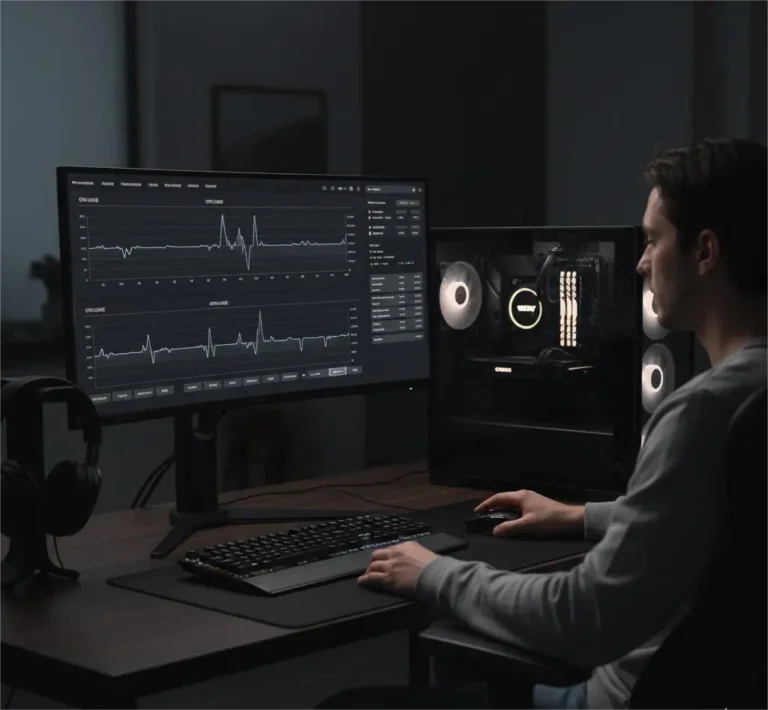
- Hardware monitoring tools
- Frametime analysis
We look for patterns across:
- Multiple games
- Different resolutions
- Different settings
- Sustained workloads
This method shows where performance truly breaks down.
It also reveals problems that calculators can never detect, such as thermal limits and background interference.
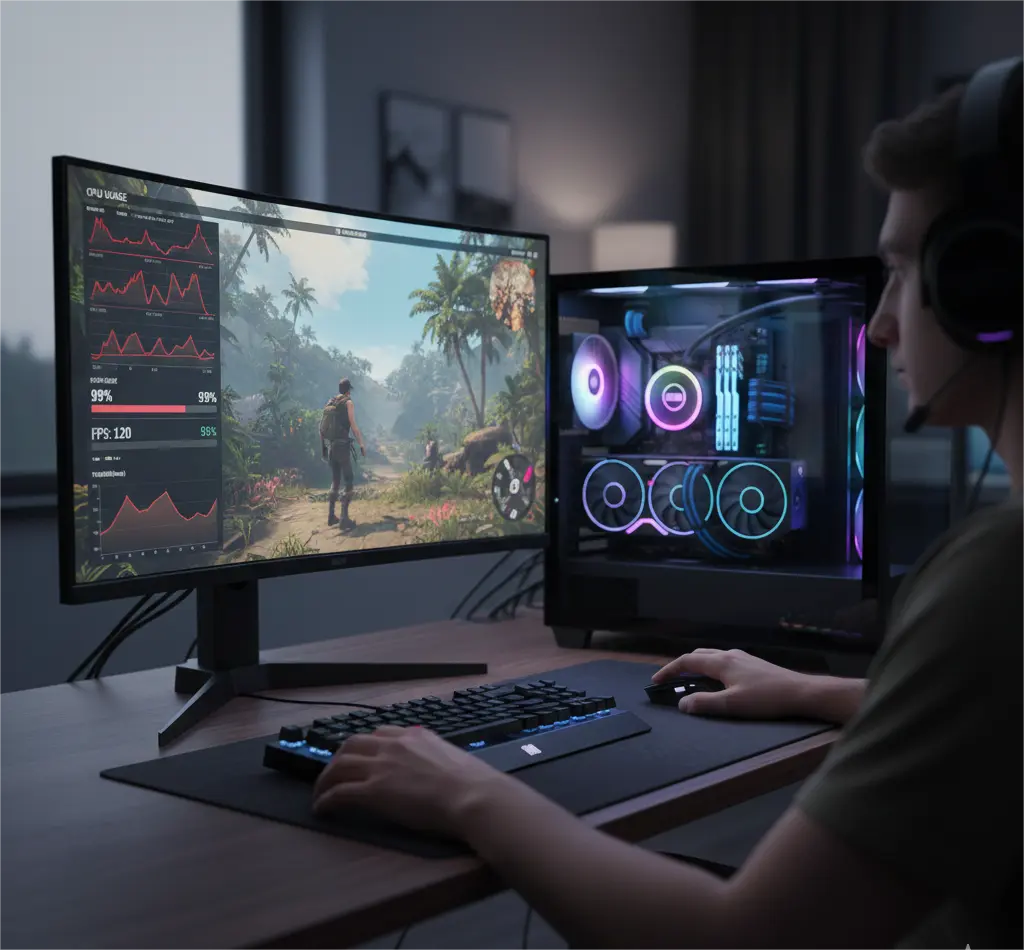
How to Verify a Bottleneck on Your Own PC
Step 1: Run a repeatable test
Use a built-in benchmark or the same gameplay scene.
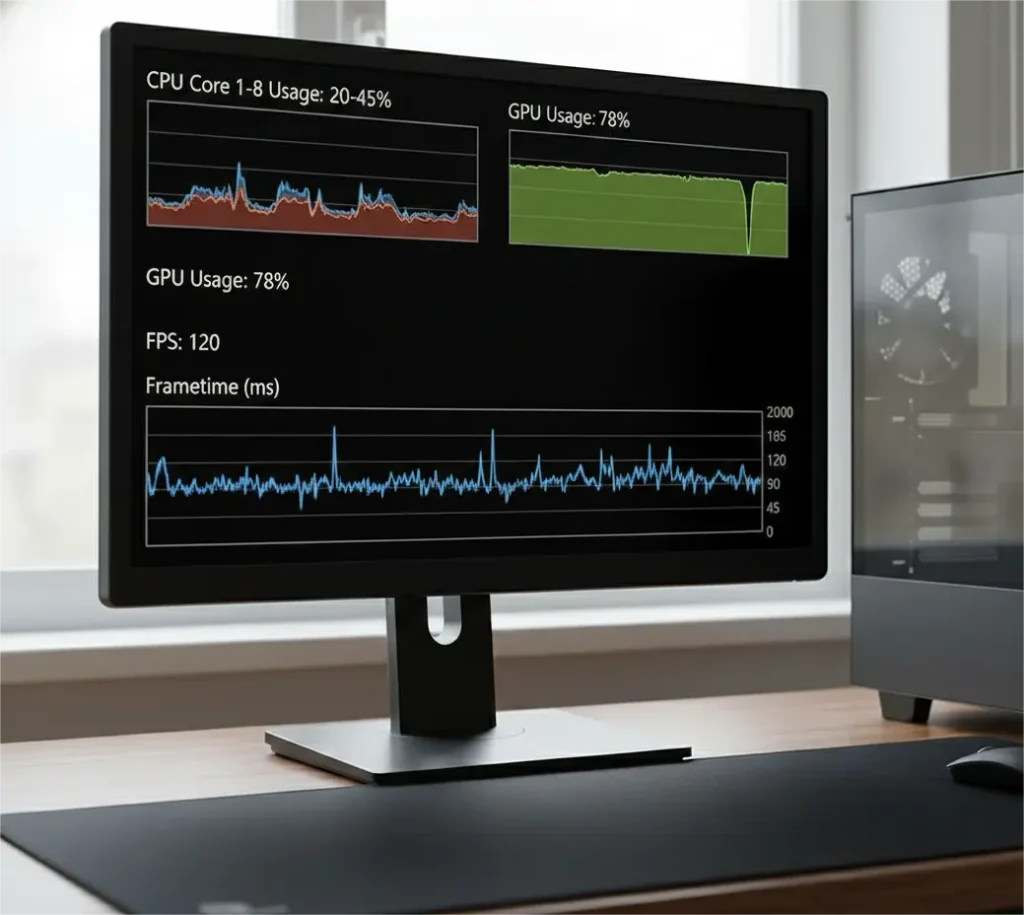
Step 2: Monitor key metrics
- GPU usage
- Per-core CPU load
- FPS and 1% lows
- Frametime stability
Step 3: Interpret behavior
Likely CPU-limited if:
- GPU usage drops below ~90%
- One or two CPU cores spike
- FPS does not increase when lowering GPU settings
Likely GPU-limited if:
- GPU usage stays near maximum
- FPS increases when lowering the resolution
Step 4: Cross-test
Change resolution.
Change graphics settings.
Observe which component responds.
Common Myths About Bottleneck Calculators
Myth: Any bottleneck is bad
Every PC has one.
Myth: You need zero bottleneck
Impossible in real systems.
Myth: 100% CPU usage always means CPU bottleneck
Per-core behavior matters more.
Myth: Calculators replace benchmarks
They cannot observe real workloads.
Why Different Bottleneck Calculators Give Different Results
Each calculator uses its own:
- Benchmark sources
- Performance weighting
- Resolution assumptions
- Update schedules
- Internal formulas
Because there is no standard model, results often conflict.
Gaming vs Productivity Bottlenecks
Most calculators are gaming-focused.
Gaming often depends on:
- CPU single-core speed
- GPU power
- Engine design
Productivity often depends on:
- CPU core count
- RAM capacity
- Storage speed
- Application scaling
A system balanced for gaming can bottleneck badly in editing or rendering.
Upgrade Decision Matrix
| Symptom | Likely Cause | Best Action |
|---|---|---|
| Low GPU usage and unstable FPS | CPU or system limit | CPU upgrade, background cleanup |
| GPU always near max, low FPS | GPU limit | GPU upgrade, lower resolution |
| Frequent stutters | RAM or storage | Add RAM, use SSD |
| FPS drops over time | Thermals or power | Improve cooling, check power limits |
Always confirm before upgrading.
So, How Accurate Are PC Bottleneck Calculators?
They are useful guides.
They are not performance truth tools.
They work well for planning.
They fail when used alone.
The most accurate method combines:
- Calculator guidance
- Real monitoring
- Benchmark testing
This hybrid approach avoids wasted upgrades.
Conclusion
PC bottleneck calculators can be helpful. They quickly show whether a build is clearly unbalanced. They can guide early decisions and help beginners avoid extreme mistakes. Used this way, they provide real value. But they are not accurate performance analyzers. They cannot see your games, your temperatures, your background tasks, or your real workload behavior. That is why their percentages often fail to match real experience.
If you want true accuracy, use calculators only as a starting point. Then, verify results using real monitoring and benchmarks. That is how informed builders make decisions, and that is how you avoid upgrading the wrong part.
Frequently Asked Questions (FAQs)
Are PC bottleneck calculators accurate?
They are partly accurate. They help with rough planning, but they cannot show real in-game performance.
Why do different bottleneck calculators give different results?
Because they use different data, formulas, and assumptions.
How can I tell if my PC is CPU or GPU bottlenecked?
Check GPU usage and per-core CPU load while gaming.
Should I trust a bottleneck calculator before upgrading?
Use it only as a starting point. Always verify with real tests.