FPS Calculator vs Bottleneck Calculator | What’s the Difference and Which One Should You Use?
If you’re planning a new PC build or upgrading an existing system, you’ve probably come across two popular tools: FPS calculators and bottleneck calculators. Both promise to predict performance and help you choose the right hardware, but they answer very different questions. One estimates how many frames per second your games might deliver, while the other tries to identify which component could limit your overall system performance.
The confusion starts when people treat these tools as interchangeable. That’s when expectations break. You might expect 180 FPS and get 120, or upgrade your GPU only to see zero improvement because the CPU or RAM was the real limit. Understanding the difference between these calculators helps you set realistic expectations, build balanced systems, and avoid wasting money on the wrong upgrades.
Quick Answer (Simple Explanation)
An FPS calculator predicts expected frame rates for a hardware setup.
A bottleneck calculator predicts whether your CPU, GPU, or RAM is limiting overall performance.
FPS = performance prediction
Bottleneck = balance diagnosis
What Is an FPS Calculator?
An FPS (frames per second) calculator estimates how many frames your PC can render in a specific game.
It answers:
“How much FPS will I get with this CPU and GPU?”
Inputs usually include
- CPU model (Intel Core / AMD Ryzen)
- GPU model (NVIDIA GeForce / AMD Radeon)
- RAM size
- Resolution (1080p, 1440p, 4K)
- Graphics settings (low, medium, ultra)
Outputs usually include
- Average FPS estimate
- Playability tier (60, 144, 240 FPS)
- Relative performance score
What it’s good for
- Planning builds before buying
- Comparing GPUs
- Choosing hardware for target resolution
- Budget decisions
What it cannot show
- Thermal throttling
- Driver issues
- Frame time spikes
- Power limits
- Stuttering
- Real workload behavior
It’s a prediction tool, not a diagnostic tool.
What Is a Bottleneck Calculator?
A bottleneck calculator estimates whether one component is limiting the rest of your system.
It answers:
“Will my CPU hold back my GPU?”
Inputs usually include
- CPU
- GPU
- Resolution
- Sometimes RAM
Outputs usually include
- Bottleneck percentage
- CPU-limited or GPU-limited warning
- Balance recommendations
What it’s good for
- Avoiding mismatched parts
- Pairing CPU and GPU tiers
- Checking upgrade compatibility
- Preventing overspending
What it cannot show
- Real FPS
- Thermal issues
- Storage bottlenecks
- Clock drops
- Workload-specific behavior
It’s a balance estimator, not a performance meter.
Side-by-Side Comparison
| Feature | FPS Calculator | Bottleneck Calculator |
|---|---|---|
| Purpose | Predict FPS | Find limiting part |
| Best used before buying | Yes | Yes |
| Real-time diagnostics | No | No |
| Shows actual temperatures | No | No |
| Shows clock throttling | No | No |
| Good for upgrades | Partial | Better |
| Accuracy | Medium | Low–Medium |
How FPS Calculators Actually Work
Most FPS calculators rely on:
- Benchmark databases
- Historical game tests
- Synthetic scores
- Average scaling assumptions
For example, results from tools like Cinebench or 3DMark are converted into expected in-game numbers.
But games use different engines (DirectX, Vulkan), drivers change constantly, and CPU scheduling in Windows varies.
So real-world FPS can easily differ.
They’re best seen as educated estimates.
How Bottleneck Calculators Actually Work
These tools compare:
- CPU compute capability (IPC, cores, frequency)
- GPU throughput
- Memory bandwidth
- Resolution load
They use ratios and formulas to guess where limits appear.
They do not measure:
- Thermal throttling
- VRM power restrictions
- RAM latency
- Frametime consistency
- Storage speed
- PSU limitations
That’s why bottleneck percentages can be misleading.
A “10% bottleneck” number isn’t a real measurement — it’s math, not monitoring.
When Should You Use an FPS Calculator?
Use it before you buy hardware.
Ideal situations
- Planning a new gaming PC
- Choosing GPU for 1440p or 4K
- Targeting 144Hz or 240Hz esports gaming
- Comparing RTX vs Radeon cards
- Estimating upgrade gains
Example
You want 120 FPS in Cyberpunk at 1440p → compare GPUs with an FPS estimator.
When Should You Use a Bottleneck Calculator?
Use it when pairing components.
Ideal situations
- Matching CPU with GPU
- Avoiding CPU overkill
- Budget optimization
- Checking compatibility
Example
Pairing an entry CPU with a high-end NVIDIA GPU → tool warns imbalance.
When NOT to Trust Either Tool
This is where most people get frustrated.
Both tools fail when real-world issues appear:
- Thermal throttling
- Power limits
- Poor motherboard VRMs
- Weak PSU
- Single-channel RAM
- XMP disabled
- Storage bottlenecks
- Driver problems
- Game engine inefficiencies
Calculators cannot see these.
Only real monitoring can.
The Professional Way to Test Performance (Better Than Both)
Instead of guessing, measure.
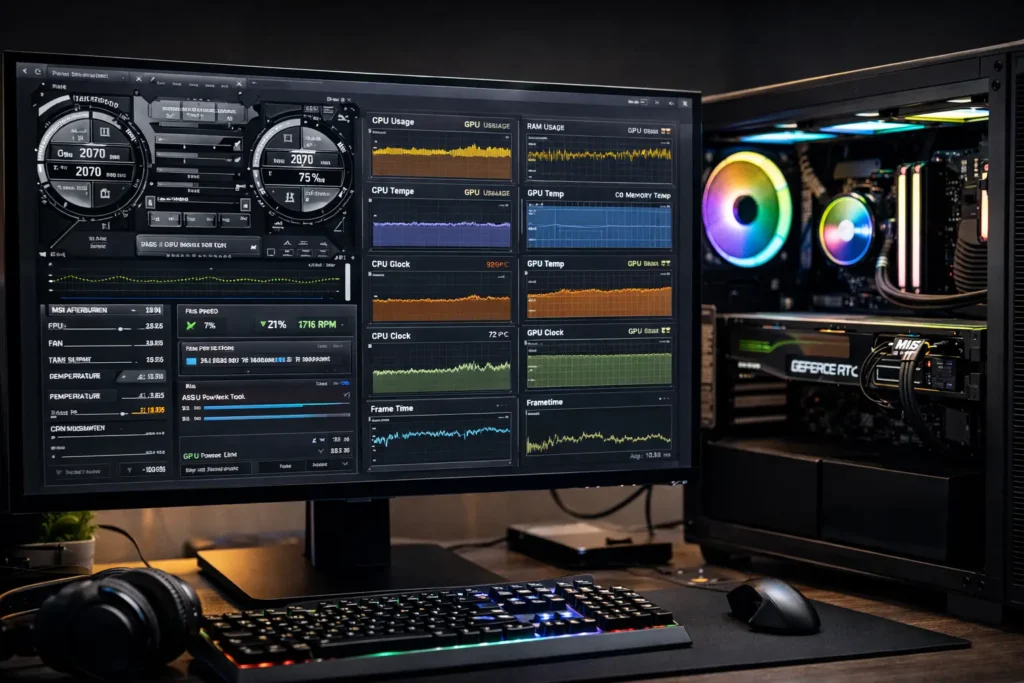
Step 1 – Install monitoring software
Use:
- MSI Afterburner
- HWiNFO
- CapFrameX
Track:
- CPU usage per core
- GPU utilization
- RAM usage
- VRAM
- Temperatures
- Clock speeds
- Frametime
Step 2 – Run real workloads
Test actual games or software you use daily.
Step 3 – Interpret
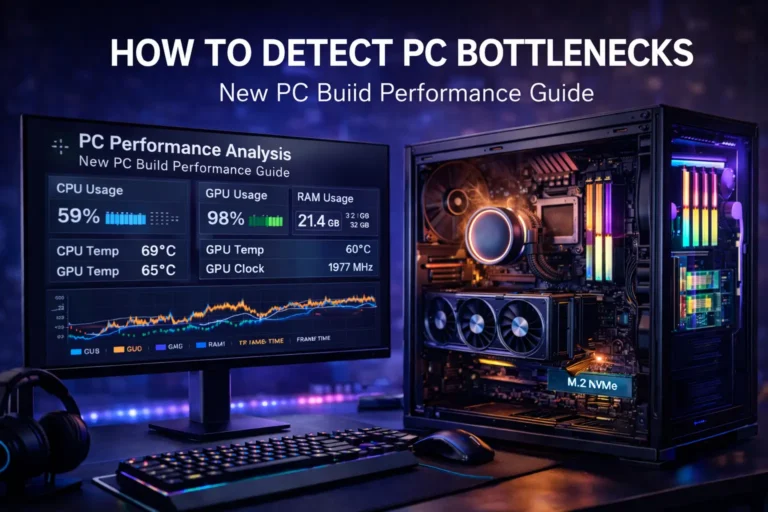
- GPU at 99% → GPU limited
- CPU cores maxed → CPU limited
- Temps high + clocks drop → thermal bottleneck
- Disk spikes → storage issue
This reveals the truth instantly.
Real-World Scenarios
Scenario 1 – Gaming PC
FPS calculator says 180 FPS
Reality: 130 FPS
Cause: CPU bottleneck + background apps
Scenario 2 – Editing Workstation
Bottleneck tool says balanced
Reality: timeline lag
Cause: SATA SSD limit
Scenario 3 – High-End Build
No calculator shows problems
Reality: clocks dropping
Cause: thermal throttling
Scenario 4 – AI Workstation
Good CPU/GPU pairing
Reality: VRAM full
Cause: memory limit
Decision Framework
Before building
Use:
- FPS calculator → estimate performance
- Bottleneck calculator → check balance
After building
Use:
- Monitoring software only
Simple rule
Plan with calculators
Diagnose with real tools
Pros and Cons
FPS Calculator
Pros:
- Easy
- Quick planning
- Good buying guidance
Cons:
- Not real-world
- No diagnostics
- Ignores thermals
Bottleneck Calculator
Pros:
- Good pairing logic
- Prevents mismatches
- Budget friendly
Cons:
- Percentages misleading
- Over-simplified
- Cannot detect hidden issues
Local Help & Services
Some users prefer hands-on help.
Search terms like:
- PC diagnostic service near me
- Gaming PC repair shop
- Custom PC builder
- Performance testing service
Local technicians can:
- Stress test hardware
- Check thermals
- Validate PSU
- Optimize airflow
- Recommend balanced upgrades
Typical costs vary by region:
- Diagnostics: low to moderate
- Cooling upgrades: low to mid
- GPU upgrades: higher tier
If you’re unsure, professional testing can save money long-term.
Common Mistakes to Avoid
- Trusting calculator percentages blindly
- Ignoring temperatures
- Ignoring RAM configuration
- Upgrading GPU first every time
- Testing only synthetic benchmarks
- Not measuring frametime
Best Practices
- Use calculators only for planning
- Always validate with monitoring
- Enable XMP/EXPO
- Keep drivers updated
- Balance CPU and GPU tiers
- Stress test new builds
- Watch clocks and temperatures
Conclusion
FPS calculators and bottleneck calculators are helpful—but only when you use them for what they’re designed to do. FPS tools are great for estimating performance before you buy, while bottleneck tools help you check whether your CPU, GPU, and memory are properly matched. They guide planning, not diagnosis.
For real results, nothing beats monitoring your system during actual workloads. Tools that track utilization, temperatures, clocks, and frametime reveal the true limits of your PC. Use calculators to plan, use testing to confirm, and you’ll make smarter decisions, avoid unnecessary upgrades, and get the performance you actually paid for.
Frequently Asked Questions
Are FPS calculators accurate?
They’re estimates based on averages. Real results can differ depending on settings, drivers, and thermals.
Are bottleneck calculators reliable?
They help with rough pairing but shouldn’t guide final upgrade decisions alone.
Which one should I use first?
FPS calculator for performance expectations, bottleneck calculator for hardware balance.
Can calculators replace testing?
No. Monitoring software gives real data; calculators only predict.
Why is my FPS lower than predicted?
Possible causes include CPU limits, thermals, drivers, RAM speed, or storage bottlenecks.
Do professionals use these tools?
Mostly for planning. Real diagnostics rely on monitoring and stress testing.
What tool shows real bottlenecks?
Hardware monitoring tools such as MSI Afterburner and HWiNFO are used under real-world workloads.
Can RAM or SSD cause bottlenecks?
Yes. Low-capacity RAM or slow storage frequently causes stutter and delays.