FPS Calculator vs Bottleneck Calculator: What’s the Difference and Which One Should You Use?
If you have been planning a new gaming computer or thinking about an upgrade, you have probably come across two popular online tools, and comparing an FPS calculator vs bottleneck calculator is a common source of confusion. Both tools promise to help you make smarter hardware decisions, but they are actually designed to answer two very different questions.
The confusion usually starts when people assume these two tools do the same job. That assumption is exactly where expectations tend to break down. You might expect a high frame rate and end up with something noticeably lower, or you might upgrade your graphics card and see almost no improvement at all, simply because your processor or memory was the true limiting factor the whole time. Understanding the real difference between these two tools helps you set realistic expectations, build a genuinely balanced system, and avoid spending money on the wrong upgrade.
The Simple, Quick Answer
An FPS calculator tries to predict how many frames per second your hardware combination might deliver in a specific game. A bottleneck calculator, on the other hand, tries to predict whether your processor, your graphics card, or your memory is holding the rest of your system back.
In simple terms, one tool focuses on performance prediction, while the other focuses on balance diagnosis.
What Exactly Is an FPS Calculator?
An FPS calculator is designed to estimate how many frames your computer can realistically produce while running a particular game. It is essentially trying to answer one specific question: how much frame rate should you expect from this particular combination of hardware?
You typically enter information like your processor model, your graphics card model, your amount of memory, your intended screen resolution, and your chosen graphics quality setting. In return, the tool usually gives you an estimated average frame rate, a general sense of which playability tier you might land in, and a relative performance comparison.
This type of tool is genuinely useful for planning a build before you actually buy anything, comparing different graphics card options, choosing hardware suited to your target resolution, and making smarter budget decisions overall.
However, it is important to understand what this type of tool simply cannot show you. It cannot detect overheating-related slowdowns, driver-related issues, uneven frame timing, power delivery restrictions, real stuttering, or how your system will actually behave under your own personal, everyday workload. In short, it is a prediction tool, not a diagnostic one.
What Exactly Is a Bottleneck Calculator?
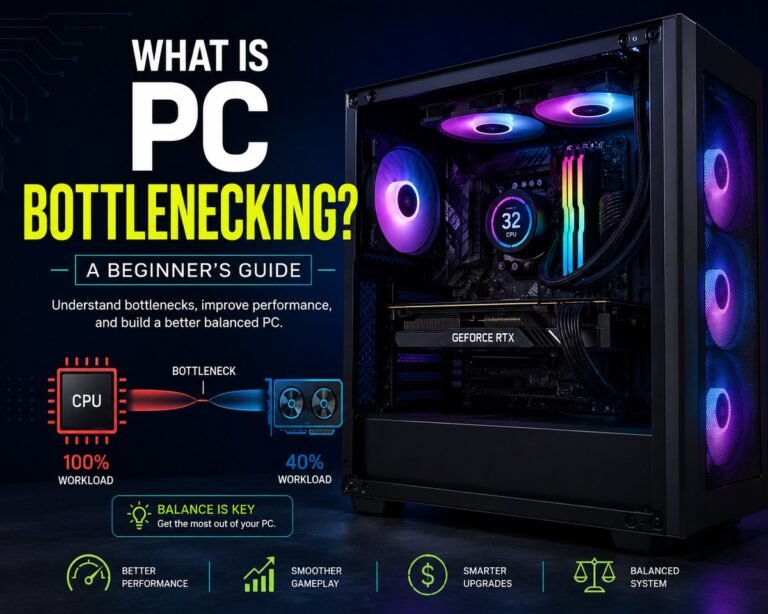
A bottleneck calculator is designed to estimate whether one specific part of your computer is limiting the overall performance of the rest of your system. It is essentially trying to answer a different question: will your processor end up holding back your graphics card, or the other way around?
You typically enter your processor, your graphics card, your intended resolution, and sometimes your amount of memory. In return, the tool usually gives you an estimated bottleneck percentage, a general warning about whether your system leans more toward a processor or graphics card limitation, and some basic balance recommendations.
This type of tool is genuinely useful for avoiding a severely mismatched combination of parts, pairing a processor and graphics card of similar performance tiers, checking general upgrade compatibility, and helping prevent unnecessary overspending.
However, this tool also has real limitations. It cannot show your actual expected frame rate, detect overheating issues, identify storage-related slowdowns, reveal clock speed drops, or account for how a specific game or program actually behaves in practice. In short, it is a balance estimator, not a true performance meter.
How These Two Tools Actually Compare
Both tools are genuinely useful before you buy new hardware, but neither one offers true, real-time diagnostics. Neither can show you your actual operating temperatures, and neither can detect real clock speed throttling as it happens.
An FPS calculator tends to be more directly helpful when you are trying to estimate raw performance numbers. A bottleneck calculator tends to be more directly helpful when you are specifically trying to avoid a poorly matched combination of parts. In terms of overall accuracy, both tools should really only be treated as offering a moderate, rough estimate at best, since neither one can see what is truly happening inside your specific, individual system.
How FPS Calculators Actually Generate Their Estimates
Most FPS calculators rely on large stored databases of past benchmark results, historical game testing data, synthetic performance scores, and general scaling assumptions built from average systems.
For example, results from other well-known benchmarking tools are often converted into rough, expected in-game frame rate numbers. However, different games are built using different underlying technology, graphics drivers are updated constantly, and how your operating system manages your processor’s workload can vary quite a bit as well.
Because of all these variables, your own real-world frame rate can easily end up differing from the calculator’s estimate. These tools are best understood as reasonably educated guesses, rather than guaranteed, exact outcomes.
How Bottleneck Calculators Actually Generate Their Estimates
These tools generally compare your processor’s general computing capability, your graphics card’s overall throughput, your memory’s available bandwidth, and the general demand created by your chosen resolution.
They use mathematical ratios and built-in formulas to estimate roughly where a limitation might appear within your system. Importantly, these tools cannot measure overheating-related slowdowns, power delivery restrictions, memory response delays, real frame timing consistency, your storage drive’s actual speed, or your power supply’s true capability.
This is exactly why a bottleneck percentage should never be treated as a precise, guaranteed measurement. It is closer to an educated mathematical guess than an actual, real-time monitoring result.
When It Makes Sense to Use an FPS Calculator
This type of tool is most useful before you actually purchase any new hardware. It works well when you are planning an entirely new gaming computer from scratch, choosing between different graphics cards for a specific target resolution, aiming for a particular high refresh rate in competitive games, comparing similar graphics cards against each other, or trying to estimate how much of a real improvement a potential upgrade might actually bring.
For example, if you want to reach a specific target frame rate in a particular game at a particular resolution, comparing a few different graphics card options through an FPS estimator can give you a genuinely helpful starting point.
When It Makes Sense to Use a Bottleneck Calculator
This type of tool is most useful specifically when you are trying to pair different components together. It works well when you are matching a processor to a graphics card, trying to avoid buying a processor that is far more powerful than you actually need, optimizing your overall budget allocation, or simply double-checking general compatibility between two specific parts.
For example, if you are considering pairing a fairly basic, entry-level processor together with an extremely powerful, high-end graphics card, this type of tool can help warn you about that kind of serious imbalance before you actually spend the money.
When You Should Not Fully Trust Either Tool
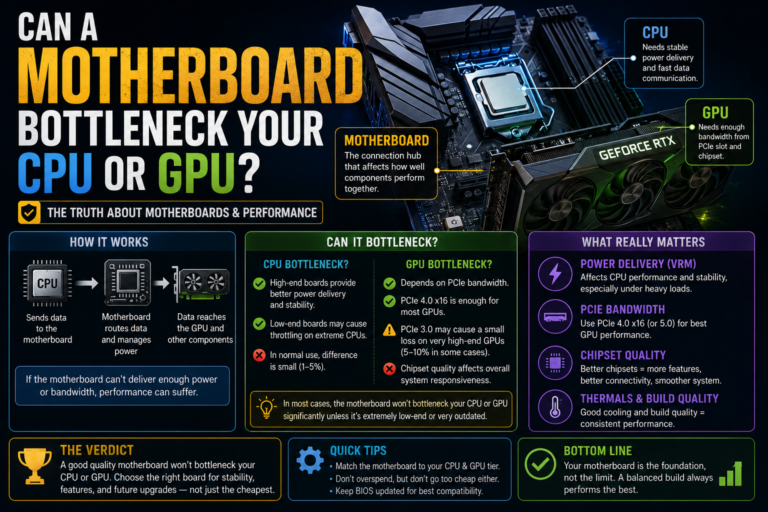
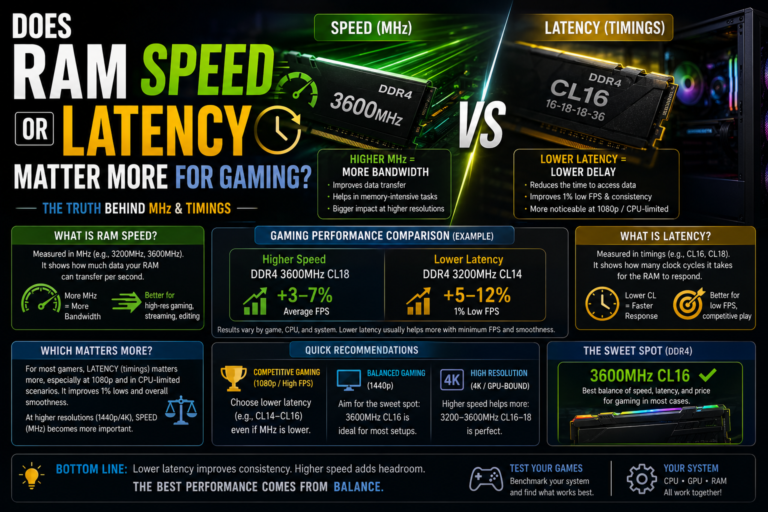
This is exactly where a lot of people end up feeling frustrated and confused. Both types of tools tend to fail once real-world issues start to appear, including overheating-related slowdowns, power delivery restrictions, weak motherboard power components, an underpowered power supply, memory running in a slower single-channel setup, a helpful memory speed setting being left disabled, storage-related bottlenecks, driver-related problems, and general inefficiencies within a specific game’s own underlying engine.
Simply put, calculators cannot see any of these real-world issues. Only genuine, hands-on monitoring of your actual system can reveal them clearly.
The More Reliable Way to Actually Test Your Performance
Instead of relying entirely on either type of calculator, the most reliable approach is to directly measure your own system’s real behavior instead of only estimating it.
Step One: Install Real Monitoring Software
Choose a tool capable of tracking your individual processor core usage, your graphics card utilization, your overall memory usage, your graphics card’s dedicated memory usage, your temperatures, your clock speeds, and your frame timing consistency.
Step Two: Test Your Actual, Real Workloads
Rather than relying only on a synthetic benchmark, test the specific games or programs you personally use on a regular, everyday basis.
Step Three: Interpret What You Actually See
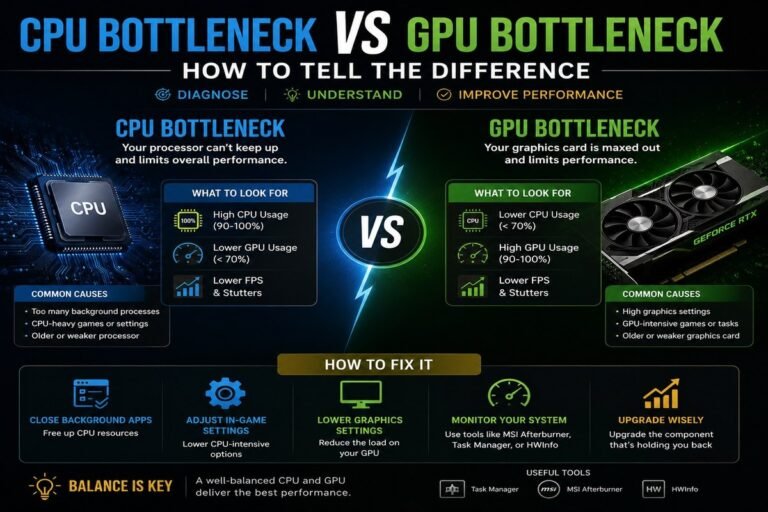
If your graphics card usage stays consistently near its maximum, your system is likely limited by your graphics card. If specific processor cores stay maxed out while your graphics card usage stays low, your system is likely limited by your processor instead. If your temperatures climb noticeably while your clock speeds visibly fall, you are likely dealing with a thermal-related limitation. And if you notice sudden spikes in storage drive activity, your storage speed may be playing a role as well.
This kind of direct, hands-on approach reveals the honest truth about your system almost immediately, in a way that no simple calculator ever could.
A Few Realistic Examples
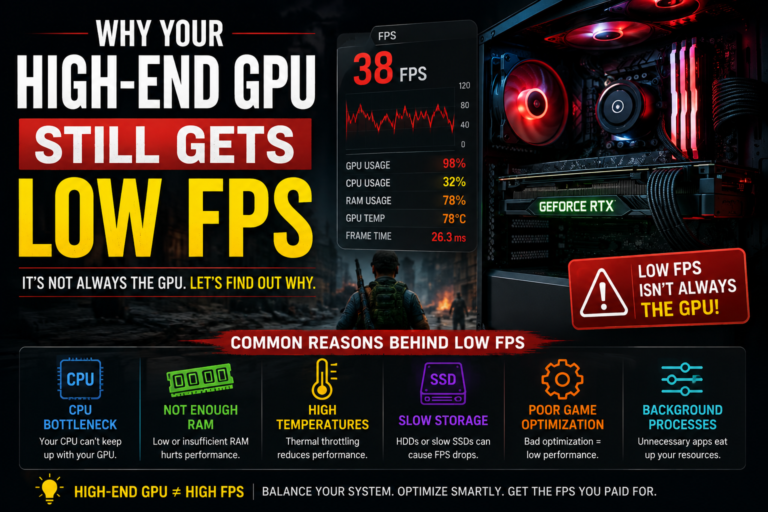
Imagine an FPS calculator predicts a very high frame rate for your gaming setup, but your real, everyday experience ends up noticeably lower. In many of these cases, the true cause turns out to be a hidden processor limitation combined with unnecessary background programs running at the same time.
Imagine a bottleneck calculator suggests your system is perfectly balanced, yet you still experience real, noticeable lag while editing video. In many of these cases, the true cause turns out to be a slower storage drive quietly limiting your overall responsiveness.
Imagine a genuinely high-end gaming build that still shows no obvious warnings from either calculator, yet you notice your clock speeds dropping during longer play sessions. In many of these cases, the true cause turns out to be overheating-related throttling, something neither calculator was ever able to detect in the first place.
A Simple Framework for Deciding What to Do
Before actually building or upgrading your system, it makes sense to use an FPS calculator to get a rough sense of expected performance, and a bottleneck calculator to check for any obvious, severe hardware mismatches.
Once your system is actually built and running, it makes far more sense to rely on genuine monitoring software instead. A simple, easy rule to remember is this: use calculators to help you plan ahead, but use real, hands-on testing to actually diagnose and confirm what is truly happening.
Weighing the Strengths and Weaknesses of Each Tool
FPS calculators are simple and quick to use, and they offer genuinely helpful early guidance before making a purchase. However, they do not reflect true, real-world conditions, offer no real diagnostic value, and completely ignore thermal-related issues.
Bottleneck calculators are helpful for basic pairing logic, help prevent severely mismatched builds, and support smarter, more budget-friendly decisions. However, their percentage results can be genuinely misleading, they tend to oversimplify a much more complex reality, and they cannot detect hidden, real-world issues happening inside your actual system.
Common Mistakes Worth Avoiding
A few common mistakes tend to trip people up again and again. These include blindly trusting a calculator’s percentage as if it were an exact, guaranteed fact, ignoring your actual operating temperatures entirely, ignoring how your memory is actually configured, automatically upgrading your graphics card first every single time without checking for other possible causes, relying only on synthetic benchmark scores, and never actually measuring your real-world frame timing consistency.
Best Practices Worth Following
Use online calculators strictly for early, general planning purposes. Always follow up by validating your results using genuine, hands-on monitoring software. Make sure any helpful memory speed settings are properly enabled. Keep your system drivers fully updated. Try to keep your processor and graphics card reasonably matched in overall performance tier. Always stress test a brand-new build before relying on it daily. And keep a close eye on your clock speeds and temperatures over time.
Final Thoughts
When comparing an FPS calculator vs bottleneck calculator, both tools genuinely have real value, but only when you understand exactly what each one is actually designed to do. FPS tools are genuinely helpful for estimating rough performance before you buy anything, while bottleneck tools help you check whether your processor, your graphics card, and your memory are reasonably well matched together. Both are planning tools at heart, not true diagnostic ones.
For real, trustworthy results, nothing truly replaces monitoring your own system while it runs your actual, everyday workloads. Tools that track your real usage, your temperatures, your clock speeds, and your frame timing reveal the true, honest limits of your specific computer. Use calculators to help you plan ahead, use real testing to confirm what is actually happening, and you will consistently make smarter decisions, avoid unnecessary spending, and finally get the real performance you actually paid for.