PC Bottleneck Calculator Explained: How Accurate Are They?
PC bottleneck calculator accuracy is a question more people are asking, especially before spending money on a new part. You type in your processor and graphics card, click a button, and instantly get a percentage. It feels official, almost like a real test result. But how much can you actually trust that number?
Many people treat this percentage as a final answer. They use it to plan a whole new build, decide on an upgrade, or explain away a performance problem. But real computer performance is much more complicated than a single number can ever show. It changes based on the game you play, your settings, your screen resolution, and even how hot your system gets.
In this guide, we will explain what these calculators actually do, how accurate they really are, and how you can check your own computer’s true performance without relying on just one number. We will keep everything simple and easy to follow.
What Is a PC Bottleneck Calculator?
A PC bottleneck calculator is an online tool designed to give you a quick estimate. You usually type in your processor and your graphics card, and sometimes your memory or intended screen resolution as well.
Based on this information, the tool gives you a prediction. It usually shows a percentage, tells you whether your system leans more toward a processor limit or a graphics card limit, and sometimes offers a basic upgrade suggestion.
It is important to understand what these tools are actually built for. They are made for quick, early planning, not for testing your real, in-the-moment computer performance.
How Do These Calculators Actually Work?
These tools do not test your actual computer while you use it. Instead, they rely on stored information from large databases of hardware performance scores, general gaming assumptions, and built-in mathematical formulas.
The calculator compares the general strength of your chosen processor against your chosen graphics card, based on this stored data, and then predicts which part is more likely to reach its limit first.
Because of this method, there are several important things these tools simply cannot see. They cannot see the specific games you actually play, your personal settings, any background programs running on your computer, how well your system is cooled, any power limitations, or the effects of a recent driver or game update.
This is exactly why these calculators can only ever offer an estimate of balance, not a true measurement of real-world performance.
So, Are These Calculators Actually Accurate?
The honest answer is that they are only partly accurate.
They tend to do a reasonably good job at spotting extremely mismatched hardware combinations, offering helpful early guidance when planning a brand-new build, and giving you a rough sense of which upgrade direction might make sense.
However, they are not well suited for predicting your exact frame rate in a specific game, identifying issues that only happen in certain scenes or moments, diagnosing actual stuttering problems, or measuring the true real-world impact of a potential upgrade.
A helpful way to think about this is to compare it to a basic health calculator that estimates a general health category based on your height and weight. It can give you a rough general idea, but it cannot replace an actual, detailed medical checkup.
What Real Accuracy Actually Means for These Tools
True accuracy for a bottleneck calculator does not mean the exact number it shows you is perfectly correct. Instead, it means something a little different.
A genuinely useful calculator should point you in a reasonably correct general direction, help you avoid choosing hardware that is severely mismatched, and roughly align with patterns seen in common, real-world performance testing.
A calculator becomes far less reliable when it presents only one single, fixed percentage as if it were a guaranteed fact, when it ignores important real-world variables entirely, or when it promises a very specific, exact outcome for your unique system.
The Built-In Limits of These Calculators
There are several things that bottleneck calculators simply cannot detect, no matter how well they are built.
They cannot detect when specific parts of your processor become individually overloaded, even while your overall usage number looks moderate. They cannot detect when your hardware slows itself down due to rising heat. They also cannot account for power restrictions, which are especially common in laptops, or the unique way certain game engines are built and optimized.
They are equally unable to detect memory or storage-related slowdowns, or the impact of background programs running quietly on your specific computer. On top of this, they cannot adjust for brand-new game updates, fresh driver improvements, or newly discovered hardware behaviors.
This is exactly why two people with the very same processor and graphics card can sometimes experience noticeably different real-world performance.
Why a Single Percentage Can Be Misleading
A single fixed percentage simply cannot capture the full, changing reality of how a computer actually performs.
Your true bottleneck can shift based on the specific game engine being used, how complex a particular scene is, your chosen screen resolution, your graphics settings, your target frame rate, and even how your processor manages its own boosting behavior over time.
It is entirely possible for the very same computer to lean toward a processor limit while playing a fast, competitive game, and lean toward a graphics card limit while playing a large, visually detailed game instead.
Because of this constant shifting, it is much more accurate to think of your bottleneck as a changing range, rather than one single, fixed number that applies to everything you do.
The Biggest Factors That Shift Your Real Bottleneck
A few key factors have the biggest influence on where your true bottleneck actually falls at any given moment.
The type of game matters a great deal, since some games place heavier demand on your processor, others lean more heavily on your graphics card, and some place significant demand on both at the same time.
Your resolution and graphics settings matter too, since lowering your resolution tends to shift more of the workload toward your processor, while raising your resolution shifts more of the workload toward your graphics card.
Your target frame rate also plays a role, since aiming for a very high frame rate tends to increase the demand placed on your processor, while a lower target frame rate can sometimes hide processor limits that would otherwise be more noticeable.
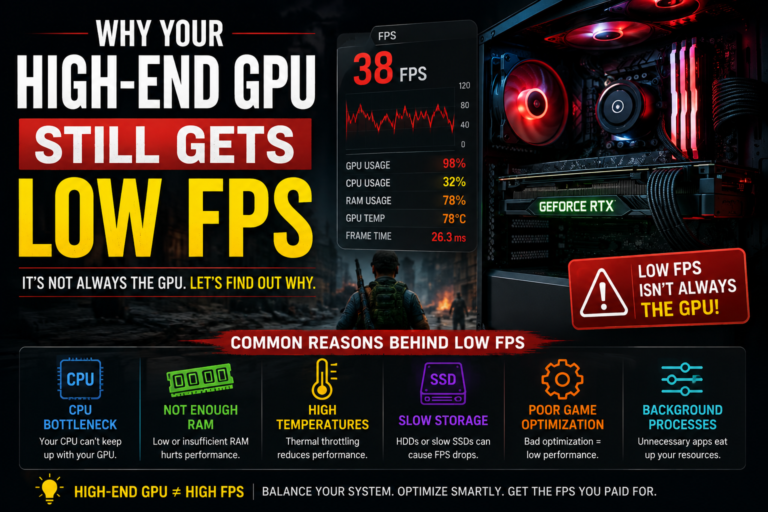
Finally, your overall system behavior matters as well, since rising temperatures, background programs, and memory limitations can all create effects that closely resemble a true hardware bottleneck, even when your actual hardware is perfectly capable.
When These Calculators Are Genuinely Useful
Despite their limitations, these tools absolutely have a real, practical place in the planning process.
They are genuinely useful when you are planning a brand-new computer build, trying to avoid an extremely mismatched combination of parts, comparing a couple of possible upgrade directions, or simply looking for some early, general guidance before diving deeper.
They become far less useful when you are trying to diagnose a specific stuttering problem, searching for your computer’s true, real-world performance limit, measuring the exact impact a specific upgrade might have, or troubleshooting a more complex, unusual performance issue.
The healthiest way to use these tools is to treat them as an early filter, not as a final, guaranteed verdict on your system.
How to Properly Check Your Own Computer’s Real Performance
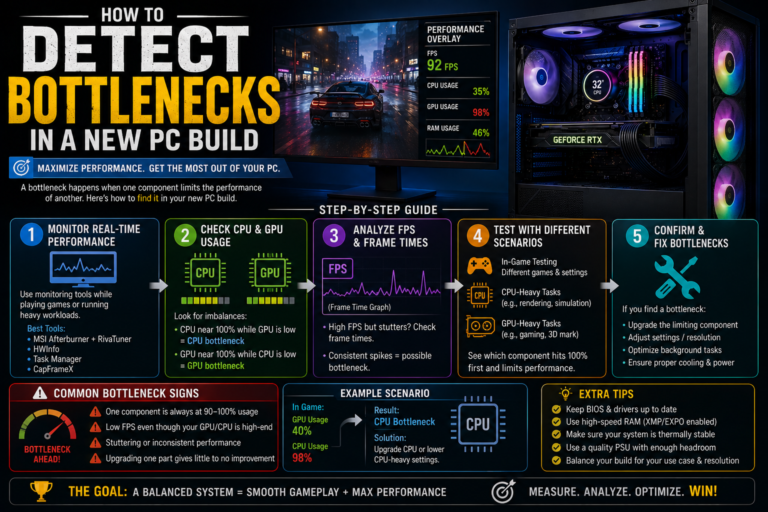
If you want a much more accurate picture than a calculator alone can offer, you can test your own system directly using a few simple steps.
Step One: Choose a Repeatable Test
Pick a specific game level, area, or built-in benchmark that you can run in the exact same way each time you test. This consistency is important for getting results you can actually trust and compare.
Step Two: Watch the Right Numbers
While your test is running, keep an eye on your graphics card usage, your individual processor core usage, your frame rate, and how consistent your frame timing feels overall.
Step Three: Understand What You Are Seeing
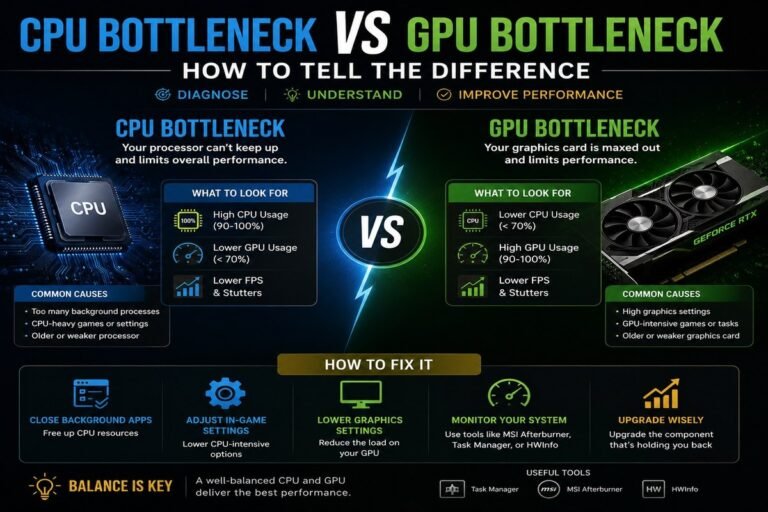
If your graphics card usage drops noticeably below its maximum while one or two specific processor cores spike upward, and lowering your graphics settings does not meaningfully improve your frame rate, this points toward a processor limit.
If your graphics card usage stays very close to its maximum, and your frame rate increases when you lower your resolution, this points toward a graphics card limit instead.
Step Four: Test Again With Changes
Try adjusting your resolution or your graphics settings, one at a time, and watch closely to see which specific part of your system responds the most to each individual change. This kind of direct comparison reveals far more truth than any calculator ever could.
Common Myths Worth Clearing Up
A few common misunderstandings tend to follow this topic around.
Some people believe that having any bottleneck at all is automatically a bad thing, but in reality, every single computer has one, no matter how expensive or powerful it is. Some people believe a perfectly balanced system with zero bottleneck is actually achievable, but this is simply not realistic in any real-world system. Some people believe that seeing 100% processor usage always confirms a processor bottleneck, but the specific behavior of individual processor cores actually matters far more than one overall average number. And some people mistakenly believe that a calculator can fully replace real, hands-on testing, when in reality, these tools simply cannot observe your true, everyday workload.
Why Different Calculators Often Give Different Answers
It is common to try a few different bottleneck calculators and receive noticeably different results from each one. This happens because every single tool relies on its own unique benchmark data, its own internal formulas, its own assumptions about resolution and settings, and its own individual update schedule.
Since there is no single, universally agreed-upon standard model that every calculator follows, some amount of disagreement between different tools is completely normal and expected.
Gaming Performance vs. Everyday Productivity Tasks
It is also worth noting that most bottleneck calculators are built with gaming performance in mind, and gaming performance often depends heavily on your processor’s single-core speed, your graphics card’s overall power, and the specific game engine being used.
Everyday productivity tasks, on the other hand, often depend much more heavily on your processor’s total number of cores, your available memory capacity, your storage speed, and how well a specific program can use multiple cores at once.
Because of this important difference, a computer that feels perfectly balanced for gaming can sometimes struggle noticeably during tasks like video editing or heavy rendering work instead.
The Most Reliable Approach Overall
The most trustworthy method for truly understanding your computer’s performance combines a few different approaches together, rather than relying on just one.
Using a calculator for some quick, early guidance, combined with real, hands-on monitoring of your own system, along with actual repeatable testing, together create a much clearer and more trustworthy overall picture than any single method could provide entirely on its own.
Final Thoughts
When it comes to PC bottleneck calculator accuracy, these tools are genuinely useful guides, but they are not perfect performance-testing tools. They are excellent for quickly spotting an obviously unbalanced hardware combination and offering some early, general planning direction. Where they consistently fall short is in predicting your exact, real-world frame rate or diagnosing specific, unusual performance problems.
If you truly want to understand what is happening inside your own computer, use a bottleneck calculator only as your starting point. Then, follow up with real monitoring and repeatable testing on your actual system. This combined, hands-on approach is exactly how experienced PC builders make smart, informed decisions, and it is the best way to avoid spending money upgrading the wrong part.