Why Your High-End GPU Still Gets Low FPS
A high-end GPU low FPS problem feels backwards, and that is exactly why it is so frustrating. You save up, buy a powerful graphics card, and expect smooth, fast gameplay right away. So when your frame rate still feels low, or your game still stutters, it is easy to assume your new graphics card is somehow broken or not as good as advertised.
Here is the truth that surprises a lot of people: in most cases, the graphics card itself is rarely the actual problem. Instead, something else in the system is quietly holding it back, preventing it from ever reaching its true potential.
In this guide, we will walk through the real reasons a powerful graphics card can still show low frame rates, and how to find and fix the true cause, step by step. We will keep everything simple and easy to follow.
Why “Low FPS” Does Not Always Mean What You Think
Before looking at causes, it helps to understand that low FPS is not always about the raw number you see on screen. Many systems show a decent average frame rate, but the gameplay still feels choppy or uneven.
This happens because smooth gameplay depends on more than just an average number. It depends on how consistent each frame is, one after another. If some frames take much longer to appear than others, the game can feel stuttery, even if the overall average frame rate looks perfectly fine on paper.
This is why understanding your lowest, roughest moments of gameplay often matters more than focusing only on your average frame rate.
The Real Reasons a Powerful GPU Can Still Run Slow
Let’s walk through the most common hidden reasons behind this frustrating problem.
Overheating
Powerful graphics cards and processors naturally produce a lot of heat during heavy use. When temperatures climb too high, the hardware automatically slows itself down to protect itself from damage. This is a safety feature, not a sign that anything is broken.
Common warning signs include your frame rate dropping after several minutes of play, unstable clock speeds, and fans running loudly. Poor airflow inside your computer, dust buildup, or old cooling paste are frequent causes behind this kind of slowdown.
Background Programs Stealing Resources
Modern games need steady, uninterrupted access to your processor and memory. When other programs are running at the same time, they can quietly interrupt this flow.
Web browsers, recording software, lighting control programs, and background system scans can all reduce your frame rate, even on a very powerful computer. These programs often go unnoticed simply because they are not the main thing on your screen.
Outdated or Corrupted Graphics Drivers
Drivers act as the communication link between your games and your graphics card. When these drivers are outdated or damaged, your graphics card may not be used properly, leading to low usage, crashes, or sudden frame rate drops.
This often happens after a driver update goes wrong, or after switching to a new graphics card without fully removing the old driver files first.
The Game Itself Being Poorly Optimized
Sometimes, the real limitation has nothing to do with your hardware at all. Some newly released games, especially large, open-world titles, are simply not built to run smoothly, no matter how powerful your system is.
In these situations, upgrading your hardware further often makes very little difference, since the game’s own programming has become the true limiting factor.
Power Delivery Problems
High-performance graphics cards need a steady, reliable amount of power to perform at their best. A power supply that is too weak, cables that are not connected correctly, or built-in power limits can quietly reduce performance without any obvious warning.
When power delivery is restricted, your graphics card’s speed can drop instantly, causing a sudden and noticeable dip in your frame rate.
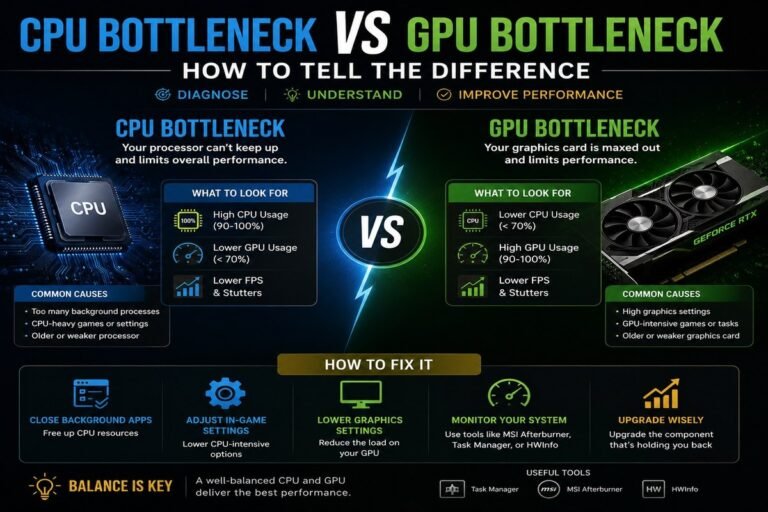
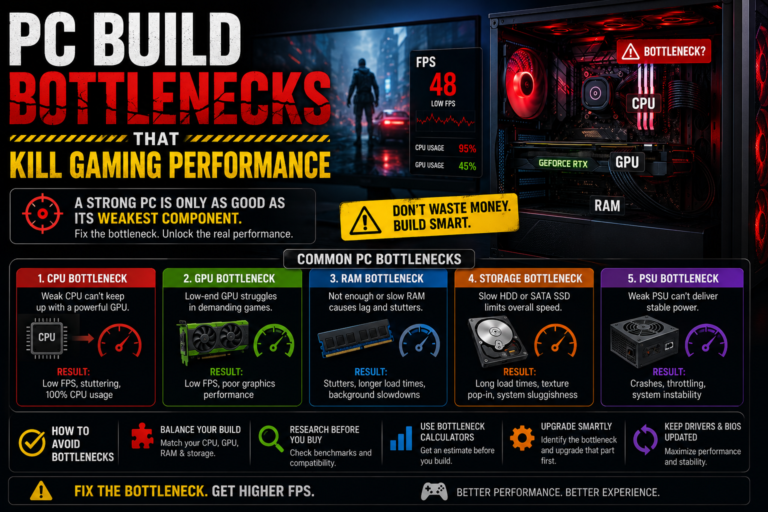
A Processor That Cannot Keep Up
A graphics card cannot work completely on its own. It relies on your processor to prepare information and instructions fast enough to keep it busy.
If your processor cannot keep up, especially in competitive games, simulation-heavy titles, or games that are not built to use multiple processor cores efficiently, your graphics card ends up waiting, even though it has plenty of power left to give.
How to Start Diagnosing the Real Problem
Instead of guessing, you can work through a simple, structured check to find the true cause.
Start by confirming your monitor’s actual refresh rate, since this can sometimes silently limit your frame rate without you realizing it. Next, check for any frame rate caps built into your game or your graphics settings. Then, watch your processor and graphics card usage together during real gameplay.
After that, check your temperatures while playing, since rising heat is a common hidden cause. Confirm your memory speed and configuration, check your storage drive’s free space, make sure your drivers are fully up to date, and finally, close any unnecessary background programs before testing again.
Working through this list in order often reveals the true cause fairly quickly.
A Simple Test to Find Where the Real Limit Is
One especially helpful test is to lower your screen resolution significantly and watch what happens to your frame rate.
If your frame rate increases a lot after lowering the resolution, your graphics card was likely the limiting factor. If your frame rate stays roughly the same, something else, like your processor or a hidden frame rate cap, is likely the true limit instead.
This simple comparison can quickly point you in the right direction before you make any further changes.
How to Fix Low FPS on a Powerful Graphics Card
Once you have a better idea of what is happening, here are the most effective steps to try.
Address Heat Issues First
Keep a close eye on your temperatures during gameplay. Clean out dust, improve airflow around your computer, and consider replacing old cooling paste if your system is several years old. Stable, controlled temperatures allow your hardware to maintain its full performance for much longer.
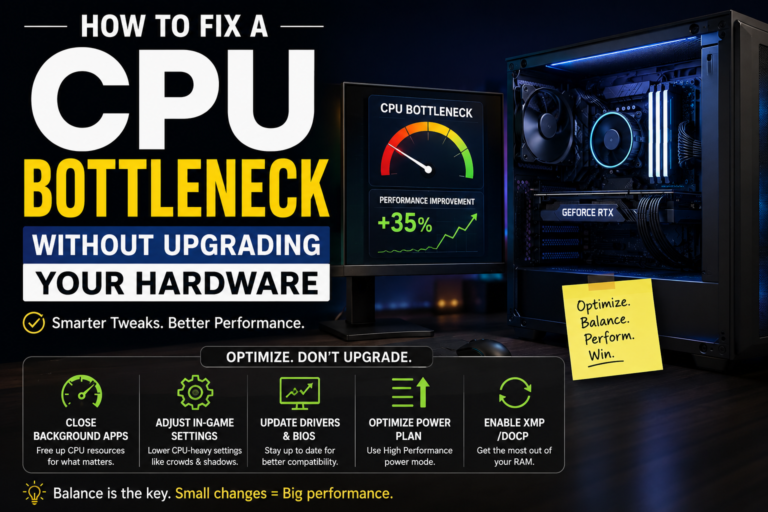
Adjust Your System Settings
Set your computer to a performance-focused power mode rather than a balanced or power-saving one. Turn off unnecessary programs that start automatically with your computer. Keep your system and chipset drivers updated, since outdated software can quietly hold back your performance.
Reinstall Your Graphics Drivers Properly
If your performance issues appeared suddenly, it is often worth fully removing your old graphics drivers and installing a fresh, current version. This also gives you a chance to reset any custom settings back to a clean, default state.
Adjust the Right In-Game Settings
Focus on lowering settings known to have a heavy impact on performance, such as shadow quality, advanced lighting effects, and crowd density. Many modern games also offer built-in performance features that can boost your frame rate while keeping your visuals looking sharp.
Turn Off Overlays and Extra Tools
Screen recording software, chat overlays, and performance monitoring pop-ups can all interrupt smooth frame delivery. Turning these off while gaming can often reduce stutter noticeably.
Confirm Your True Refresh Rate
Double-check that your monitor is actually set to its full refresh rate within your display settings. Also look for any built-in frame limiters, either from your game, your graphics settings, or your monitor itself, since many people are unknowingly capped at a lower number than their hardware could otherwise reach.
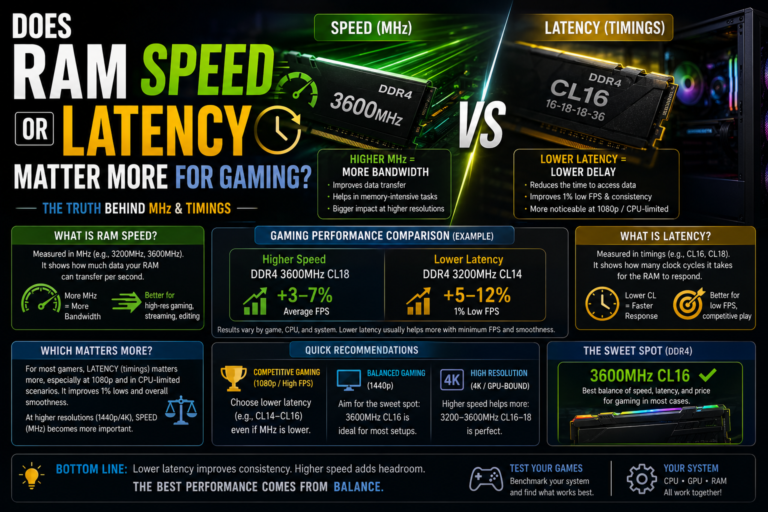
Review Your Memory and System Settings
Confirm that your memory speed setting has been properly enabled, since it is sometimes left off by default. Also check that your memory sticks are installed correctly for proper dual-channel performance, and make sure your system’s basic settings and chipset drivers are fully up to date.
Double-Check Your Physical Setup
Confirm that your graphics card is installed in the correct, main slot on your motherboard. Also check that all necessary power cables are connected properly and securely, since a loose or incorrect connection can silently limit your card’s performance.
When the Game Itself Is the True Problem
Sometimes, after working through every step, the real issue turns out to be the game itself, rather than your system.
Signs of this include seeing nearly identical frame rates whether your settings are on low or on their highest level, frame rate drops that only happen in very specific areas of the game, and widespread reports from other players experiencing the exact same issue. In these cases, waiting for an official update, resetting your game’s settings, or simply avoiding certain broken settings may be the most realistic solution for now.
Putting It All Together
A high-end graphics card can only perform as well as the entire system supporting it. Your processor, memory setup, cooling, drivers, and even the game’s own programming all play a role in your final frame rate.
When even one of these areas falls behind, your graphics card cannot operate at its true full potential, no matter how powerful it is on paper. The right approach is not to guess or assume the worst about your hardware. It is to diagnose the system carefully, one piece at a time.
Final Thoughts
A high-end GPU low FPS problem is almost never really about the graphics card itself being weak or broken. In the vast majority of cases, the true cause is something else entirely, like overheating, background programs, outdated drivers, memory misconfiguration, or a processor that simply cannot keep up.
By working through a careful, step-by-step diagnosis, rather than guessing, most systems can recover a significant amount of lost performance without spending any extra money at all. A truly fast gaming experience is not just about buying powerful parts. It is about making sure your entire system is working together as smoothly as possible.