CPU Bottleneck vs GPU Bottleneck: How to Tell the Difference
CPU bottleneck vs GPU bottleneck is one of the most common questions PC gamers ask when their game does not run as smoothly as expected. Have you ever wondered why your frame rate stays low, even though your graphics card looks powerful on paper? The real answer often comes down to figuring out which part of your computer is truly holding you back.
Many people guess the answer instead of checking it. They assume the graphics card is always the problem, or they assume upgrading the processor will automatically fix everything. This kind of guessing can lead to spending money on the wrong upgrade.
In this guide, we will explain the real difference between a CPU bottleneck and a GPU bottleneck, how to test for each one, and what to do once you know the true cause. We will keep everything simple and easy to follow.
What Is a CPU Bottleneck?
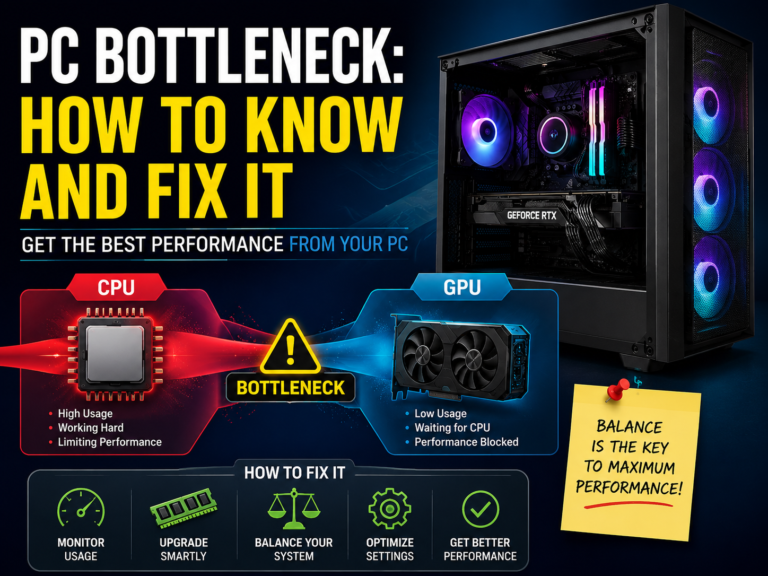
A CPU bottleneck happens when your processor cannot keep up with everything your game or program needs it to do. The processor handles many important background tasks, like game logic, character behavior, and physics calculations.
When the processor reaches its limit, your graphics card ends up waiting for instructions, even though it is fully capable of doing more work. This creates a slowdown that has nothing to do with the actual power of your graphics card.
This type of bottleneck tends to show up more often at lower screen resolutions, since lower resolutions place less demand on the graphics card, which shifts more of the workload onto the processor instead.
What Is a GPU Bottleneck?
A GPU bottleneck happens when your graphics card is working at its full capacity, unable to render frames any faster, even though your processor still has extra capacity available.
This type of bottleneck is very common in visually detailed games, especially when playing at higher resolutions or with demanding visual effects turned on. In fact, a GPU bottleneck is often completely normal and expected, especially in modern, graphically rich games.
Why Telling the Difference Actually Matters
Knowing whether your processor or your graphics card is the true limiting factor changes what kind of fix or upgrade will actually help you.
If you upgrade your graphics card while your processor is the real bottleneck, you may see very little improvement, since your new graphics card will still be stuck waiting for your processor. On the other hand, if you upgrade your processor while your graphics card is already working at its limit, you may not notice much of a difference either.
This is why testing, rather than guessing, is such an important step before spending any money.
The Simple Test to Compare Both
There is a quick, reliable way to compare these two possible bottlenecks using a basic monitoring tool.
Start by playing a game you are familiar with. Open a monitoring tool that shows both your processor usage and your graphics card usage at the same time. Let the game run for several minutes while you watch how these numbers behave.
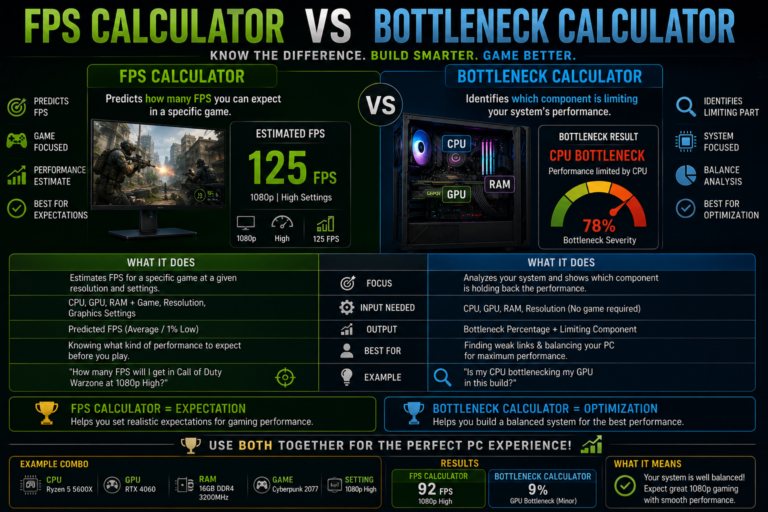
If your processor usage stays very high while your graphics card usage stays noticeably lower, this points toward a processor bottleneck. If your graphics card usage stays very high while your processor usage stays more moderate, this points toward a graphics card bottleneck instead.
Clear Signs You May Have a CPU Bottleneck
There are a few clear patterns that often point toward the processor being the true limiting factor.
Your graphics card usage staying low during gameplay is one of the strongest signs, since it suggests your graphics card is not being given enough work to do. If lowering your screen resolution does not increase your frame rate at all, this also strongly points toward a processor limit, since lowering resolution mainly reduces the workload on your graphics card, not your processor.
Stuttering or uneven gameplay, even when your average frame rate looks acceptable, is another common sign, since processor bottlenecks often affect the smoothness of your gameplay more than the average number itself. And if your processor usage consistently stays near its limit during gameplay, this adds further evidence toward a true processor bottleneck.
Clear Signs You May Have a GPU Bottleneck
There are also clear patterns that point toward the graphics card being the true limiting factor instead.
Your graphics card usage staying very close to its maximum is one of the strongest signs, and this is actually completely normal in many demanding games. If your processor usage stays moderate while your graphics card usage stays very high, this suggests your graphics card is doing most of the heavy lifting.
And if lowering your visual settings quickly increases your frame rate, this strongly confirms that your graphics card was the true limiting factor, since reducing visual quality directly reduces the workload placed on it.
Why Frame Consistency Matters More Than Average Numbers
Many people focus only on their average frame rate number, but this does not always tell the full story.
A number that represents your lowest, roughest moments of gameplay is often far more important than your average number, since it reflects the choppiest, least smooth parts of your experience. A processor bottleneck tends to hurt these rough, low moments more than it hurts your overall average, which is why a game can sometimes feel choppy, even when the average frame rate looks perfectly fine on paper.
This is why simply glancing at one average number is not always enough to understand what is really happening.
How Screen Resolution Changes the Bottleneck
Resolution plays a major role in determining which part of your computer becomes the limiting factor.
At lower resolutions, more of the workload shifts toward the processor, since the graphics card does not need to work as hard to produce each frame. At higher resolutions, more of the workload shifts toward the graphics card instead, since producing each detailed frame becomes a much bigger visual task.
This is exactly why the very same computer can experience a processor bottleneck in one game or setting, and a graphics card bottleneck in a completely different game or setting.
Tools That Help Confirm the Real Cause
A few simple, widely used tools can help you monitor your system with real accuracy.
Basic built-in system tools can give you a quick, general overview of your usage numbers. More detailed monitoring software can show you an on-screen overlay while you actually play, which lets you watch your usage in real time without switching between windows. Some tools also focus specifically on graphics card details, giving you an even clearer picture of exactly how hard your graphics card is working.
These tools are commonly used by experienced PC builders and hardware reviewers, since they remove the guesswork from the diagnosis process.
What to Do Once You Know the True Cause
Once your testing clearly points toward one specific bottleneck, the next steps become much clearer.
If Your Processor Is the Bottleneck
Try closing unnecessary background programs first, since these can quietly use up processing power. Turn off startup programs you do not need running automatically. Lower any game settings known to affect your processor more heavily, such as view distance or crowd density. Keep your system drivers and firmware updated as well, since outdated software can sometimes hold back performance.
If none of these steps make a noticeable difference, a processor upgrade may genuinely be the right next step.
If Your Graphics Card Is the Bottleneck
This type of bottleneck is often easier to manage. Try lowering your resolution or reducing certain visual effects to ease the load. Turning off especially demanding features, like advanced lighting effects, can also help. Many newer graphics cards also offer built-in performance features that can boost your frame rate while keeping visual quality relatively high.
If you want to keep your visual settings at their highest level while still improving performance, upgrading your graphics card becomes the more direct, long-term solution.
Other Parts That Can Affect Your Results
While the processor and graphics card are the two most common causes, a few other parts of your system can also play a role.
Limited or improperly configured memory can cause stuttering, even when your processor and graphics card usage look fairly normal. Slow storage drives can sometimes cause brief freezes or delayed loading, which can be mistaken for a processor or graphics card issue. And outdated system drivers can sometimes reduce performance in ways that have nothing to do with your actual hardware’s true capability.
It is always worth ruling these other factors out before making a final decision about which part to upgrade.
Common Mistakes People Make
A few common mistakes can lead people toward the wrong conclusion or the wrong upgrade.
Assuming high graphics card usage is always a bad sign is a common misunderstanding, since high usage is often completely normal and expected in demanding games. Testing for only a few seconds, rather than watching patterns over several minutes, can also lead to an inaccurate picture. Ignoring your lowest frame rate moments in favor of only looking at your average number can hide a real processor bottleneck. And upgrading a part before confirming the true cause through actual testing often leads to disappointing results and wasted money.
Putting It All Together
Understanding the difference between these two types of bottlenecks really comes down to careful observation. By watching both your processor and graphics card usage together, during real gameplay, you can see clearly which part is truly struggling to keep up.
This kind of testing removes the guesswork completely. Instead of assuming which part is the problem, you gain real, clear evidence that can guide your next decision with actual confidence.
Final Thoughts
Understanding CPU bottleneck vs GPU bottleneck comes down to one simple habit: testing before assuming. A processor bottleneck usually shows up as low graphics card usage alongside a frame rate that does not improve at lower resolutions, while a graphics card bottleneck usually shows up as very high graphics card usage that improves quickly once visual settings are lowered.
By using simple monitoring tools, watching real gameplay patterns, and paying close attention to your lowest frame rate moments, you can confidently identify the true cause of your slowdown. From there, you can choose the right fix, or the right upgrade, instead of guessing and hoping for the best.